

Git connections link your Git accounts to your organization, so sites can deploy from your repositories. Vimonto Deploy supports GitHub, GitLab (gitlab.com), GitLab (self-hosted) and Bitbucket. With a connection you pick a repository and branch from a list when you create a site, and Vimonto Deploy sets up the repository for you: a read-only deploy key so the server can clone it, and a push webhook so every push can start a deployment.
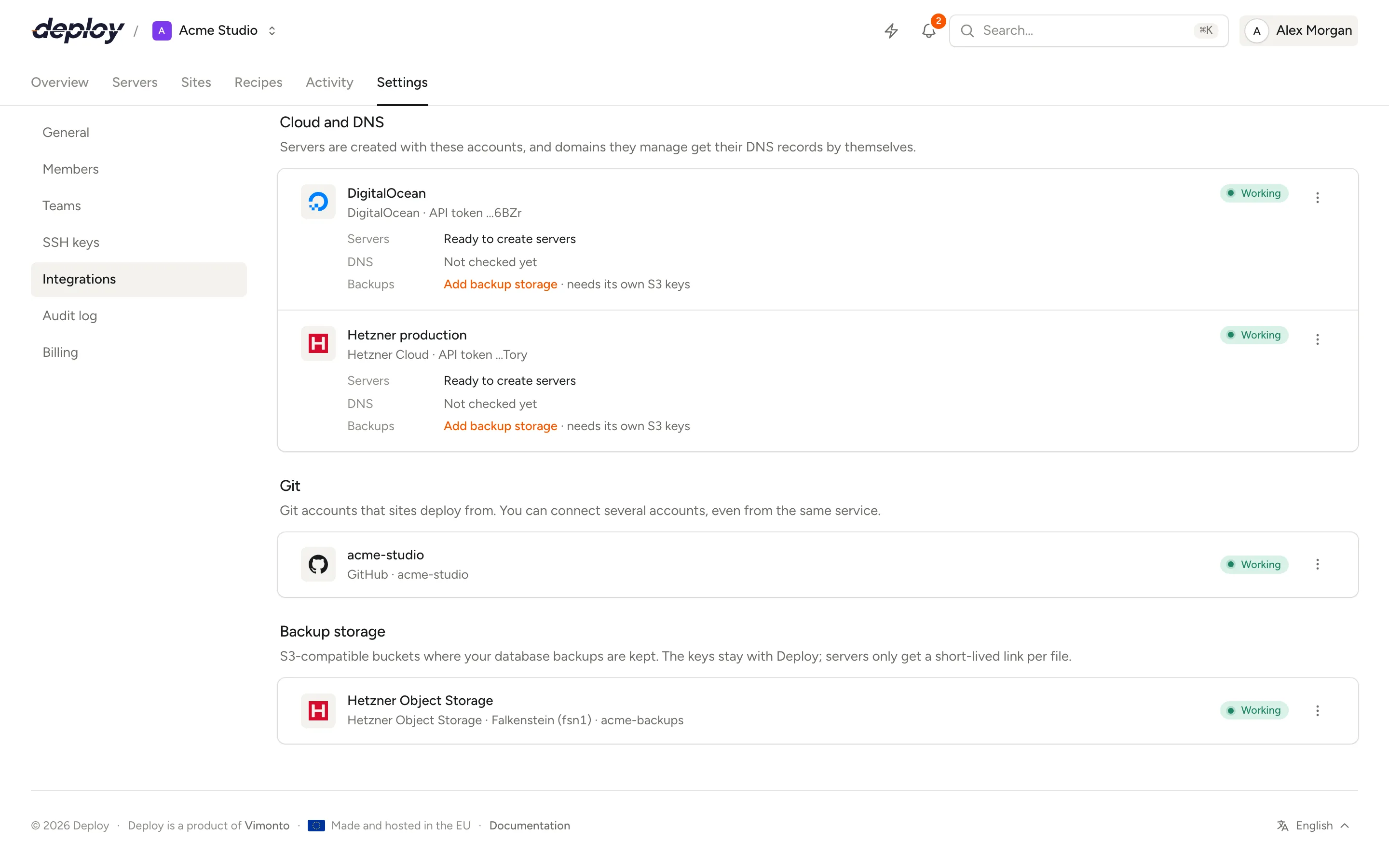
You connect GitHub, GitLab and Bitbucket with OAuth (one click, signing in at the Git host); a self-hosted GitLab with a personal access token. You can connect several accounts, even from the same service. They are in the Git section of Settings → Integrations.
Who can connect a Git account?
Every member can see the connected accounts. Connecting, testing, renaming, reconnecting and disconnecting needs the Owner or Administrator role. Once an account is connected, every member who may manage sites can use it for their sites. Connecting, renaming and disconnecting are recorded in the audit log, without the tokens.
Connect GitHub, GitLab or Bitbucket
- Open Settings → Integrations.
- Under Add an integration, choose Connect on the GitHub, GitLab or Bitbucket card.
- Sign in at the Git host and approve the access.
- You return to Integrations with a message that the account is connected. The connection is named after the service and your username there, for example
GitHub (octocat).
If you connect the same account a second time, Vimonto Deploy updates the existing connection instead of adding a duplicate.
What access does Vimonto Deploy ask for?
| Service | Access requested | Why |
|---|---|---|
| GitHub | repo, admin:repo_hook, read:user, read:org |
Read your repositories (also private ones and those of your GitHub organizations), add deploy keys and push webhooks |
| GitLab | api |
Read your projects, add deploy keys and push webhooks |
| Bitbucket | Account: Read, Repositories: Admin, Webhooks: Read and write | Read your repositories, add deploy keys and push webhooks |
With OAuth, Vimonto Deploy gets access to all repositories the account can see. Want to limit that? Use a Custom Git URL with the site's own deploy key instead, and add that key to the one repository yourself.
Connect a self-hosted GitLab
- In your GitLab, open Preferences → Access tokens → Add new token.
- Choose the
apiscope and an expiry date that fits your policy. - In Vimonto Deploy, choose Connect on the GitLab (self-hosted) card under Add an integration.
- Enter the Address of your GitLab (for example
https://gitlab.company.com) and the Personal access token. - Choose Check and connect.
Vimonto Deploy checks the token right away by asking GitLab who it belongs to. The address must use HTTPS. Your GitLab must be reachable from Vimonto Deploy (for the API) and from your servers (to clone).
Pick a repository for a site
When you create a site, choose the connected account under Source code. Narrow the list with Organization if you like, then choose the Repository and its branch. The list starts with the 100 repositories the account was most recently active in. Type in the search field to search all repositories the account can access at the Git host; what it finds is added to the list. You can also use any repository through a Custom Git URL. You can change a site's repository later on its Deployments page.
What happens when a site uses a connection?
When you create a site with a repository from a connected account, or change a site's repository later, Vimonto Deploy runs a task that links the repository:
- Deploy key. By default each site gets its own SSH key pair (the Own deploy key for … option when you create a site). The public key is added to the repository at the Git host as a read-only deploy key, named after the site's domain and server. The private key is put on the server, so the server can clone and pull but never push.
- Push webhook. Deploy on every push (quick deploy) is on for a repository from a connected account, so Vimonto Deploy adds a webhook to the repository that posts every push to the site's deploy URL. Pushes to the site's branch then start a deploy. Turning quick deploy off on the site's Deployments page removes the webhook again. If the Git host refuses the webhook, quick deploy is turned off and the task says why; the site still deploys when you start it.
- First deploy. For a new site, the first deploy starts as soon as the repository is linked.
- Clean-up. When you switch a site to another repository or connection, or delete the site, the old deploy key and webhook are removed from the Git host. If that fails, for example because the old connection's access has expired, the task says so, and you remove them at the Git host yourself. When you switch, the site then gets a new deploy key, so the new repository doesn't refuse the old one.
Without its own deploy key, a site clones with the server's own key. You find that key under Public key of the server on the server's overview; add it to your Git host yourself.
Token refresh
Some Git hosts give out access tokens that expire after a few hours (GitLab and Bitbucket always, GitHub depending on the app). Vimonto Deploy stores the refresh token and gets a new access token by itself, just before a request needs it. You do not need to reconnect for that.
If refreshing fails, because access was revoked at the Git host or the account was removed, requests fail with a message such as "The connection to GitHub has expired. Connect again." Choose Reconnect in the connection's menu to sign in again; your sites keep using the same connection.
Test, rename and reconnect a connection
Each connection shows Working when its last check succeeded, otherwise Reconnect. In the menu (⋯) next to a connection you can:
- Test connection: asks the Git host which account the token belongs to and shows "Signed in as …".
- Reconnect: signs in again with OAuth and renews the tokens (GitHub, GitLab and Bitbucket).
- Update token: replaces the personal access token of a self-hosted GitLab connection (GitLab (self-hosted) only). The new token must belong to the same GitLab account.
- Rename: changes the name shown in Vimonto Deploy.
- Disconnect: removes the connection.
Disconnect a Git account
Choose Disconnect in the menu and confirm. Disconnecting doesn't stop any site from deploying. What stops is everything that goes through the account: you can no longer pick repositories from it, and Vimonto Deploy can no longer add or remove deploy keys and webhooks for its repositories. Sites that were linked through it keep their repository address, deploy key and webhook, so they still clone and pushes still start deploys; on their Deployments page they now show a Custom Git URL. When you delete such a site, remove its deploy key and webhook at the Git host yourself.
Vimonto Deploy does not revoke its access at the Git host; to do that, also remove the authorized OAuth app (or delete the access token) at GitHub, GitLab or Bitbucket.
Frequently asked questions
Do I need a Git connection to deploy?
No. You can also deploy from a Custom Git URL: SSH (git@…) for private repositories, using the site's deploy key that you add to the repository yourself, or HTTPS for public ones. You then start deploys yourself or from CI with the site's deploy URL. See deployments.
Can Vimonto Deploy push to my repository?
No. Deploy keys are added read-only, so a server can clone and pull but not push.
Does Vimonto Deploy see all my repositories?
With OAuth, it can read every repository the connected account can read; it only changes the repositories you link to a site (a deploy key and, with quick deploy, a webhook). For tighter access, connect a separate Git account with access to only the repositories you deploy, or use a custom Git URL.
Can I use GitHub organizations?
Yes. The repository list includes repositories from your account and from the GitHub organizations you are a member of, as far as the organization allows the OAuth app.
What happens to linked repositories when I transfer a server?
The connections stay with your organization. The sites on a transferred server lose their link to the connection and quick deploy is turned off; they keep deploying from their repository address with their own deploy key. The new organization can link them to one of its own connections on each site's Deployments page.