

The Settings page of a site holds how the site runs on its server: its PHP version, the directory Nginx serves, whether deploys use zero-downtime releases, and whether the site runs in isolation. It also holds the credentials for private Composer and npm packages, where a site's deploy results are sent, and it is where you clone or delete a site.
You find it at the bottom of the site's sidebar under Settings. Some things are set elsewhere: the domain on Domains and SSL, the repository and branch on Deployments, and the directory and monorepo root once, when you create the site.
The page has tabs at the top:
| Tab | What it holds | Shown for |
|---|---|---|
| General | PHP version, web directory or port, zero-downtime deploys, isolation, Clone site and Delete site | Every site |
| Composer | Credentials for private Composer packages | Laravel, Symfony, Statamic and PHP sites |
| npm | Tokens for private npm registries | Sites with a repository |
| Notifications | Failure emails and a deploy hook | Sites with a repository |
WordPress, phpMyAdmin and load-balanced sites have no repository and no build, so they only have the general settings and no tabs.
Where the site lives on the server
Every site has a directory under the home folder of the user it runs as, laid out for zero-downtime deploys:
/home/vimonto/example.com/
├── current -> releases/20261007143000   # the live release
├── releases/                            # one directory per deploy
└── shared/
    ├── .env                             # kept across releases
    └── storage/                         # Laravel's storage, kept across releases
| Setting | Where you set it | Can it change later? |
|---|---|---|
Directory (example.com above) |
When you create the site | No. It stays the same when the domain changes. |
| Root directory, for a monorepo | When you create the site | No. |
| Web directory | Settings | Yes |
| PHP version | Settings | Yes |
| Port of a Node.js app | Settings | Yes |
| Zero-downtime deploys | Settings | Yes |
| Website isolation | When you create the site | No |
| Domain and aliases | Domains and SSL | Yes |
| Repository and branch | Deployments | Yes |
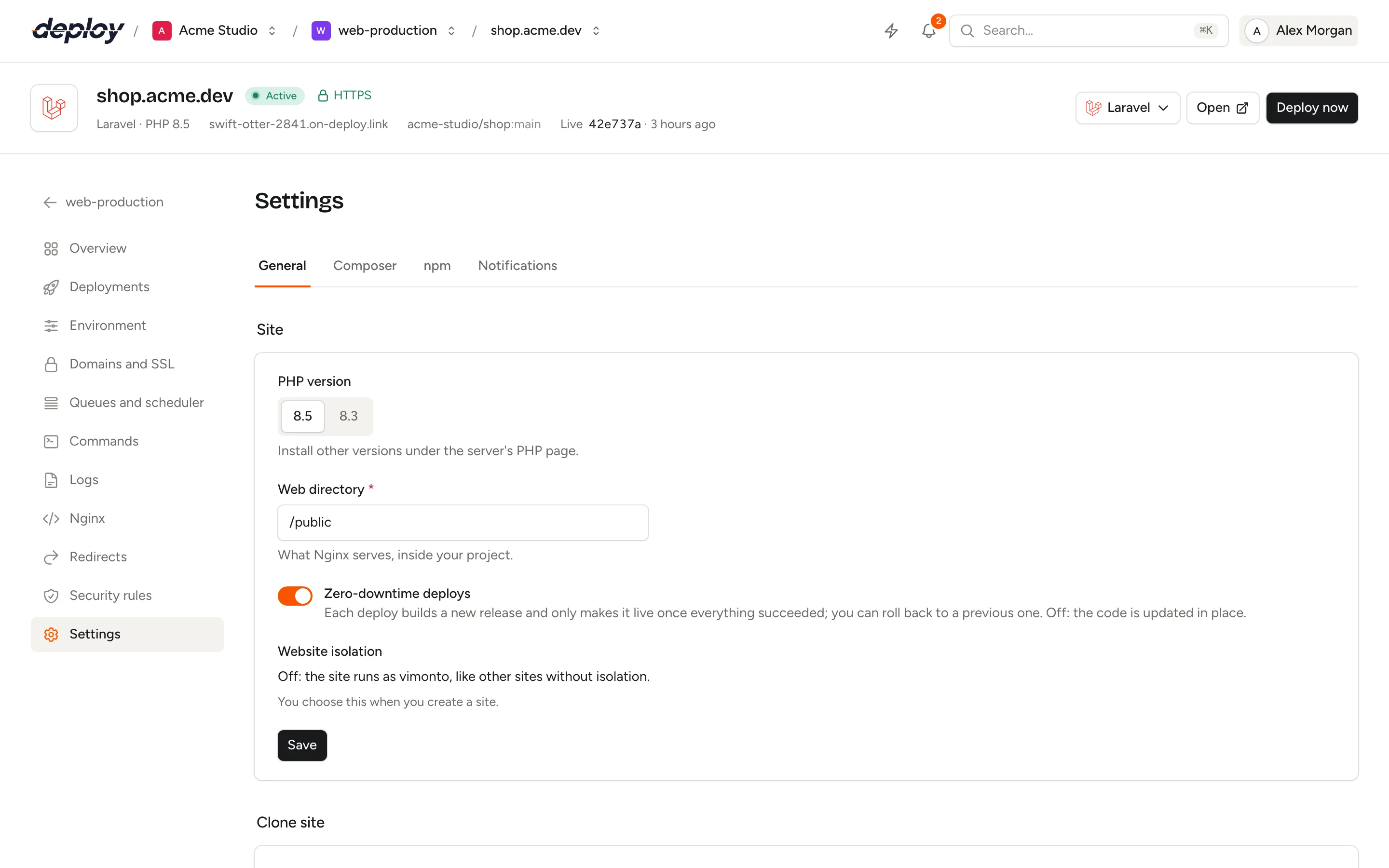
The site's Overview shows the address, directory, web root, HTTPS, repository, branch, quick deploy and the recent deploys at a glance. For a load-balanced site it lists the app servers behind it instead. Below that, the Uptime panel shows whether the site is reachable, with 90 days of history (see uptime monitoring). On the right, Activity lists the latest work on the site, newest first: deploys, certificates, workers, features, commands and other tasks, each with who started it and how it went. Click a line to open the task with its output; Load more shows older ones.
Until the site is fully set up, the overview starts with Next steps, such as connecting a repository or enabling HTTPS. A step you don't need can stay open forever: click Hide to hide the list for this site. That only applies to you.
A site on a load balancer only passes requests on to its app servers, so its Settings page has no PHP version, web directory, zero-downtime deploys or isolation: it says there is nothing to set and links to its Load balancing page, where you manage it. Delete site is there as for every site.
Change the PHP version
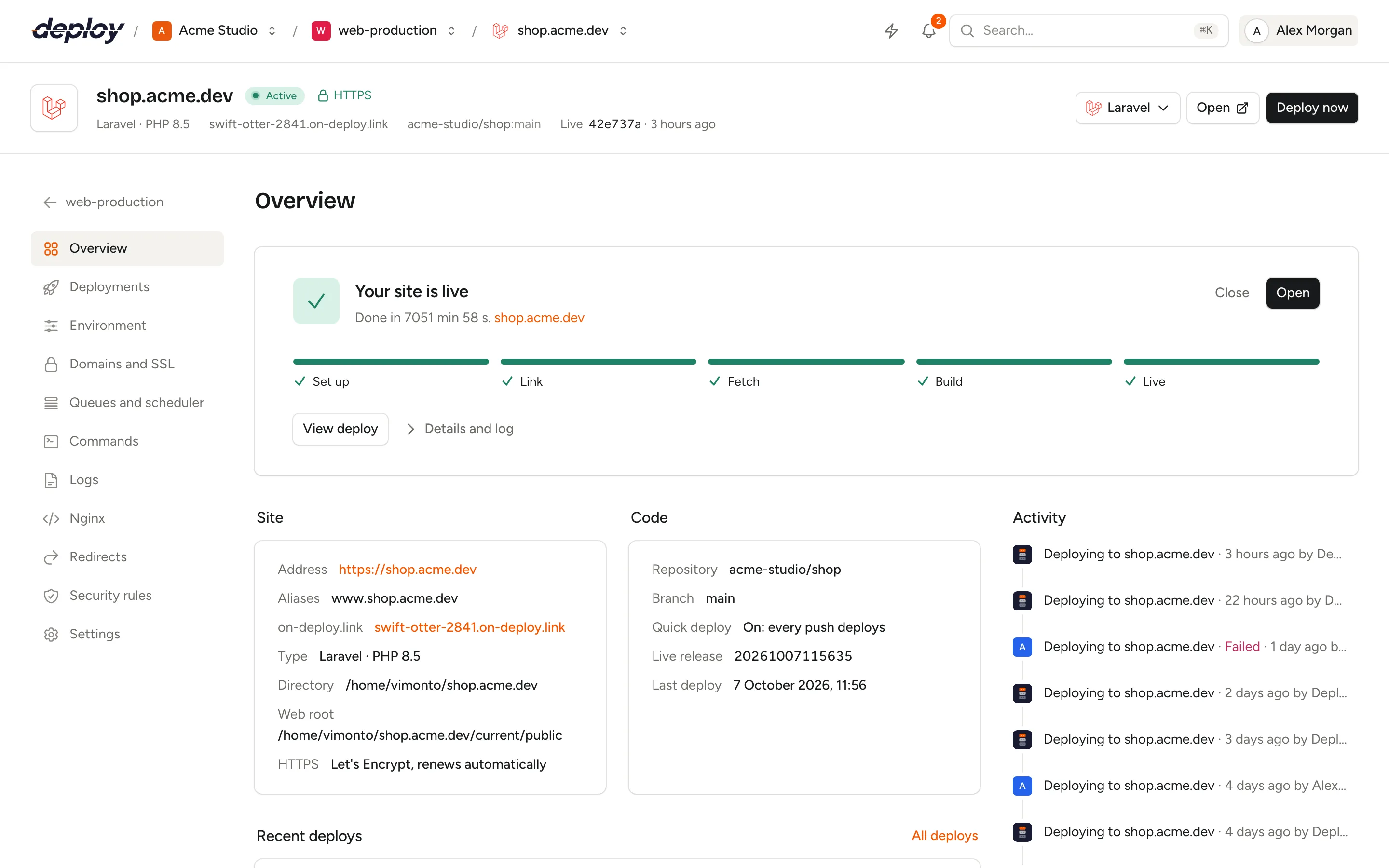
For PHP and Laravel sites, PHP version lists the versions installed on the server. Choose one and click Save.
Vimonto Deploy writes the site's Nginx configuration again so PHP requests go to the PHP-FPM of the new version, and, for an isolated site, moves its PHP-FPM pool to that version. To use a version that is not listed, install it first on the server's PHP page.
Also check that your deploy script does not call a fixed PHP binary such as php8.3.
Change the web directory
The Web directory is the directory Nginx serves, inside your project: /public for Laravel, often /dist or /build for a static site, or / for the project root. It is relative to the release (or to the monorepo root directory, if the site has one). Use letters, numbers, dots, hyphens and underscores, for example /public or /apps/web/public.
Click Save and the Nginx configuration is written again with the new root.
Change the port of a Node.js app
For a Node.js site, Your app's port replaces the web directory. Nginx proxies every request to your app on 127.0.0.1 and this port, between 1024 and 65535. When you save a new port, the process that runs your app (under Processes) moves to it as well and restarts. If you added a start command of your own, change the port in it yourself.
Zero-downtime deploys
With Zero-downtime deploys on (the default), each deploy builds a new release in releases/ and only makes it live once everything succeeded, by switching the current symlink in one step. Visitors never see a half-finished build, a failed build changes nothing, old releases are cleaned up, and you can roll back to a previous release.
With it off, the code is updated in place: every deploy updates and builds the same release, releases/live. That is faster and uses less disk space, but visitors see the build happen, a failed build can leave the live site half updated, and there is nothing to roll back to.
| On | Off | |
|---|---|---|
| Where a deploy builds | A new release directory | releases/live, in place |
| A failed build | Discarded; the live site is unchanged | Stays in the live site |
| Rollback | Yes | No |
| Old releases | Pruned after each deploy | Not applicable |
The change applies from the next deploy. See deployments.
The toggle is not shown for installed applications such as WordPress and phpMyAdmin.
Website isolation
Website isolation shows whether the site runs as its own Linux user. You choose it when you create the site; it cannot be changed afterwards.
| Isolation on | Isolation off | |
|---|---|---|
| Linux user | Its own user, for example shop |
The server's system user (vimonto), shared with other sites |
| Home directory | /home/shop, readable only by that user and its group |
/home/vimonto |
| PHP-FPM | Its own pool, running as the site's user, on /run/php/site-{id}.sock |
The shared pool of the PHP version |
| Deploys, workers, scheduled jobs | Run as the site's user | Run as the system user |
Isolation keeps sites on the same server apart: a vulnerable plugin in one site cannot read the files or .env of another. Nginx can still read the site's files because the system user, which Nginx runs as, is added to the site user's group.
Use isolation when a server hosts sites for different clients, or sites you trust less, such as WordPress.
Composer and npm credentials
To install private packages during a deploy, such as Laravel Nova, Private Packagist or packages on GitHub Packages, the build needs credentials. You manage them on the Composer and npm tabs. They are the same credentials you can enter under Composer authentication and npm authentication when you create the site.
Add Composer credentials
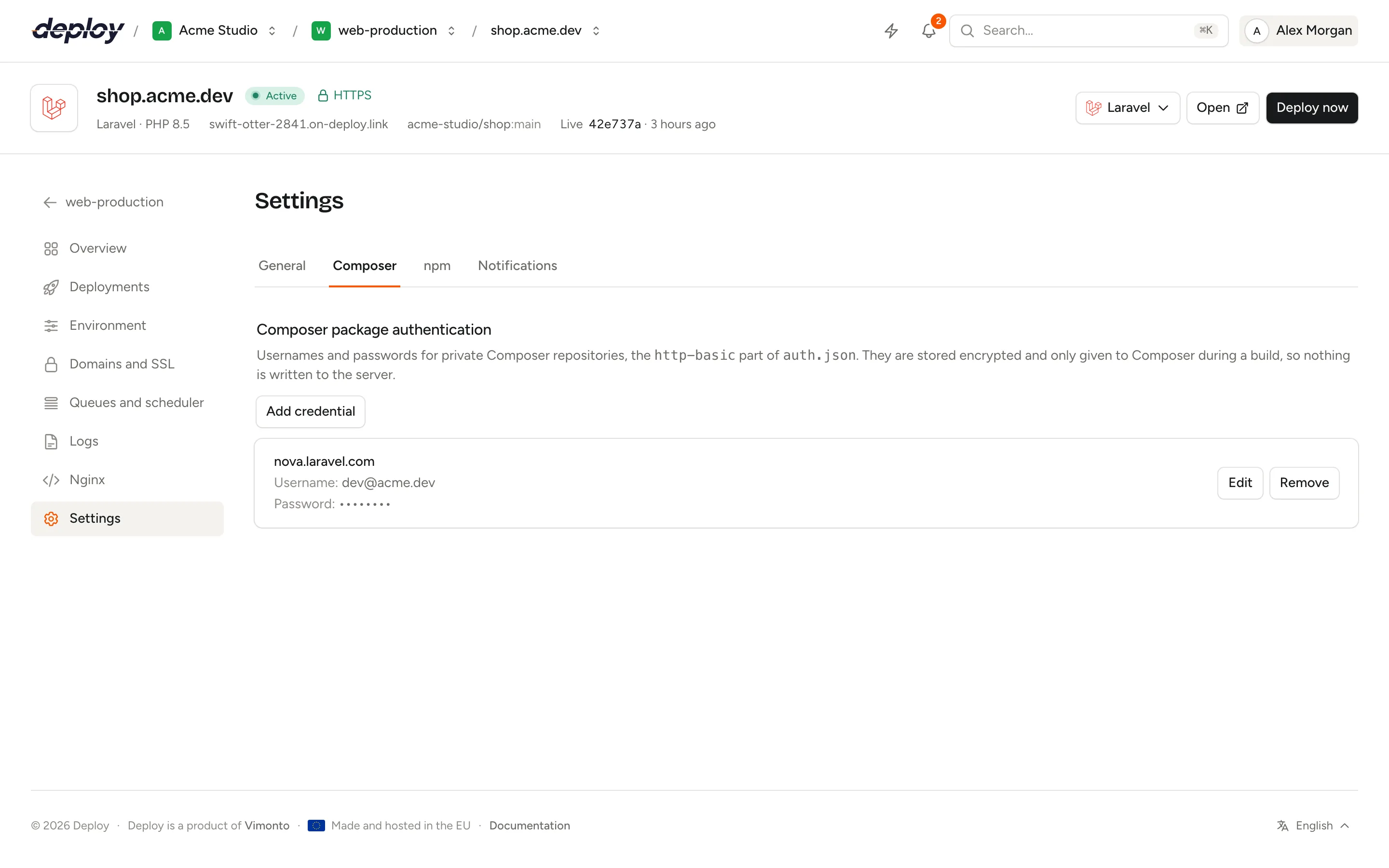
- Open the site's Settings and click the Composer tab (Composer package authentication).
- Click Add credential.
- Fill in the Host (for example
repo.packagist.comornova.laravel.com), the Username and the Password. A token or license key goes in Password too. - Click Save.
These are the http-basic credentials of Composer's auth.json. You can add one entry per host, and at most 10.
Add npm credentials
- Click the npm tab (npm package authentication).
- Click Add credential.
- Fill in the Registry, an
https://address such ashttps://npm.pkg.github.comorhttps://registry.npmjs.org, and the Token. - Click Save.
One entry per registry, at most 10.
Change or remove credentials
The list shows the host or registry (and the username), but never the password or token again: it shows ••••••••. Click Edit to change an entry; leave the password or token empty to keep the saved one. Click Remove and confirm to delete it; the next deploy can then no longer install private packages from there.
How are the credentials used?
The credentials are stored encrypted in Vimonto Deploy and only handed to the build while a deploy runs: Composer gets them through the COMPOSER_AUTH environment variable, and the package manager through a temporary npm user config (NPM_CONFIG_USERCONFIG) that is removed afterwards. Nothing is written to the server, so there is no auth.json or .npmrc in your home directory or release. Changes apply from the next deploy.
The Composer tab is there for Laravel, Symfony, Statamic and PHP sites. The npm tab is there for every site with a repository.
Deploy notifications
Every member already hears about deploys through the bell and their own notification settings. On the Notifications tab you send a site's deploy results to more places: email addresses outside the organization, and your own endpoint.
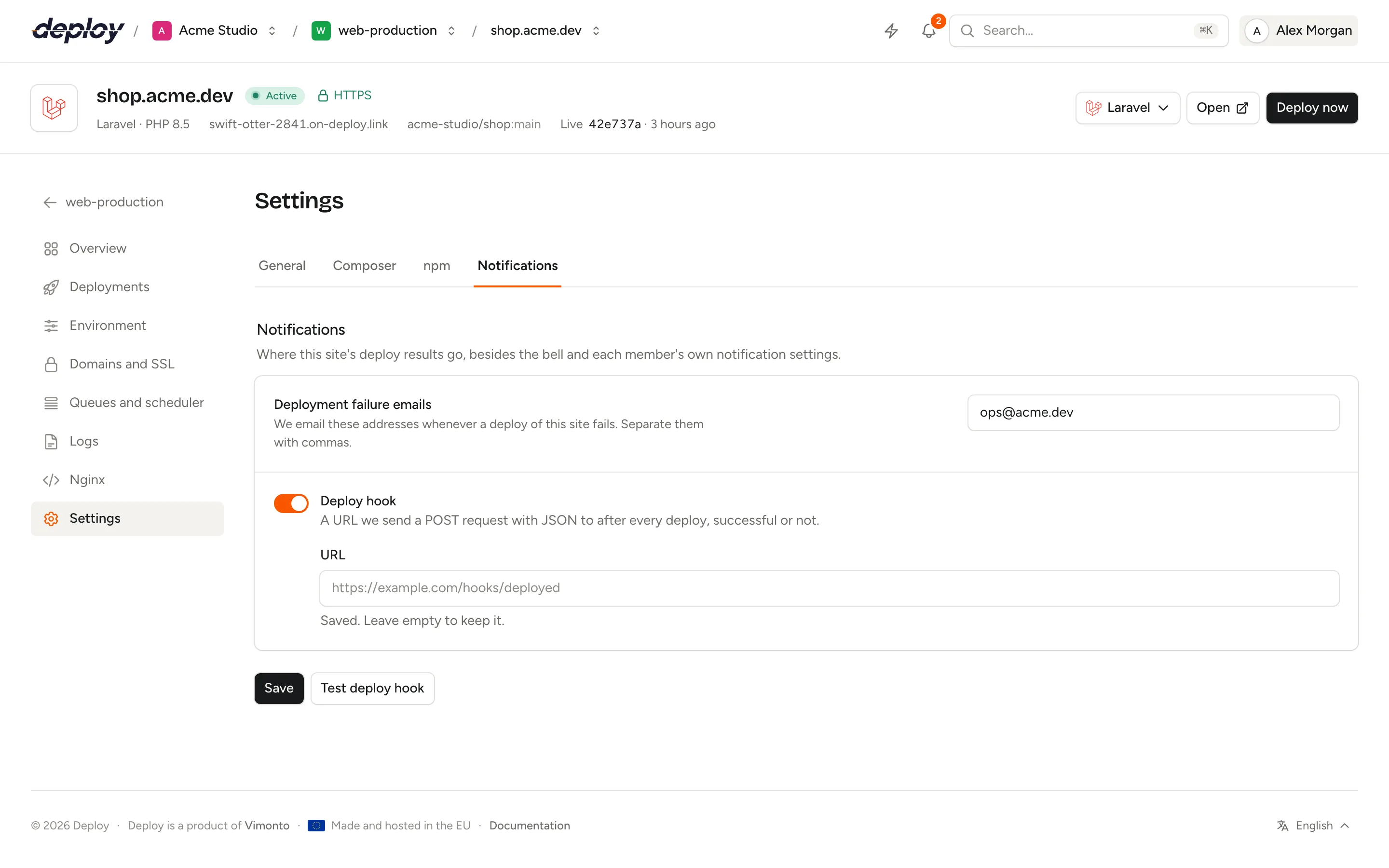
Fill in what you want and click Save. Notifications are sent after the deploy has finished, so a slow endpoint never holds up a deploy. A deploy that is cancelled counts as failed.
Deployment failure emails
Under Deployment failure emails, enter the addresses that should get an email whenever a deploy of this site fails, separated by commas, up to 10. They do not need to be members of the organization. The email names the site, shows the error and links to the deploy. It is written in the language of the person who started the deploy.
Deploy hook
Switch on Deploy hook and enter a URL. After every deploy, successful or failed, Vimonto Deploy sends a POST request with JSON to it. Use it to tell your own systems, a chat bot or an automation tool about deploys. The URL must be HTTPS on the public internet; redirects are not followed, and the request gives up after 10 seconds.
{
    "event": "deployment.succeeded",
    "site": { "id": 12, "domain": "shop.example.com" },
    "server": { "id": 3, "name": "web-1", "ip_address": "203.0.113.10" },
    "deployment": {
        "id": 481,
        "status": "succeeded",
        "branch": "main",
        "commit_hash": "9f2c1e7a4b...",
        "commit_message": "Fix the checkout total",
        "commit_author": "Sanne de Vries",
        "started_at": "2026-10-07T14:30:00+00:00",
        "finished_at": "2026-10-07T14:31:12+00:00",
        "url": "https://deploy.example.com/acme/servers/3/sites/12/deployments/481"
    }
}
event is deployment.succeeded or deployment.failed (with status failed), or test for a test request. Commit fields can be null when they are not known.
The URL is a credential: it is stored encrypted and never shown again. Once it is saved, the field is empty with the hint "Saved. Leave empty to keep it." Leave it empty to keep it, or type a new URL to replace it. Switch Deploy hook off and save to remove it.
Test the deploy hook
Once a deploy hook is saved, click Test deploy hook next to Save. Vimonto Deploy sends the payload of the site's latest deploy with event set to test. You see Test sent when your endpoint answered with a success status, or The test was not accepted when it did not; then check the URL. You can send six tests a minute per site.
Clone a site
Clone site makes a new site just like this one, on the same server or another one: the same repository, branch, build settings, deploy script, notifications and rules. Use it for a staging copy, a second environment for a client, or to move a site to a new server. The clone is set up and deployed straight away.
- On the General tab, under Clone site, click Clone site.
- Choose the Server. You can choose every active server you have access to, except load balancers.
- Choose the address of the clone:
- an Address on
on-deploy.link, filled in with a generated name you can change (when generated addresses are available); or - click Use a custom domain and enter a Domain, such as
staging.example.com. Point it to the server and turn on HTTPS on the clone's Domains and SSL page afterwards.
- an Address on
- Leave Copy the .env on to give the clone a copy of this site's
.env(shown when the site has one). - Click Clone site.
You are taken to the new site while it is set up, the same way as a new site. Its first deploy starts when the setup is done.
What is copied?
| Copied | Not copied |
|---|---|
| Framework, repository, branch and Git connection | Databases and database users |
| Build settings (Composer, package manager, build command) | Certificates |
| PHP version, if it is installed on the target server (otherwise the server's default) | Queue workers and processes |
| Web directory and monorepo root directory | Site features |
| Zero-downtime deploys | Files the app stored, such as shared/storage |
| Website isolation, with the same user name (with a number added when the server already has it) | |
| Composer and npm credentials | |
| Deploy script and quick deploy | |
| Deploy notifications | |
| Redirects and security rules | |
| The deploy key, for a repository without a Git connection |
The copied .env
With Copy the .env on, the clone gets this site's .env with its own APP_URL, set to the clone's address. Everything else stays the same, so the clone still uses the same database, mail, cache and other services as the original. Change those on the clone's Environment page if it needs its own, for example a new database for a staging site. In the clone's .env history, this version shows as Copied from another site.
With Copy the .env off, the clone gets a fresh .env, as a new site does.
Clone site is there for sites with a repository; WordPress, phpMyAdmin and load-balanced sites cannot be cloned.
Delete a site
- At the bottom of the Settings page, under Delete site, click Delete site.
- Type the site's domain to confirm and click Delete site.
Deleting runs as a background task and removes from the server:
- the Nginx configuration, its include folder and the site's certificates;
- the site's workers and scheduled jobs;
- the site directory, with all releases, the
.envandshared/storage; - for an isolated site, its PHP-FPM pool and its Linux user and home directory.
Vimonto Deploy also deletes the DNS record of the site's generated address and the DNS records it made at your DNS integrations (the Remove DNS records step), and removes the deploy key and webhook at your Git host. If that clean-up fails, the task output tells you what to remove yourself.
Databases and database users are kept. Delete them on the server's Databases page if you no longer need them.
You cannot delete a site while a task on it, such as a deploy, is still running: you see that the site is still busy. After you confirm, you are taken back to the server's Sites page while the site is removed.
Who can change site settings?
Every member can see the settings, including the credentials and notification tabs (without the saved passwords, tokens and deploy hook URL). Saving changes, adding or removing credentials, sending test messages and deleting a site need the permission to manage sites (owner, administrator, manager and developer). Changes on the General tab also need the site and its server to be active. See members and roles.
Frequently asked questions
How do I change the domain of a site?
On the site's Domains and SSL page. The site's directory on the server does not change with it.
How do I connect a different repository or branch?
On the site's Deployments page.
My site has a custom Nginx configuration. Do these settings still apply?
They are saved, but the site's Nginx configuration is not rewritten: with a custom configuration, you update root, the PHP-FPM socket or the proxy port in it yourself.
Are my Composer and npm credentials stored on the server?
No. They are stored encrypted in Vimonto Deploy and only given to the build while a deploy runs, through COMPOSER_AUTH and a temporary npm config that is removed afterwards. There is no auth.json or .npmrc on the server.
Why didn't my deploy hook get a request?
Click Test deploy hook to see whether your endpoint answers with a success status. Check that the URL is HTTPS, reachable from the internet and does not redirect: redirects are not followed.
Can I switch on isolation for an existing site?
No. Isolation is chosen when the site is created. Create a new, isolated site on the same server and deploy to it. Clone site copies isolation as it is, so a clone of a site without isolation is not isolated either.