

The Backups page of a server makes scheduled backups of its databases. Each backup is a compressed dump (.sql.gz) of one or more databases, uploaded to an S3-compatible bucket that you own. You decide how often a backup runs and how many backups to keep, and you can download or restore any of them from the same page.
The page is available on every server with a database engine (MySQL, MariaDB or PostgreSQL): app servers and database servers.
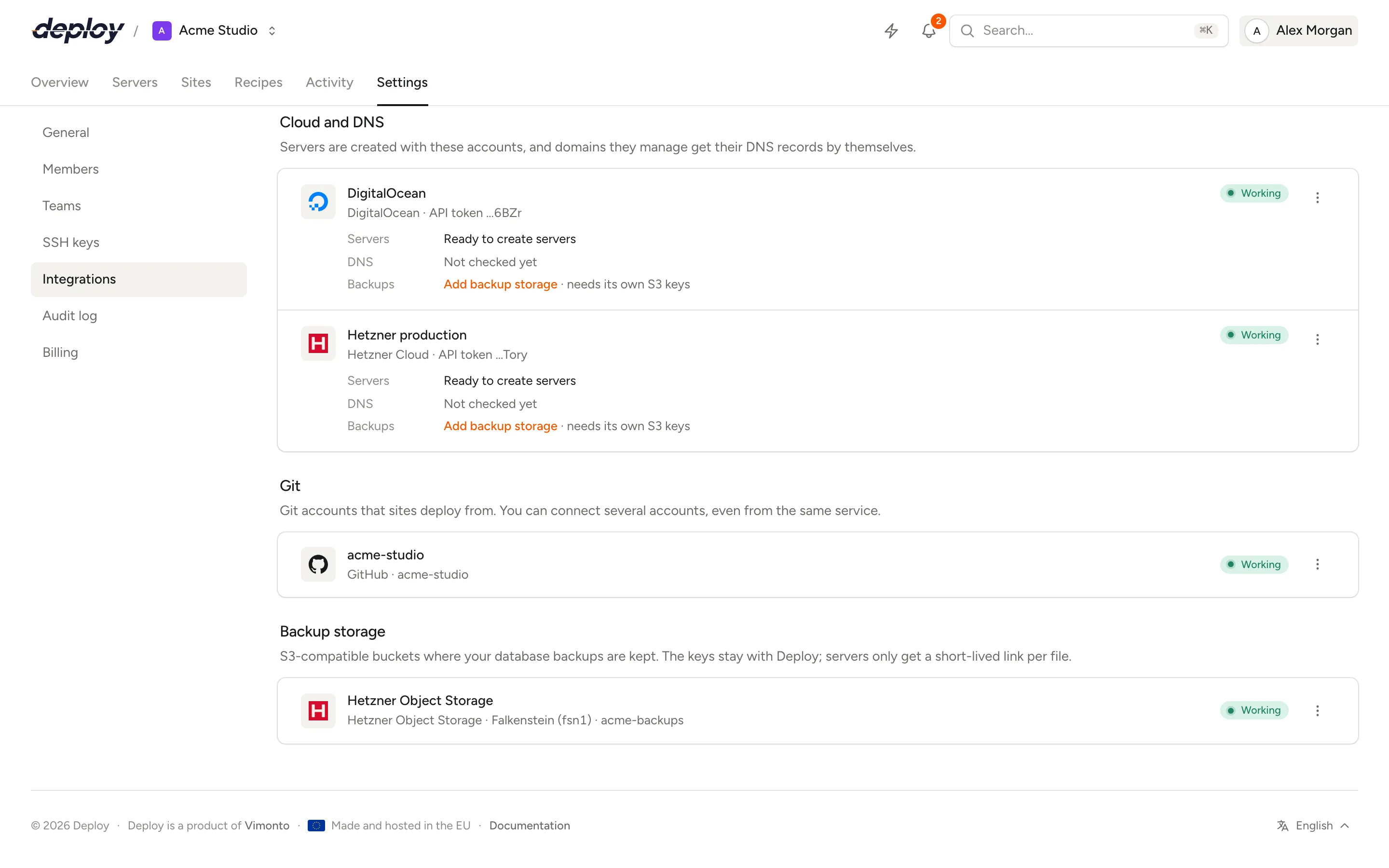
Before you start: add storage
Backups go to object storage of your own, never to Vimonto Deploy. Add backup storage to your organization first under Settings → Integrations (see backup storage). Supported are Amazon S3, DigitalOcean Spaces, Hetzner Object Storage, Scaleway Object Storage, OVHcloud Object Storage, Cloudflare R2 and other S3-compatible storage.
Until there is storage, the page shows Add storage first.
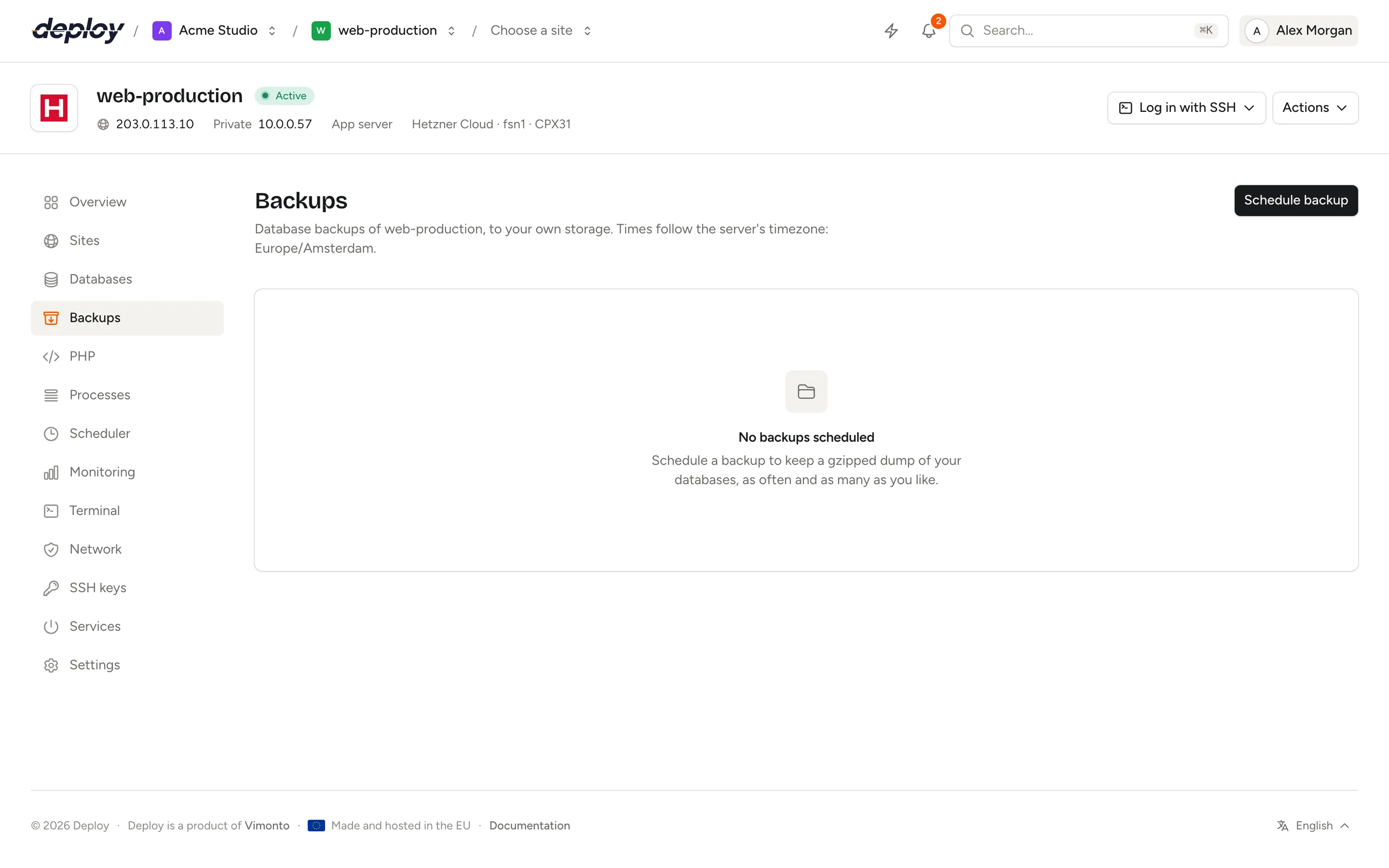
Schedule a backup
- Open the server and choose Backups in the sidebar.
- Click Schedule backup.
- Fill in the form:
| Field | What it means |
|---|---|
| Name | A name for this schedule, such as "Daily backup". |
| Databases | The databases to back up. Choose at least one. |
| Storage | The storage provider the backups go to. |
| When | Hourly, Nightly (at midnight), Weekly (Sunday at midnight), Monthly (the first of the month at midnight) or Custom schedule. |
| Schedule | Only for a custom schedule: a cron expression with five fields, for example 30 3 * * * for every night at 3:30. |
| Keep | How many successful backups to keep, from 1 to 365. |
| Folder in the bucket | Where the files go, such as backups/web-1. Letters, numbers, dots, hyphens and underscores, with / between folders. |
| Email when a backup fails | Optional, and filled in with your own address. This address gets an email when a backup fails; leave it empty for no email. |
- Click Schedule backup.
Schedules follow the server's timezone, which you can change in the server settings. The first backup runs at the next scheduled time; click Back up now to make one straight away.
A server can have several schedules, for example an hourly one that keeps 24 backups and a monthly one that keeps 12.
How a backup works
At the scheduled time, Vimonto Deploy starts a background task that you can follow on the activity page or open from the backup's Output link. For each database it:
- dumps the database on the server:
mysqldump(ormariadb-dump) in a single transaction, including routines, triggers and events, orpg_dumpfor PostgreSQL; - compresses the dump with gzip;
- uploads it straight from the server to your bucket, to
{folder}/{date and time}/{database}.sql.gz.
The server receives only a short-lived upload link for that one file. Your storage keys stay in Vimonto Deploy and are never written to the server.
Each backup in the list shows its time, its total size and its status: Running, Succeeded or Failed. A failed backup shows its error; files that were uploaded before the failure are removed, because a partial backup is of no use. Members who can see the server also get a Backup failed notification, through the channels they chose under notifications.
How many backups are kept?
After every successful backup, Vimonto Deploy keeps the newest successful backups up to the number under Keep, and deletes everything older from your bucket, failed backups included. The page shows the 20 most recent backups of each schedule.
Download a backup
Open the actions menu (⋯) of a successful backup and choose Download followed by the database name. Your browser downloads the .sql.gz file directly from your storage, through a link that is valid for five minutes.
Restore a backup
- Open the actions menu (⋯) of a successful backup and choose Restore followed by the database name.
- Under Into database, choose the database to restore into. The original database is preselected, but you can pick another one, for example to restore into a copy.
- Click Continue, type the name of the target database to confirm and click Restore.
The server downloads the dump and loads it into the target database. Its tables are replaced by those in the backup.
Edit or delete a schedule
Open the actions menu (⋯) of a schedule and choose Edit to change any of its settings, or Delete to remove it. Deleting a schedule stops new backups and removes every backup it made from your storage. You confirm by typing the schedule's name.
To delete a single backup, open its actions menu and choose Delete. A failed backup has a Remove button instead.
Who can manage backups?
Members with permission to manage backups can schedule, run, download, restore and delete them; by default these are owners, admins, managers and developers. Every member who can see the server sees its schedules and the list of backups; when your organization limits members to their teams' servers, that is only the servers of their teams. See members and roles.
Frequently asked questions
Are files or the whole server backed up?
No. Backups contain databases only. Your code lives in your Git repository and is deployed again with each deployment; keep uploaded files in object storage or back them up separately.
What happens if the server is offline at the scheduled time?
Backups only start for active servers. A backup that cannot run is not made up later; the next one runs at its next scheduled time.
Can I restore a backup on another server?
Not from the page: a restore loads into a database on the same server. Download the .sql.gz file and import it on the other server, for example with gunzip -c backup.sql.gz | mysql database_name in the terminal.
Why does a new schedule show no backups?
The first backup runs at the next scheduled time. Click Back up now to make one immediately and check that your storage works.
What happens to backups when a server is transferred?
The backup schedules and the list of backups are removed from the server, because the storage belongs to the old organization; the files themselves stay in that storage. The new owner schedules backups to storage of their own. See transfer a server.