

A cloud account is where Vimonto Deploy creates servers for you, and where it manages the DNS of your domains. You connect Hetzner Cloud, DigitalOcean, Vultr, Akamai (Linode), Amazon Web Services or Google Cloud once per organization, and from then on New server can create a server there with one click: Vimonto Deploy picks up the regions, sizes and prices live from the provider, creates the server on Ubuntu 24.04 and provisions it. The same login manages the DNS of the domains in that account, so a domain you add to a site can point to its server by itself. Cloudflare is for DNS only.
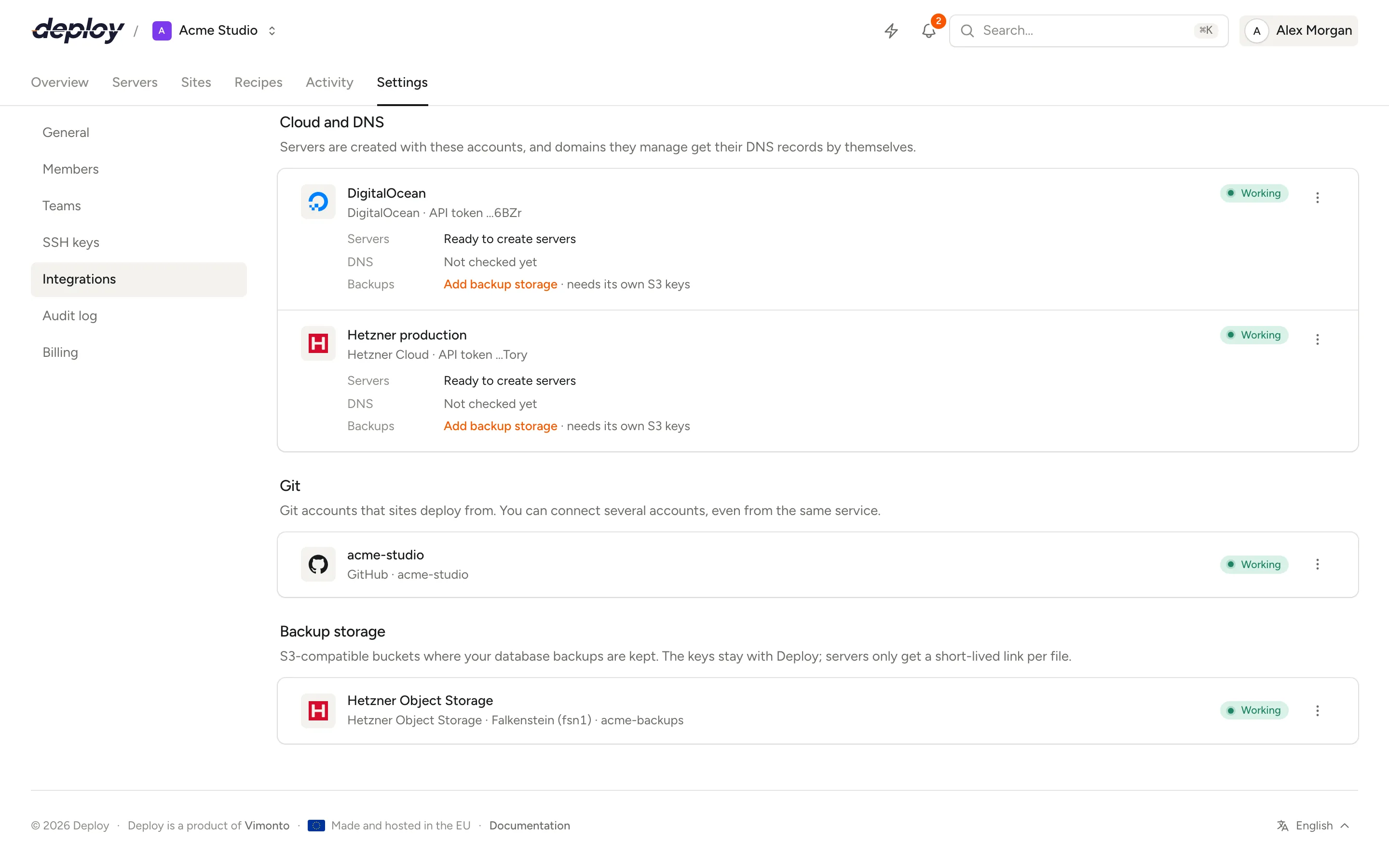
These accounts are in the Cloud and DNS section of Settings → Integrations.
The server itself is billed by the provider, on your own account. Vimonto Deploy charges nothing extra per server. A server you already have somewhere else does not need a provider connection at all: connect it as a custom VPS.
Which providers are supported?
| Provider | How you connect | What one login covers |
|---|---|---|
| Hetzner Cloud | API token | Cloud servers in Germany, Finland, the US and Singapore; DNS |
| DigitalOcean | API token, or OAuth when available | Droplets in Amsterdam, Frankfurt, London and worldwide; DNS |
| Vultr | API key | Cloud compute in many locations, including Amsterdam; DNS |
| Akamai (Linode) | API token, or OAuth when available | Linodes, including in Amsterdam and Frankfurt; DNS |
| Amazon Web Services | Access key (ID and secret) | EC2 instances in every AWS region; DNS in Route 53 |
| Google Cloud | Service account key (JSON) | Compute Engine VMs in every Google Cloud region; Cloud DNS |
| Cloudflare | API token | DNS only |
Every server is created on Ubuntu 24.04 (x64). You can connect several accounts, even from the same provider, for example one Hetzner project per client. A Cloudflare account cannot be chosen in the New server wizard.
Who can connect an account?
Every member of the organization can see the connected accounts. Connecting, editing, testing and disconnecting a provider needs the Owner or Administrator role. See members and roles. Every connection, change and disconnection is recorded in the audit log, without the token.
Connect an account with an API token or key
- Open Settings → Integrations.
- On the provider's card under Add an integration, choose Connect. When the card also offers OAuth, Connect opens a menu: Connect with … signs you in at the provider, Use an API token opens the token form.
- Follow the steps in the window to create a token at the provider. Create a token at … opens the right page of the provider's dashboard.
- Paste the token into API token. For AWS, fill in Access key ID and Secret access key; for Google Cloud, paste the whole JSON file into Service account key (JSON).
- Give the connection a Name you will recognize, for example the project or client.
- Choose Check and connect.
Vimonto Deploy checks the token against the provider's API before saving it, so a typo or a revoked token shows up right away as an error under the field instead of halfway through creating a server. The token is stored encrypted. In the list, a token connection shows the provider and the last characters of its token (for AWS of its access key ID, for Google Cloud the service account's address). Right after connecting, Vimonto Deploy fetches the domains the account manages (see the account card).
Hetzner Cloud: where to find the API token
A Hetzner Cloud token belongs to one project. Servers are created in that project.
- Open your project in the Hetzner Cloud Console.
- Go to Security → API tokens and choose Generate API token.
- Choose Read & Write and copy the token.
DigitalOcean: where to find the API token
- Open API → Tokens in the DigitalOcean dashboard.
- Choose Generate New Token with Full Access.
- Copy the token.
Vultr: where to find the API key
- Open Account → API in the Vultr dashboard and enable the API.
- Under Access Control, add the IP addresses of Vimonto Deploy.
- Copy the API key.
Akamai (Linode): where to find the API token
- Open API Tokens in your Akamai Cloud profile and choose Create a Personal Access Token.
- Give Linodes, IPs, VPCs and Domains read and write permissions, and choose no expiry date.
- Copy the token.
VPCs are what Akamai uses for private networks. With a token without VPC access, New server says so under Private network, and the server can still be created without one. An OAuth connection made before Vimonto Deploy asked for VPCs gets that access when you choose Reconnect.
Without Domains, servers can still be created, but the account shows No DNS access with this login. A token with an expiry date stops working on that date. You then paste a new one with Change name or token.
Amazon Web Services: where to find the access key
Vimonto Deploy uses an access key of an IAM user in your AWS account. Servers are EC2 instances; the domains are your Route 53 hosted zones.
- Open IAM → Users in the AWS console and create a user, without console access.
- Attach the policies AmazonEC2FullAccess and AmazonRoute53FullAccess, and AWSPriceListServiceFullAccess to see prices.
- Under Security credentials, create an access key for Application running outside AWS and copy both parts.
The access key ID starts with AKIA. The secret is shown only once at AWS, so copy it before you close the page. Without AmazonRoute53FullAccess, servers can still be created, but the account shows No DNS access with this login. Without the price list policy, New server shows the sizes without a price.
EC2 works a little differently from the other providers. Vimonto Deploy handles that by itself:
- Regions and sizes. New server lists the regions enabled in your account, European ones first, and a selection of current x86 instance types: burstable (t3), general purpose (m6i), compute-optimized (c6i) and memory-optimized (r6i). The price is the on-demand price of the instance for Linux in that region, per month; the disk (gp3, 25 to 100 GB depending on the size), traffic and the address are billed by AWS on top.
- Network. A server goes into the region's default VPC, or the private network you choose under Existing network. New network creates a VPC with a subnet and an internet gateway. A region without a default VPC gets a VPC named
vimontothe first time. - Firewall. EC2 closes all inbound traffic by default. Vimonto Deploy puts servers in a security group named
vimonto-openthat lets traffic in, and the firewall on the server (ufw), which you manage in Vimonto Deploy, decides what gets through, the same as at every other provider. Rules you add in the AWS console to that group change nothing for ufw. - Fixed address. Once the instance runs, it gets an Elastic IP, so its address does not change when it is stopped and started. Deleting the server in Vimonto Deploy releases the Elastic IP as well. AWS allows five Elastic IPs per region by default; beyond that, the server keeps the address it was given at start.
Google Cloud: where to find the service account key
Vimonto Deploy uses a service account key of one Google Cloud project. Servers are Compute Engine VMs in that project; the domains are its Cloud DNS zones.
- In the Google Cloud console, choose the project and enable the Compute Engine API and the Cloud DNS API.
- Open IAM & Admin → Service Accounts, create one and give it the roles Compute Admin and DNS Administrator.
- Under Keys, add a key of type JSON and open the downloaded file.
Paste the whole file, from { to }, into Service account key (JSON). When an API is not enabled or a role is missing, the error under the field repeats Google's own message, which says what to turn on.
Google Cloud also works a little differently:
- Regions are zones. VMs live in a zone, so New server lists one zone per region, for example Netherlands (europe-west4-a), with a selection of machine types: shared-core (e2-micro, e2-small, e2-medium), general purpose (e2 and n2), compute-optimized (c3) and memory-optimized (n2-highmem). Google has no price per machine type in its API, so the sizes are shown without a price; see Google's pricing calculator.
- Network. A server joins the project's
defaultnetwork, or the private network you choose under Existing network. New network creates a network with a subnet in every region. - Firewall. Like EC2, Google Cloud closes inbound traffic by default. Vimonto Deploy adds one firewall rule per network,
vimonto-open-…, that lets traffic in to VMs with the network tagvimonto, and ufw on the server decides what gets through. - Fixed address. Each server gets a static external address, named after the server with
-ip. Deleting the server in Vimonto Deploy deletes the VM and then the address.
Cloudflare: where to find the API token
- Open My Profile → API Tokens in the Cloudflare dashboard and choose Create Token.
- Start from the Edit zone DNS template, and add Zone → Zone → Read.
- Choose the zones (all, or the ones you use) and copy the token.
The token needs Zone → Zone → Read and Zone → DNS → Edit. It is used for DNS only.
Connect DigitalOcean or Akamai with OAuth
DigitalOcean and Akamai also support signing in with OAuth, so you connect an account with one click instead of pasting a token. When the platform has OAuth set up for a provider, Connect on its card signs you in at the provider, and Use an API token opens the token form:
- Choose Connect on the card.
- Sign in at the provider and approve the access. Vimonto Deploy asks for read and write access (on Akamai: Linodes, IPs, VPCs and Domains).
- You return to Integrations with a message that the account is connected. The connection is named after the provider and your account there.
OAuth tokens expire (DigitalOcean after 30 days, Akamai after two hours). Vimonto Deploy refreshes them by itself before they are used, so you do not need to do anything. If the access was revoked at the provider, choose Reconnect in the connection's menu. You sign in at the provider again, and that connection gets the new access: it keeps its name and its servers, and nothing is added next to it. Connecting the same DigitalOcean account again with Connect also renews its connection instead of adding a second one.
What the account card shows
Each connected account shows its name, the provider and how it is connected, Working or Not working, and what the login is used for:
- Servers: Ready to create servers (not for Cloudflare).
- DNS: how many domains the account manages, with the first few names. Not checked yet means the domains have not been fetched yet. No DNS access with this login. means the token cannot read DNS, with the reason next to it; give the token the DNS permissions described above and choose Refresh domains.
- Backups (Hetzner, DigitalOcean, AWS and Cloudflare): the bucket linked to this account, or Add backup storage. S3 storage needs its own access keys, so this opens the storage form for Hetzner Object Storage, DigitalOcean Spaces, Amazon S3 or Cloudflare R2. See backup storage.
Refresh domains in the menu (⋯) fetches the account's domains again, for example after you added a domain at the provider. Which domains are used for what is explained in domains and SSL.
Check that a connection works
Each connected account shows Working or Not working. To check it again, open the menu (⋯) next to the account and choose Test connection. Vimonto Deploy calls the provider's API and tells you what the provider answered, for example:
- the provider rejects the API token or key (it is wrong or has been revoked);
- the provider doesn't allow this with this token (it needs write permissions);
- the provider is asking to wait because of too many requests.
A connection that is Not working cannot be chosen in the New server wizard until it works again.
The menu also has Refresh domains, Add backup storage (for Hetzner, DigitalOcean, AWS and Cloudflare), Change name or token (for AWS and Google Cloud Change name or key) or Reconnect, and Disconnect.
Change the name or the token
For a token connection, choose Change name or token in the menu. Leave API token empty to keep the current token and only change the name. For AWS and Google Cloud the menu item is Change name or key; leave the secret or the JSON key empty to keep the current key. A new token is checked before it is saved. For an OAuth connection, choose Reconnect instead.
Disconnect an account
Choose Disconnect in the menu and confirm. No more servers can be created on that account, and its domains no longer get DNS records from Vimonto Deploy. Backup storage added to the account stays in the Backup storage list. Nothing changes at the provider itself: servers you created stay where they are and keep working in Vimonto Deploy, because all further work on a server goes over SSH. To stop Vimonto Deploy's access completely, also delete the token or revoke the OAuth app at the provider.
Frequently asked questions
Does Vimonto Deploy charge for the servers I create?
No. The provider bills the server to your own account at its normal price. The New server wizard shows that price, live from the provider, before you create anything. Google Cloud is the exception: its API has no prices, so check them in Google's pricing calculator.
Can I connect two accounts of the same provider?
Yes. Connect as many accounts as you need and give each a clear name. When you create a server you choose which account it goes to.
What permissions does Vimonto Deploy need at the provider?
Read and write access: it creates servers, private networks and DNS records, and reads regions, sizes, prices and your domains. To give a new server its key, Vimonto Deploy adds an SSH key to your account for the moment of creation and removes it right after (Akamai takes the key directly; on AWS and Google Cloud it is passed to the server as cloud-init user data). On Akamai that means read and write for Linodes, IPs, VPCs (for private networks) and Domains; on Hetzner a Read & Write token; on DigitalOcean a Full Access token; on AWS the policies AmazonEC2FullAccess and AmazonRoute53FullAccess (and AWSPriceListServiceFullAccess for prices); on Google Cloud the roles Compute Admin and DNS Administrator; on Cloudflare Zone → Zone → Read and Zone → DNS → Edit.
Which provider should I choose?
Any of them works the same way in Vimonto Deploy. Hetzner Cloud is often the cheapest for servers in Europe; DigitalOcean, Vultr and Akamai have more locations worldwide. AWS and Google Cloud cost more for the same server, but make sense when the rest of your infrastructure (databases, queues, storage) already runs there. Choose the one where your other infrastructure already is, so servers can share a private network.
What happens to the connection when I transfer a server?
A server that you transfer to another organization leaves its provider connection behind: the new organization manages it like a custom VPS. The machine stays in the same provider account, which keeps paying for it.