

The Commands page of a site runs a single command once in the site's live directory, such as php artisan migrate --force, php artisan cache:clear or composer dump-autoload. You don't need a terminal or SSH: you type the command, click Run, and read the output when it is done.
Every command you run stays in a History with its output and status, so you can see what was run, by whom, and run it again.
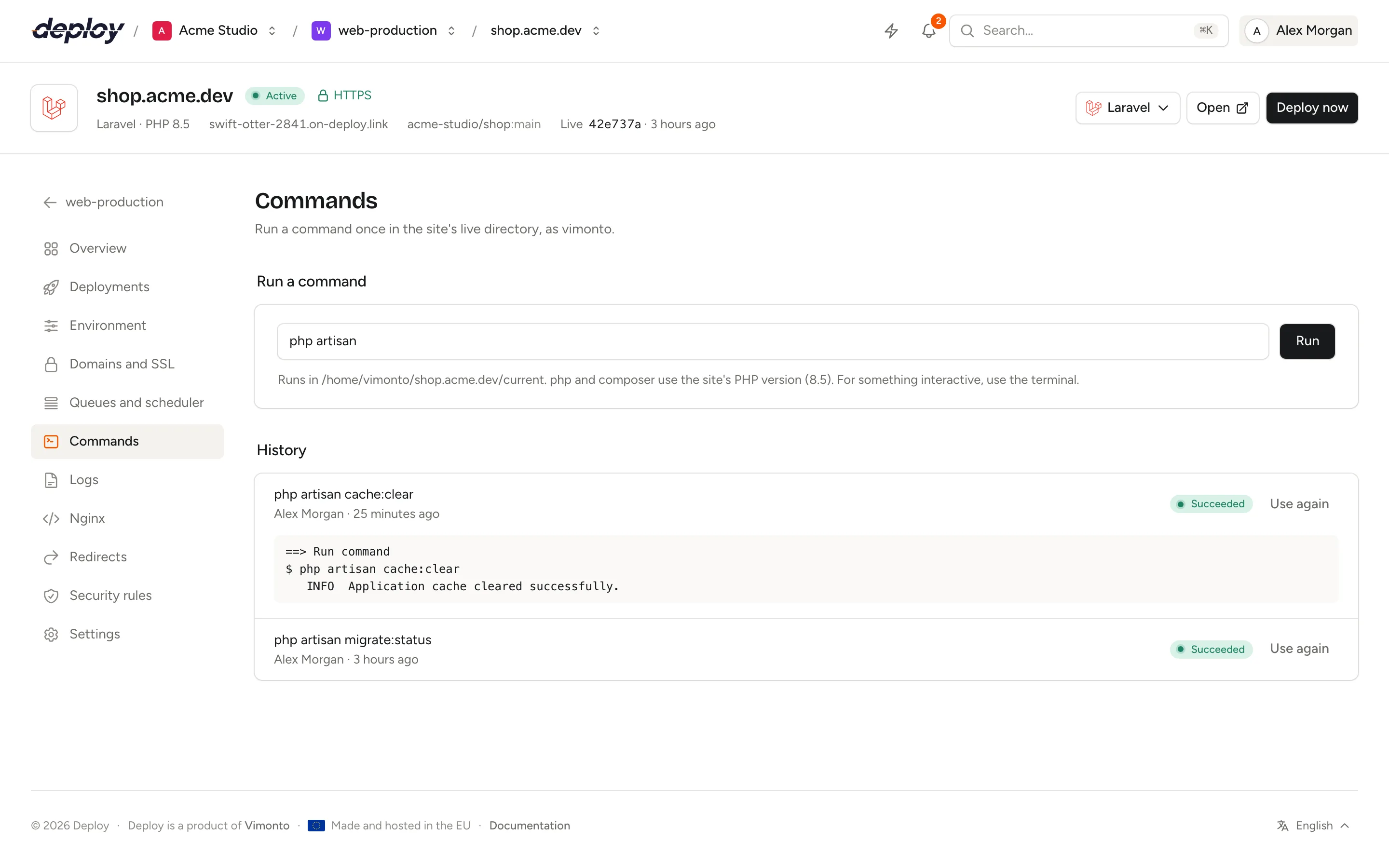
Run a command
- Open the site and click Commands in its sidebar.
- Under Run a command, type the command. For Laravel and Statamic sites the field starts with
php artisan. - Click Run.
The command runs as a background task, and its entry opens in the History below with the output as it comes in. You can leave the page: the command keeps running on the server, and you can follow it on the activity page as well.
Where and how does a command run?
- In the live directory: the release that is live now,
current/in the site's directory, or the monorepo root directory inside it, for example/home/vimonto/shop.example.com/current. The page shows the exact path under the field. A site that has never been deployed has no live directory yet, so the command fails with a message saying so. - As the site's user: the server's system user, or the site's own user for an isolated site. The page's description names the user.
- With the site's PHP version: for PHP sites,
phpandcomposeruse the PHP version set on the site's Settings (the page shows which), sophp artisanuses the same PHP as the site itself. - One line: a command is one line of up to 2,000 characters. To run several, chain them with
&&, for examplephp artisan down && php artisan migrate --force && php artisan up.
A command that exits with an error marks its entry as failed, with the error above the output.
Commands are not interactive: nothing can be typed while they run. A command that asks a question, such as php artisan migrate in production without --force, stops there. Add the flag that answers it, or use the terminal for anything interactive.
Read the output and run a command again
The History lists the latest 50 commands of the site, newest first, with who ran them, when, and their status (Queued, running, finished or failed). Older commands and their output are removed.
- Click a command to show or hide its output.
- Click Use again to put the command back in the field. Check or change it, and click Run.
Who can run commands?
Every member can see the history and the output. Running a command, and Use again, need the permission to manage sites (owner, administrator, manager and developer), and the site and its server must be active. See members and roles.
Every command that is run is recorded in the audit log, with who ran it.
A site on a load balancer has no Commands page: it has no code of its own. Run commands on the sites of its app servers.
Frequently asked questions
How do I run migrations after a deploy?
For every deploy, put $VIMONTO_PHP artisan migrate --force in the deploy script. For a one-off migration, run php artisan migrate --force here.
Can I run a command as root?
No. Commands run as the site's user. For work as root, use the terminal or a recipe.
Can I run something that keeps running, like a queue worker?
Not here: a command is meant to finish. Long-running processes belong under queues and scheduler, where they are kept running and restarted.