

Every server in Vimonto Deploy has an Overview page with its details, how to log in and what was done on it, and a Settings page where you rename it, add tags, update its address and SSH port, set its timezone, or transfer or delete it.
Both pages are in the server's sidebar: Overview at the top and Settings at the bottom.
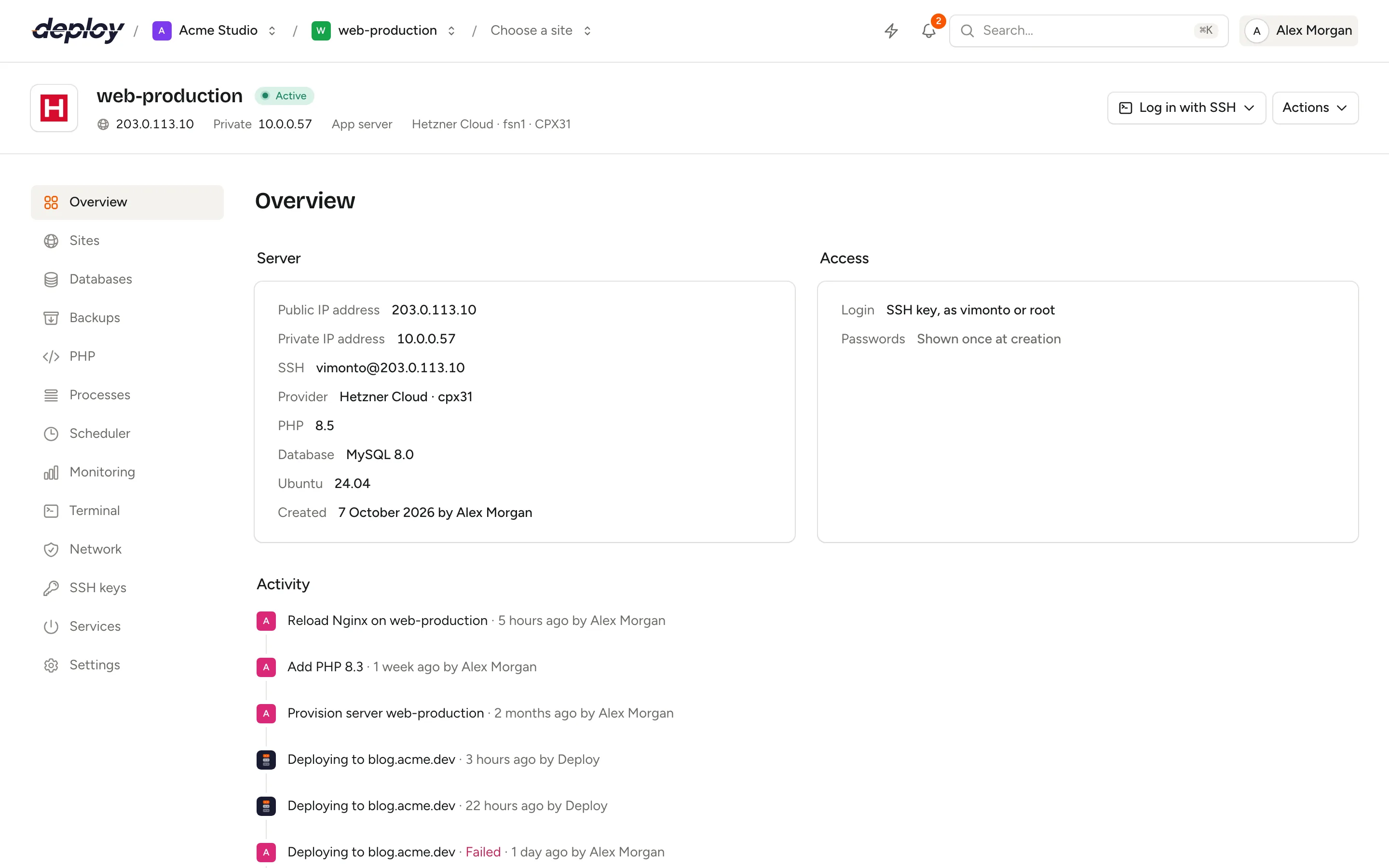
What the server overview shows
While a server is being created or provisioned, the overview shows the progress. For a custom VPS that has not connected yet, it shows the command to run on your server. If provisioning failed, you can click Try again. See provisioning.
Once the server is active (or disconnected), the overview shows two panels and the activity. While a server has failed or is still waiting for its connect command, the overview links to the settings, where you can delete it.
Server
| Field | What it shows |
|---|---|
| Public IP address | The address the server is reachable on. |
| Private IP address | Its address in the provider's private network, if it has one. |
| SSH | The login, for example vimonto@203.0.113.10, with -p and the port if it is not 22. |
| Private network | The private network the server is in, if any. |
| Provider | The cloud provider and size, or custom VPS. |
| PHP | The default PHP version. |
| Database | The database engine and version. |
| Ubuntu | The Ubuntu version. |
| Created | The date, and who created the server. |
Access
- Login: you log in with an SSH key, as the system user or as root. Root has no password on purpose.
- Passwords: the sudo password of the system user and, on servers with a database, the database password (on a Meilisearch server, the Meilisearch master key). They are shown once, see below.
- Public key of the server: add it to your Git provider so the server can clone repositories over SSH.
Activity
The activity timeline lists everything done on this server, newest first: provisioning, databases, firewall rules, service restarts, terminal sessions and more, with who did it and when. Click Load more for older entries. The organization's activity page shows the same for all servers.
Store the server's passwords
When a server is created, Vimonto Deploy generates a sudo password for the system user and a database password. Only the member who created the server sees them, and only once:
- On the overview, the dialog Passwords of server opens by itself. You can open it again with Show once until you confirm.
- Copy each password, or click Download (.txt), and store them in your password manager. A copy is also emailed to you.
- Click I have stored them.
After you confirm, the passwords are deleted from Vimonto Deploy for good. Nobody can retrieve them, not even Vimonto Deploy.
When a server is transferred to you, it gets a new sudo password. The dialog then opens for the member who accepted the transfer, and they get a copy by email. The overview then lists that member as the server's creator. They also get a separate email with what was done and what is still to do. See transfer a server.
Change the server's name, tags, IP address or SSH port
On the Settings page, the Server panel holds:
| Field | Notes |
|---|---|
| Name | Lowercase letters, numbers and hyphens, up to 63 characters, unique in the organization. The name only changes in Vimonto Deploy; the hostname on the server stays the same. |
| Tags | Comma-separated, for example production, client-x. Use them to group servers. |
| Public IP address | Change it when the provider gave the server a new address. Vimonto Deploy connects to this address. |
| SSH port | The port SSH listens on, 22 by default. On an active server, changing it moves SSH on the server too, see below. |
Click Save.
Name, tags, address and port are saved together. If the SSH port is still being moved by an earlier change, nothing is saved: wait until that task has finished and click Save again.
Change the SSH port
When you change the SSH port of an active server and click Save, Vimonto Deploy moves SSH on the server in a background task, without ever locking itself out:
- It opens the new port in the firewall and lets SSH listen on both the old and the new port.
- It connects to the server on the new port.
- Only when that works does it switch to the new port, update the SSH rule on the network page and close the old port. Fail2ban watches the new port from then on.
If Vimonto Deploy cannot connect on the new port, for example because a firewall at your provider blocks it, it puts everything back: SSH stays on the old port, and the task tells you what went wrong. Vimonto Deploy handles both ways Ubuntu can start SSH (ssh.socket, the default on Ubuntu 24.04, and ssh.service).
Already moved SSH to another port yourself? Enter the new port and click Save. When the server no longer answers on the old port but does on the new one, Vimonto Deploy only stores the new port.
For a server that is not active, such as a custom VPS that has not run its command yet or a server whose provisioning failed, the field only changes the port Vimonto Deploy connects to. Nothing changes on the server.
Forget the host key
The first time Vimonto Deploy connects to a server, it stores the server's SSH host key. Every later connection, including the terminal, is refused when the server shows a different key, because that can mean someone is intercepting the traffic.
If you reinstalled the server at the same address, it has a new host key. Click Forget host key at the bottom of the Server panel and confirm. The next connection trusts the key the server shows at that moment.
Set the server's timezone
The timezone decides when scheduled jobs run and which times appear in log files.
- Under Timezone, choose a timezone. You can search, for example for Amsterdam.
- Click Apply.
Vimonto Deploy runs timedatectl set-timezone on the server as a background task. The server must be active.
Transfer a server to someone else
Under Danger zone at the bottom of the Settings page, Transfer server gives the server, with its sites and databases, to another Vimonto Deploy user:
- Click Transfer server.
- Enter the Email address of the new owner and click Send transfer.
They get an email and accept the server into one of their organizations. Until then nothing changes, and the panel shows to whom the server is offered and until when. The offer is valid for seven days; click Cancel transfer to withdraw it. You can only send a transfer when no task is running on the server. Your provider account, Git connections, backup storage, teams and load balancers stay in your organization.
Once the transfer is accepted, the SSH keys of your organization and its members are removed from the server, and the server gets a new sudo password and every site a new deploy URL.
See transfer a server for what moves and what the new owner does.
Delete a server
Under Danger zone, Delete server removes the server from Vimonto Deploy. What happens to the machine depends on how it was created:
| Server | What happens |
|---|---|
| Created at a cloud provider, with Also delete it at provider switched on (the default) | The server is deleted at the provider, with everything on it, and the provider stops billing for it. |
| Created at a cloud provider, with Also delete it at provider switched off | The server disappears from Vimonto Deploy but keeps running at the provider, which keeps billing for it. You manage it yourself from then on. |
| Custom VPS | The server disappears from Vimonto Deploy. The machine keeps running; shut it down yourself if you no longer use it. |
| Created at a cloud provider that is no longer connected (the connection was removed, or the server was transferred to your organization) | The switch is not shown, because Vimonto Deploy can no longer reach that provider account. The server disappears from Vimonto Deploy, but the machine keeps running and being billed there: delete it in that provider account. |
To delete a server:
- Click Delete server.
- For a server at a cloud provider, leave Also delete it at provider on to delete the machine too, or switch it off to keep it running. The switch only appears when the provider is still connected to the organization.
- Type the server's name to confirm and click Delete server.
The deletion runs as a background task and you return to the server list.
Who can change server settings?
| Action | Roles |
|---|---|
| View the overview and settings | Everyone |
| Change name, tags, IP address, SSH port and timezone; forget the host key | Owner, administrator, manager, developer |
| Transfer or delete a server | Owner, administrator, manager |
| Retry provisioning | Owner, administrator, manager |
See members and roles.
Frequently asked questions
I lost the sudo password. Can I get it back?
No. After you confirmed that you stored the passwords, they are deleted from Vimonto Deploy. Log in as root with the terminal and set a new password with passwd vimonto (use your system user's name).
Does renaming a server change its hostname?
No. The name only changes in Vimonto Deploy.
Why does Vimonto Deploy say the host key has changed?
The server shows a different SSH host key than the first time. This is expected after a reinstall: use Forget host key. If you did not reinstall the server, investigate before you forget the key.