

The Processes page of a server manages long-running processes under Supervisor. A process is a command that should run all the time, such as a Laravel queue worker, Horizon, Reverb or a Node.js server. Supervisor starts it when the server boots and starts it again when it stops or crashes. From this page you add processes, see whether they are running, stop, start or restart them, and read their output.
The page is available on app servers, web servers and worker servers.
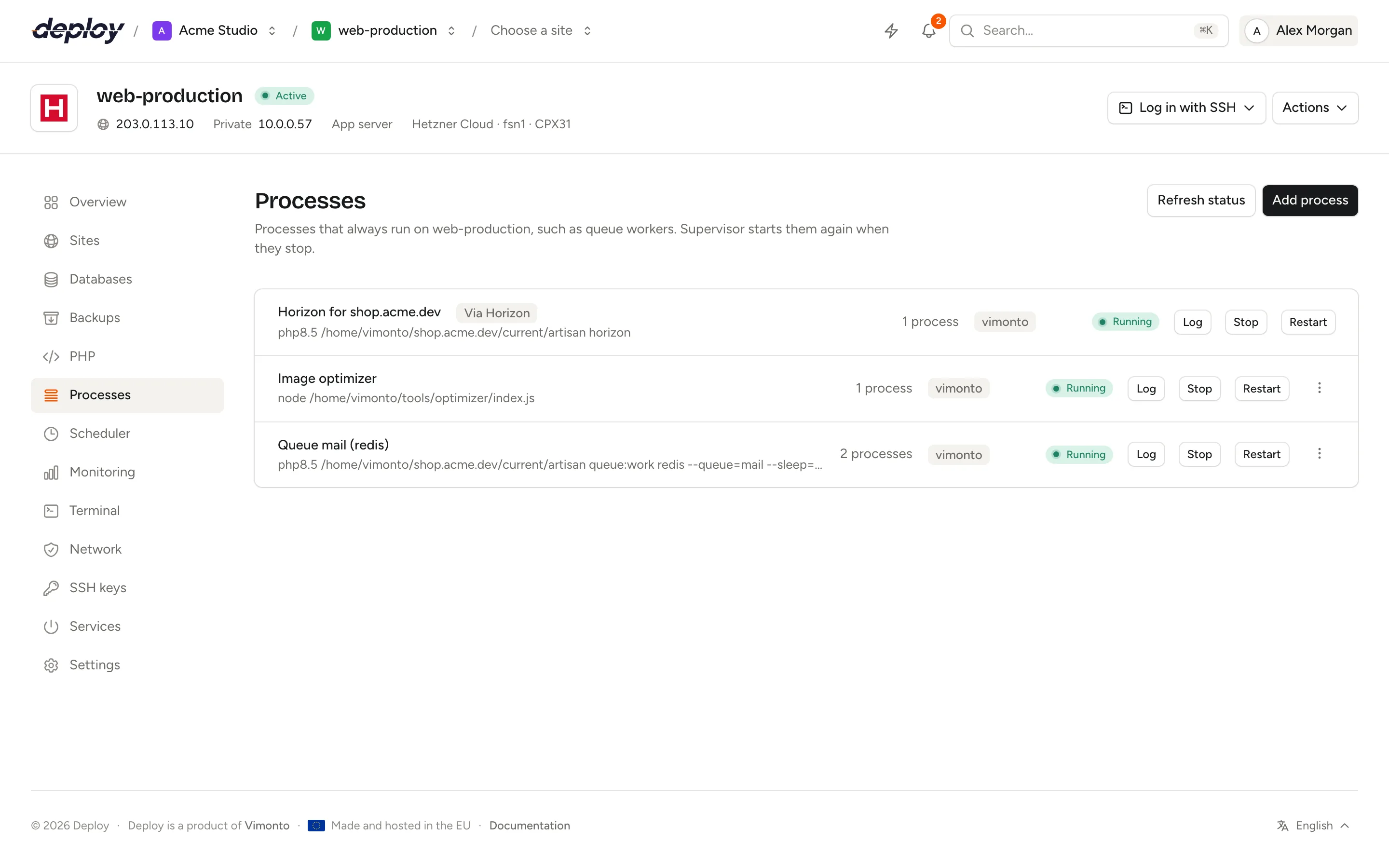
Add a process
- Open the server and choose Processes in the sidebar.
- Click Add process.
- Fill in the form (the fields are explained below).
- Click Add.
Vimonto Deploy writes a Supervisor program for the process, starts it and waits for it to come up. The row shows Adding while that runs, then the live status.
| Field | Default | What it means |
|---|---|---|
| Name | A name to recognise the process, such as "Queue worker". At most 60 characters. | |
| Command | The command to run, on a single line, such as php artisan queue:work --sleep=3 --tries=3. Pipes and variables work as typed. |
|
| Directory | the user's home directory | Where the command starts: a full path, such as /home/vimonto/example.com/current. |
| Run as | the system user | The system user (vimonto by default) or root. |
| Processes | 1 | How many copies of the command run side by side, from 1 to 64. |
| Start time (s) | 1 | How long it must run to count as started. A process that exits sooner counts as a failed start. |
| Stop time (s) | 15 | How long to wait for a clean stop before the process is killed. |
| Stop signal | TERM | The signal sent to stop the process: TERM, HUP, INT, QUIT, KILL, USR1 or USR2. |
Example: a Laravel queue worker
| Field | Value |
|---|---|
| Name | Queue worker |
| Command | php artisan queue:work redis --sleep=3 --tries=3 --max-time=3600 |
| Directory | /home/vimonto/example.com/current |
| Run as | vimonto |
| Processes | 2 |
Use the current directory of a site, not a specific release, so the worker always runs the code that is live. For an isolated site, its files belong to the site's own user; add its workers from the site's queues page, which runs them as the right user.
What do the statuses mean?
The status comes straight from Supervisor. It is fetched when you open the page; click Refresh status to fetch it again. After you add, change, stop, start or restart a process, the page fetches it by itself once that is done.
| Status | Meaning |
|---|---|
| Running | Every process is running. |
| Starting | Supervisor is starting the process and waiting for the start time to pass. |
| Stopping | The process received its stop signal and is shutting down. |
| Stopped | The process was stopped and does not run. |
| Failed | At least one process exited, could not start or keeps crashing. Open the Log to see why. |
| Unknown | Supervisor does not know the process, for example because it was removed by hand. |
When only some copies run, the status shows a count, such as Running 1/2.
Stop, start and restart a process
Use the buttons in the process's row:
- Stop stops every copy of the process until you start it again. A reboot of the server starts it again.
- Start appears once a process is stopped and starts it again.
- Restart stops and starts every copy, for example to load new code or a changed
.env.
Each action runs as a task you can follow on the activity page. Only one of these actions runs per process at a time.
Read the log
Click Log to see the last 300 lines of the process's output (standard output and errors together), fetched from the server when you click. Supervisor writes the output to /var/log/vimonto/daemon-{id}.log and keeps up to 10 MB per file, with three older files.
Edit a process
Open the actions menu (⋯) and choose Edit. Change the fields and click Save. Vimonto Deploy rewrites the Supervisor program and restarts the process with its new settings.
If adding or changing a process fails, the row shows Failed; open the actions menu and choose Try again.
Remove a process
Open the actions menu (⋯), choose Remove and confirm with Remove process. The process is stopped, its Supervisor program and its log are deleted, and it no longer starts.
How processes relate to sites
The Processes page shows every Supervisor process on the server, including those that belong to sites:
- Queue workers you add on a site's queues and scheduler page. That page offers a form made for Laravel workers (connection, queue, timeout, tries, memory) and builds the command for you.
- Processes of site features, such as Horizon, Reverb, Pulse or Inertia SSR, which a site feature creates when you switch it on.
These processes appear here with their status, their Log and the Stop, Start and Restart buttons. Processes of a site feature are marked with a Via … badge, such as Via Horizon, and have no actions menu here: change them through the feature in the site header, and switch the feature off to remove them. Change or remove a worker you added yourself on the site's page or here.
Frequently asked questions
What is the difference between a process and a scheduled job?
A process runs all the time and is restarted when it stops. A scheduled job runs a command at set times, such as every minute or every night, and then exits.
My process keeps showing Failed. What should I check?
Open the Log. Common causes are a wrong Directory, a command that is not found because it needs a full path, a missing .env value, or a command that exits immediately instead of running in the foreground. Supervisor needs the command to keep running; do not start it in the background with & or a --daemon option.
Should a process run as root?
Rarely. Run processes as the system user unless the command really needs root, so a bug in your application cannot change the rest of the server.
Can I run a Node.js application as a process?
Yes. Use a command such as npm run start or node server.js with the application's directory. For a Node.js site, the site's own Processes page sets this up for you.