

The Terminal page gives you a full SSH shell on your server, right in the browser. You do not need an SSH client, a key on your own computer or the server's address: Vimonto Deploy opens the connection with the server's own key.
Use it to run a command quickly, read a log with tail -f, run php artisan tinker, or look around when something goes wrong. You find it in the server's sidebar under Terminal, or through Web terminal in the server header.
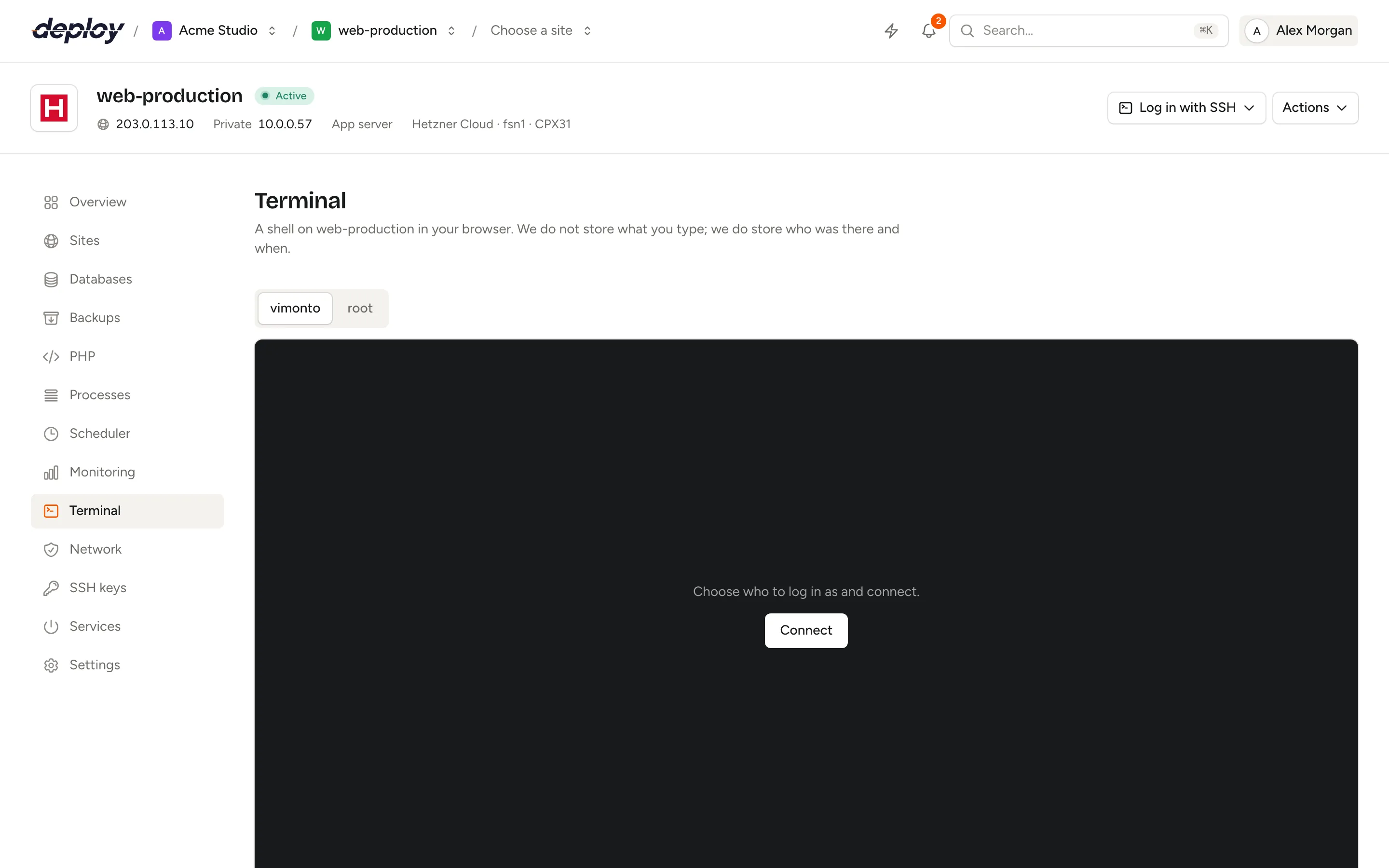
Open a terminal
- Open the server and choose Terminal in the sidebar.
- Choose who to log in as: the server's system user (for example
vimonto) orroot. - Click Connect.
After a moment the status says Connected as followed by the user and server, for example vimonto@web-1, and you can type. Paste with Cmd+V on macOS or Ctrl+V on Windows and Linux. The terminal follows the size of your browser window.
To end the session, click Disconnect, type exit, or close the tab. To connect again, click Reconnect.
Which user do you log in as?
| User | When to use it |
|---|---|
The system user (vimonto by default) |
Day-to-day work: your sites, deploys and Artisan commands live here. It can use sudo with the sudo password you got when the server was created. |
root |
Administrative work, such as installing packages or editing system configuration. |
The user is fixed for a session. To switch, click Disconnect first, then choose the other user and connect again.
How does the browser terminal work?
A browser cannot open an SSH connection itself, so Vimonto Deploy runs a small terminal bridge: a separate service that sits between your browser and the server.
- When you click Connect, the app checks your permission and creates a single-use ticket, valid for 30 seconds. Only a hash of the ticket is stored.
- Your browser opens a secure WebSocket to the terminal bridge and hands over the ticket. The browser never receives the server's private key or address.
- The bridge redeems the ticket at the app. The app checks again that you still have access, then gives the bridge what it needs to connect: the server's address, SSH port, private key and known host key. A ticket works once; a second use is refused.
- The bridge connects to the server over SSH. It only accepts the host key Vimonto Deploy stored the first time it connected to the server. If the server presents a different key, the bridge refuses to connect.
- Keystrokes and output stream between your browser and the server until the session ends.
The private key stays in the bridge's memory only for the length of the session.
Who may use the terminal?
A terminal gives full access to the server, so it has its own permission, separate from managing servers. These roles have it:
| Role | Terminal |
|---|---|
| Owner | Yes |
| Administrator | Yes |
| Manager | Yes |
| Developer | Yes |
| Viewer | No |
Members without the permission see No terminal for your role and can ask an administrator for another role. See members and roles.
The permission is checked when you click Connect and again when the bridge redeems the ticket, so a member whose role was just changed cannot use a ticket they already had.
The terminal only opens on an active server. Vimonto Deploy must also know the server's SSH host key, which it learns the first time it connects. On a custom VPS that was connected but never used, run an action first, such as opening the Services page.
What is logged?
Vimonto Deploy records who had a shell, as which user, when and for how long. It never stores what you type or what the server prints.
- Recent sessions at the bottom of the Terminal page lists the last ten sessions with the member's name, the login user, the duration and the start time. A session still in progress is marked Active.
- When a session ends, an entry such as Terminal as root on web-1 is added to the server's activity and the organization's activity page, with how the session ended: closed in the browser, ended on the server, closed after a period without input, or stopped by an error.
Time limits
| Limit | Value |
|---|---|
| Ticket validity | 30 seconds, single use |
| No input | The connection closes after 15 minutes without a keystroke (the default; your installation may use another value, shown below the terminal). |
| Maximum session length | 8 hours |
When a session closes for one of these reasons, the status line says why. Click Reconnect to start a new session.
Troubleshooting
| Message | What it means |
|---|---|
| This ticket has expired or was already used. Connect again. | The browser took longer than 30 seconds to connect, or the ticket was used. Click Reconnect. |
| You (no longer) have access to a terminal on this server. | Your role changed, or the server is no longer active. |
| The SSH host key of the server has changed; we will not connect. | The server presents a different host key. If you reinstalled the server, use Forget host key in the server settings. Otherwise, someone may be intercepting the connection. |
| The server refuses our key. | The server's key was removed from authorized_keys. |
| The server cannot be reached over SSH. | The server is off, or the firewall or SSH port blocks the connection. Check the network settings. |
| The terminal server cannot be reached. | The terminal bridge is not running or not reachable from your browser. |
Frequently asked questions
Is the browser terminal secure?
Yes. Your browser only ever holds a ticket that works once and expires after 30 seconds. The server's private key never reaches the browser, the connection is refused when the server's host key does not match the known one, and your permission is checked twice. Sessions close after a period without input.
Can I use my own SSH client instead?
Yes. Add your public key under SSH keys and use Log in with SSH and then Copy SSH command in the server header, for example ssh vimonto@203.0.113.10.
Does Vimonto Deploy record my commands?
No. Keystrokes and output are never stored. Only the session itself is logged: who, as which user, when and how long.
Can I log in as root?
Yes, choose root before you connect. Root has no password; it logs in with the server's key.