

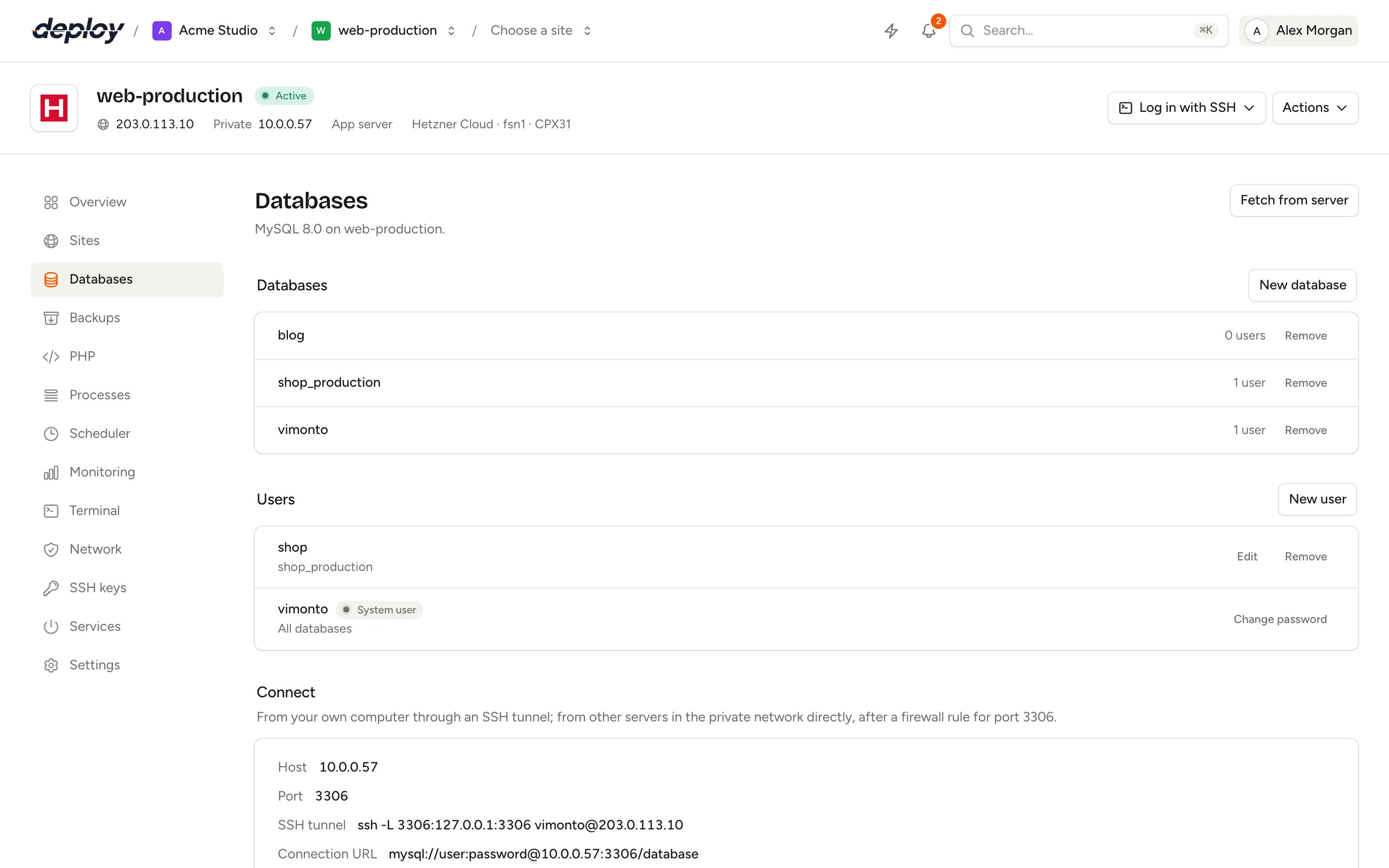
The Databases page of a server manages the databases and database users on it. You create a database, create a user with a password, and choose exactly which databases that user may access. Vimonto Deploy runs the SQL on the server for you, so you never need to log in to MySQL, MariaDB or PostgreSQL by hand for everyday work.
The page is available on servers with a database engine: app servers and database servers (see server types).
Which database engines are supported?
You choose the engine when you create the server. One server runs one engine.
| Engine | Versions | Port |
|---|---|---|
| MySQL | 8.4 LTS, 8.0 | 3306 |
| MariaDB | 11.4 LTS, 10.11 LTS | 3306 |
| PostgreSQL | 18, 17, 16 | 5432 |
MySQL and MariaDB databases are created with the utf8mb4 character set and the utf8mb4_unicode_ci collation. All engines run in UTC.
What does a new server start with?
Provisioning creates one database and one database user, both named after the server's system user (vimonto by default). That user has access to every database on the server. Its password is the Database password shown once in the server's passwords after provisioning; store it in your password manager, because Vimonto Deploy deletes it once you confirm.
In the Users list this user is marked System user and shows All databases. It keeps that access: you cannot narrow it to some databases, and you cannot remove it, because sites without a database user of their own connect with it. Click Change password next to it to give it a new password; Vimonto Deploy then only changes the password and leaves its rights as they are. Update DB_PASSWORD in the environment of every site that connects as this user. While the server's passwords are still waiting for your confirmation, the new password also replaces the Database password shown there.
Create a database
- Open the server and choose Databases in the sidebar.
- Click New database.
- Enter a Name, such as
shop_production. Use letters, numbers and underscores, at most 63 characters. - Click Create.
The database shows as Adding until it exists on the server. If creating it fails, click Retry.
Add a database user
- In the Users section, click New user.
- Enter a Name (letters, numbers and underscores, at most 32 characters).
- Enter a Password of at least 12 characters, or click Generate for a random 24-character password.
- Under Access to, tick the databases the user may use.
- Click Create.
Vimonto Deploy does not store database passwords. The password goes to the server once, in an encrypted job, and is then forgotten. Write it down yourself, for example in your site's environment.
What can a database user do?
A user gets all privileges on the databases you tick, and nothing on any other database. The list under each user shows its databases, or No access when none are ticked.
- On MySQL and MariaDB the user is created for both local connections and connections from other hosts, with the same rights.
- On PostgreSQL the user gets all privileges on each database and on its
publicschema.
Change a user's access or password
Click Edit next to a user. Change the ticked databases under Access to, or enter a new Password. Leave the password empty to keep the current one. Click Save: Vimonto Deploy removes the user's old privileges and grants exactly the databases now ticked. The system user is the exception: it only gets a new password, as described above.
Fetch databases created on the server
Databases made outside Vimonto Deploy, for example by a migration, a restore or by hand in the terminal, do not appear automatically. Click Fetch from server to add them to the list. Vimonto Deploy reads the databases on the server, skips the engine's own system databases and adds every new one. After that you can give users access to them and include them in backups.
Only databases with names of letters, numbers and underscores are picked up. Users created outside Vimonto Deploy are not fetched.
Connect to a database
The Connect section shows the details for your database clients and applications:
| Field | What it is |
|---|---|
| Host | The server's private IP address if it has one, otherwise its public IP address. |
| Port | 3306 for MySQL and MariaDB, 5432 for PostgreSQL. |
| SSH tunnel | A ready-made command to reach the database from your own computer. |
| Connection URL | The URL format to use, with your user, password and database filled in. |
From a site on the same server
A site on the same server connects to 127.0.0.1 on the engine's port with a database user and its password. Put these values in the site's environment, for a Laravel application DB_HOST, DB_PORT, DB_DATABASE, DB_USERNAME and DB_PASSWORD.
From your own computer through an SSH tunnel
The database port is not open to the internet. To use a desktop client such as TablePlus, DBeaver or MySQL Workbench, open an SSH tunnel with the system user, using an SSH key that is on the server:
ssh -L 3306:127.0.0.1:3306 vimonto@203.0.113.10
While the tunnel is open, connect your client to 127.0.0.1 on port 3306 (5432 for PostgreSQL) with a database user and its password. Most database clients can also open the SSH tunnel themselves: enter the server's IP address, the user vimonto and your private key in the client's SSH settings.
From other servers
On a dedicated database server, the engine listens on all network interfaces, so web and worker servers can connect to it. When the database server is in a private network, provisioning already allows port 3306 (or 5432) from that network's address range: connect your other servers in the network to the database server's private IP address, no rule needed. To connect from anywhere else, such as a server outside the network or a fixed public IP address, add a rule for that port from that address on the network page yourself. A database server without a private network accepts no connections from other servers until you add such a rule.
On an app server, MySQL and MariaDB listen only on the server itself, and PostgreSQL only on localhost. Use an SSH tunnel to reach those from elsewhere.
Delete a database or a user
Click Remove next to a database, type its name to confirm and click Delete database. The database and all data in it are deleted permanently.
Click Remove next to a user and confirm with Remove user. Applications that connect with this user can then no longer reach their database. On PostgreSQL, objects owned by the user are dropped with it.
Frequently asked questions
Where do I find the database password?
Vimonto Deploy does not store passwords of database users you create; you choose or generate them yourself. If you lost one, click Edit next to the user and set a new password, then update the applications that use it. The system user's password is shown once after provisioning.
Can a database user access more than one database?
Yes. Tick every database the user needs under Access to. A user without ticked databases can log in but cannot use any database.
Why can't my other server connect to the database?
Check three things: the database runs on a dedicated database server (an app server only accepts local connections), the firewall of the database server allows the port from the other server (done for you within a private network, a rule of your own for other addresses), and you connect to the private IP address when both servers are in the same private network.
Does Vimonto Deploy support Redis or MongoDB here?
No. This page manages MySQL, MariaDB and PostgreSQL. Redis is installed on app servers and cache servers as a service; see services.