

A background task is a piece of work that Vimonto Deploy runs for you on a server or at a provider, such as provisioning a server, deploying a site, installing a certificate, adding a database or running a recipe. Tasks run in the background, so you can leave the page, close your browser or keep working while they run.
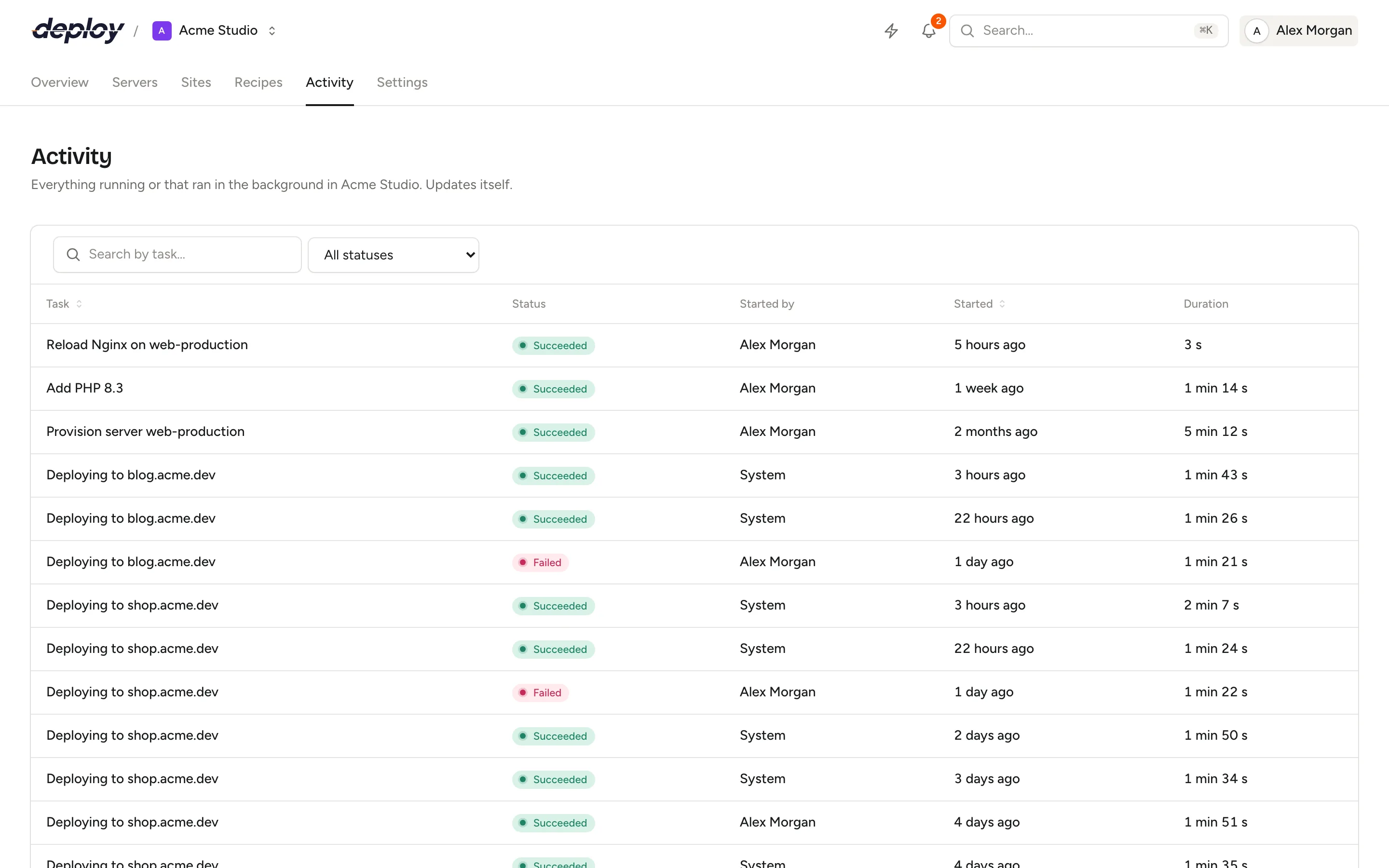
The Activity page lists every task of the organization, running and finished, with its status, who started it and how long it took. Every member can see it, so the whole team knows what is happening on the servers. A member who is limited to the servers of their teams sees only the tasks on those servers, plus tasks that don't belong to a server.
What is a background task?
Anything that takes longer than a moment becomes a task. Typical tasks are:
- creating and provisioning a server,
- deploying a site or rolling it back,
- installing a site, a certificate or a site feature,
- adding or removing a database, database user, firewall rule, PHP version, process or scheduled job,
- running a database backup or restoring one,
- running a recipe on a server.
Sessions in the browser terminal are listed too, once they end.
A task has a name that says what it does and where, for example "Deploying to example.com". It belongs to the server or site it works on, and buttons for that work are disabled while it runs, so the same work can't start twice on the same server or site. If you try anyway, you see a message that the task is already running.
Task statuses
| Status | Meaning |
|---|---|
| Queued | The task waits for a free spot in the queue. |
| Running | The task is working. Its current step and progress are shown. |
| Succeeded | The task finished without errors. |
| Failed | The task stopped with an error. The error is shown at the top of the task. |
| Cancelled | Someone cancelled the task before it finished. |
A task that stops reporting, for example because the worker running it was restarted, is marked as Failed with the message that it stopped responding. A task that stays queued for six hours without starting is marked as failed too.
Find a task
Open Activity in the top navigation of the organization.
- Use the search field to find tasks by name, for example a domain or a server name.
- Use the status filter to show only tasks with one status, for example Failed.
- Sort by Task or Started by clicking the column header.
The list updates itself: new tasks appear and running tasks show their current step without reloading the page.
Open a task: steps, progress and output
Click a task to open it.
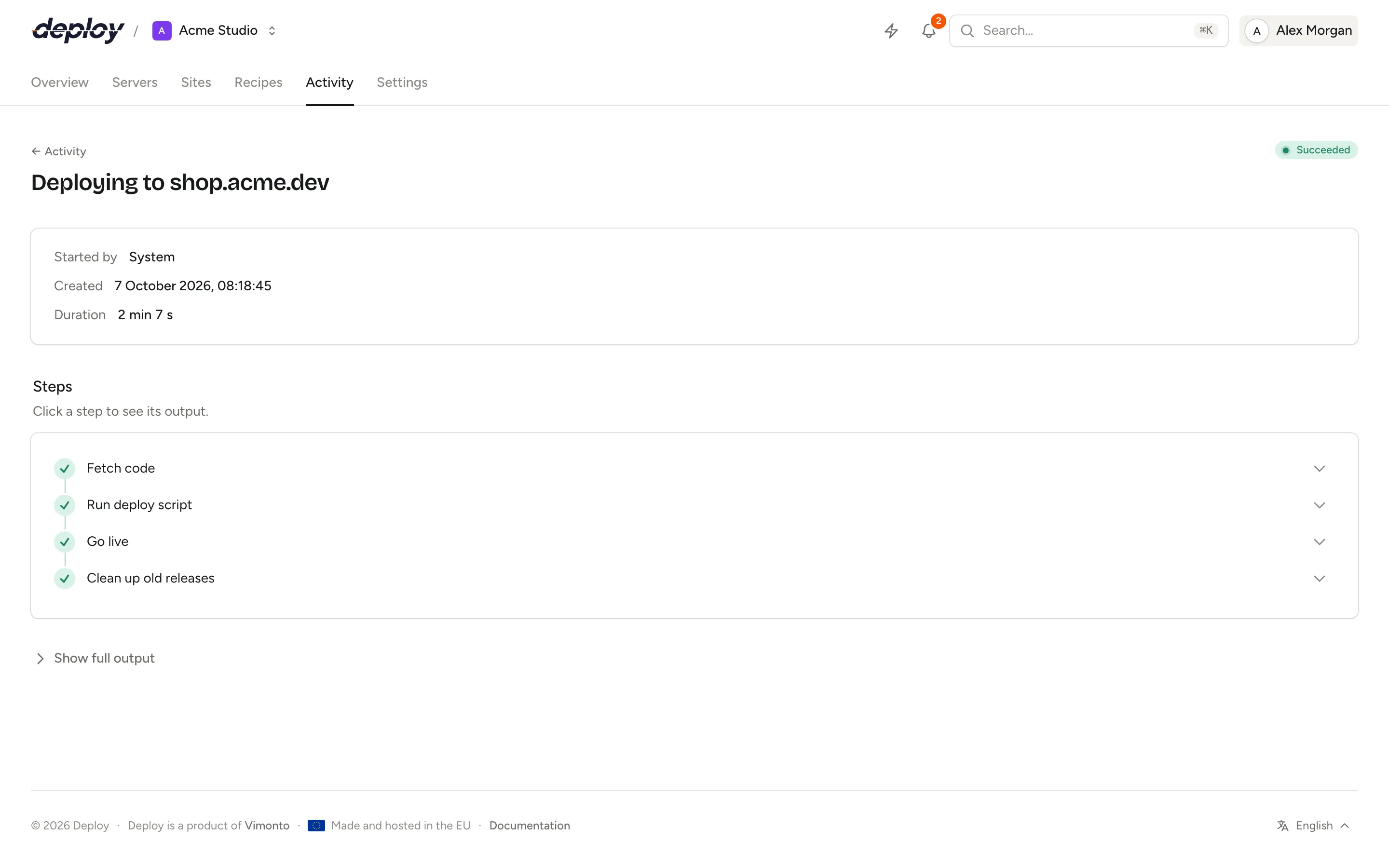
The task page shows:
- the status, and while it runs, the current step and a progress bar,
- Started by (a person, or System for work that started by itself), Created, Duration and, when relevant, Attempts,
- Steps: what the task has done, is doing and still has to do. Click a step to see its output. A failed step opens by itself, because that is the output you need,
- the output of the task. When the task has steps, click Show full output to see all of it at once.
Output streams in while the task runs, and the output panel follows the newest lines unless you scroll up to read something.
When a task fails, the alert The task failed at the top explains why. Read the output of the failed step for the details, fix the cause and start the work again, usually with the Retry button on the item itself or by deploying again. Tasks don't retry by themselves.
Cancel a task
Click Cancel at the top of the task page.
- A queued task is cancelled at once: it never starts.
- A running task can only be cancelled when the task supports it; it then shows Stopping and ends at its next safe point. Most running tasks can't be interrupted, because stopping them halfway could leave a server in an unknown state. In that case the Cancel button is not shown.
You can always cancel tasks that you started yourself. Cancelling tasks started by someone else needs the developer role or higher. See members and roles.
The activity button in the top bar
The activity button in the top bar shows how many tasks are running in the organization. Click it to see:
- the tasks running now, with their current step and server,
- the tasks that Just finished, including whether they failed,
- a link to All activity.
When nothing is running, it says All quiet.
Messages when a task ends
The person who started a task gets a message in the corner of the screen when the task succeeds or fails, in any tab of Vimonto Deploy they have open. A failed task's message includes the error. Click View task in the message to open it. Cancelled tasks don't send a message.
For the work that matters most, such as a deploy, a backup or setting up a server, members can also get a notification under the bell in the top bar or by email, also when they didn't start it themselves.
How long is activity kept?
Finished tasks are kept for 90 days and then deleted automatically, together with their output. Running and queued tasks are never deleted.
Frequently asked questions
Can I see what my teammates are doing on a server?
Yes. Every member sees all tasks of the organization on the Activity page, with who started each one, except members who are limited to the servers of their teams.
What is the difference between activity and the audit log?
Activity shows the work that runs in the background: its steps, output and result, kept for 90 days. The audit log shows what people changed, such as who deleted a database or changed a role, kept for a year.
Why can't I start a deploy while another task runs?
Most kinds of task can't run twice at the same time on the same server or site; recipes are the exception. Wait for the running task to finish, or open it from the Activity page to follow it.
A task is stuck on "Queued". What now?
It waits for a free worker. If it hasn't started after six hours, it is marked as failed with the message that it never started, and you can try again. You can also cancel a queued task yourself.
Does Vimonto Deploy record what I type in the terminal?
No. Each session in the browser terminal appears in the activity when it ends, with the user it logged in as and the server, but your keystrokes are never stored.