

SSH keys let people log in to your servers with ssh. Vimonto Deploy servers only accept key logins: password logins are turned off during provisioning, so you need a key on the server to log in yourself.
There are three places to keep keys:
| Where | What it is for | Who can change it |
|---|---|---|
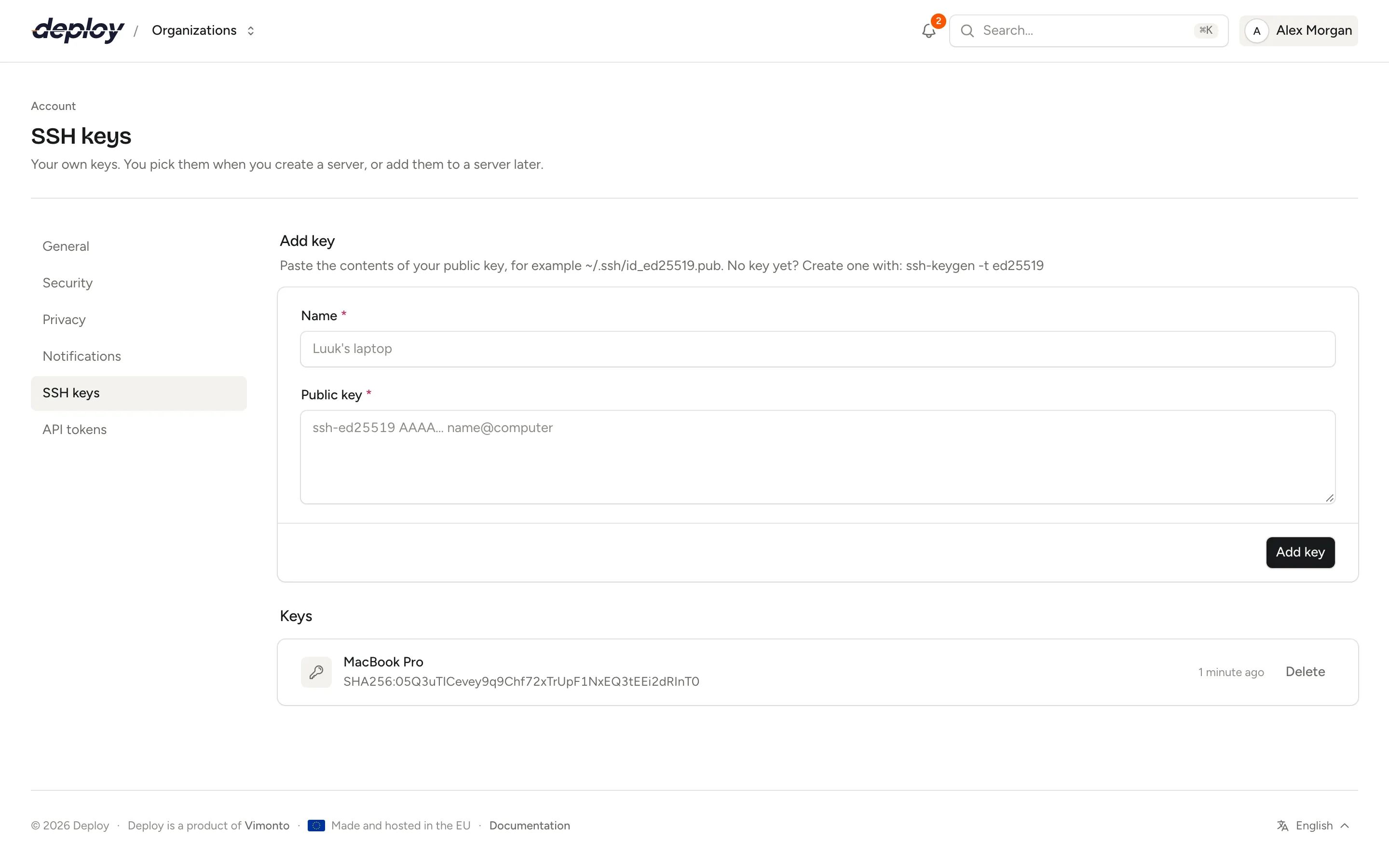
| Account → SSH keys | Your own keys. You pick them when you create a server, or add them to a server later. | You |
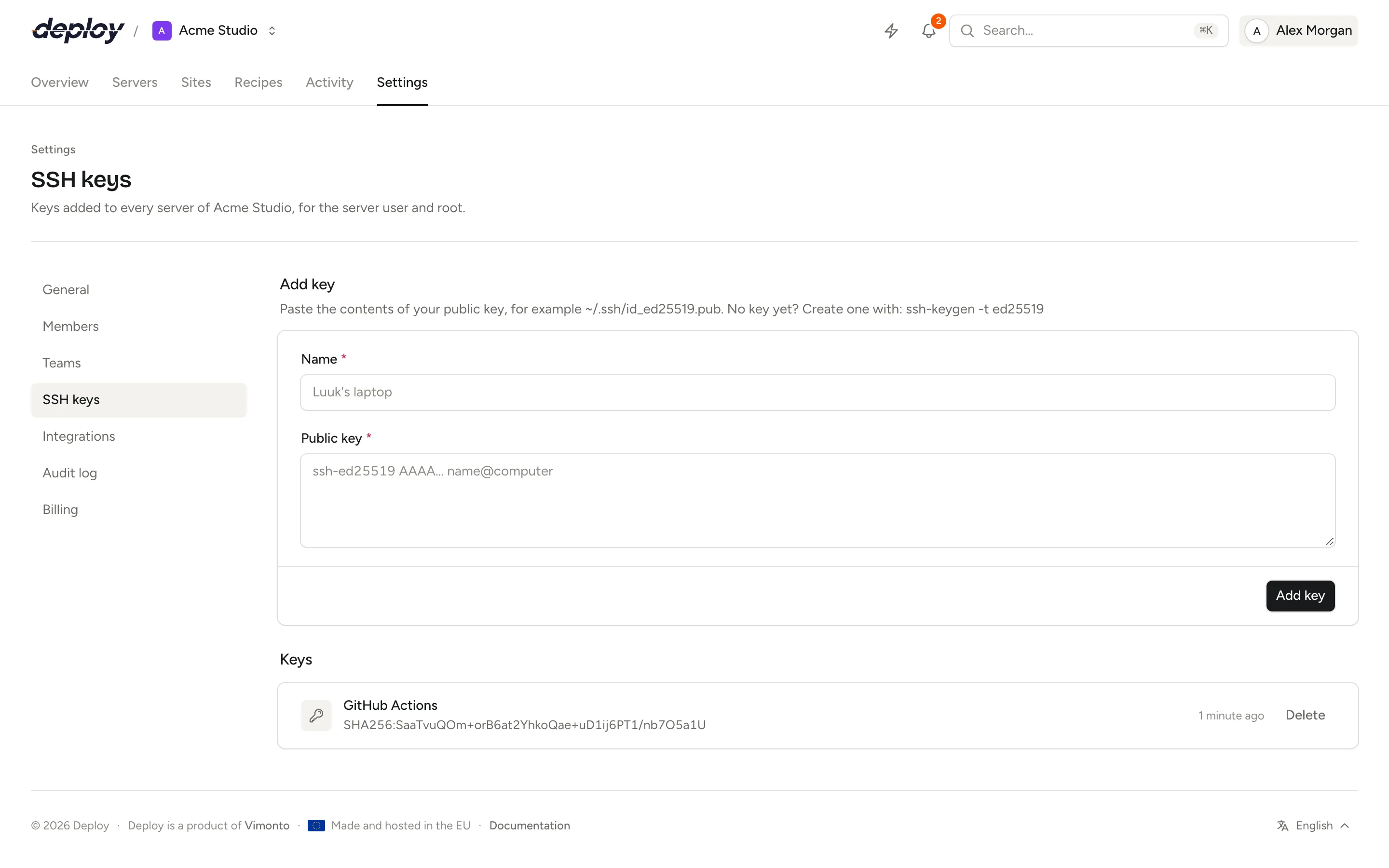
| Settings → SSH keys | The organization's keys, added to every server of the organization, for the server user and root. | Owner, Administrator, Manager |
| A server's SSH keys page | The keys that may log in to that one server, as its user or as root. | Members who may manage servers |
Keys you add are public keys; private keys never leave your computer. Organization keys and keys on a server are recorded in the audit log.
Create an SSH key
If you do not have a key yet, create one on your computer:
ssh-keygen -t ed25519
Then copy the contents of the public key, ~/.ssh/id_ed25519.pub. It looks like ssh-ed25519 AAAA… name@computer.
Vimonto Deploy accepts Ed25519, ECDSA and RSA keys, including security-key variants (sk-ssh-ed25519@openssh.com, sk-ecdsa-sha2-nistp256@openssh.com). RSA keys must be at least 2048 bits; Ed25519 is the better choice.
Add a personal key to your account
- Open your account menu and go to SSH keys.
- Under Add key, enter a Name (for example "Luuk's laptop") and paste the Public key.
- Choose Add key.
Your account keys belong to you, not to an organization. They are offered under Your SSH keys in the new server wizard, where all of them are selected by default, and you can add them to an existing server from its SSH keys page.
Each key shows its fingerprint (SHA256), so you can match it with ssh-keygen -lf ~/.ssh/id_ed25519.pub. The same key cannot be added twice.
Add organization keys for the whole team
Organization keys are for people who need to log in to every server, for example your operations team or a CI system.
- Open Settings → SSH keys.
- Enter a Name, paste the Public key and choose Add key.
Organization keys are always added to new servers, both for the server user (vimonto by default) and for root; you cannot leave them out in the wizard.
A key you add to the organization also goes on every active server right away, for the server user and root, as a task per server that you can follow. On each server's SSH keys page the key shows as being installed, then installed; if it failed there, choose Retry. A server that already has the key for a user is left as it is, and servers that are still being provisioned get the key from provisioning.
Add a key to one server
- Open the server and go to SSH keys.
- Choose Add key.
- Under Key, choose one of your account keys, or Paste another key and enter a Name and Public key.
- Under Log in as, choose the server user (
vimontoby default) orroot. - Choose Add key.
Vimonto Deploy adds the key to the user's ~/.ssh/authorized_keys on the server, as a task you can follow. The key shows as being installed, then installed; if it failed, choose Retry. A key can be on a server once per user, so you can add the same key for both vimonto and root.
This needs a role that may manage servers (Owner, Administrator, Manager or Developer) and a server that is active. Members whose access is limited to their teams only see, and can only add keys to, their teams' servers.
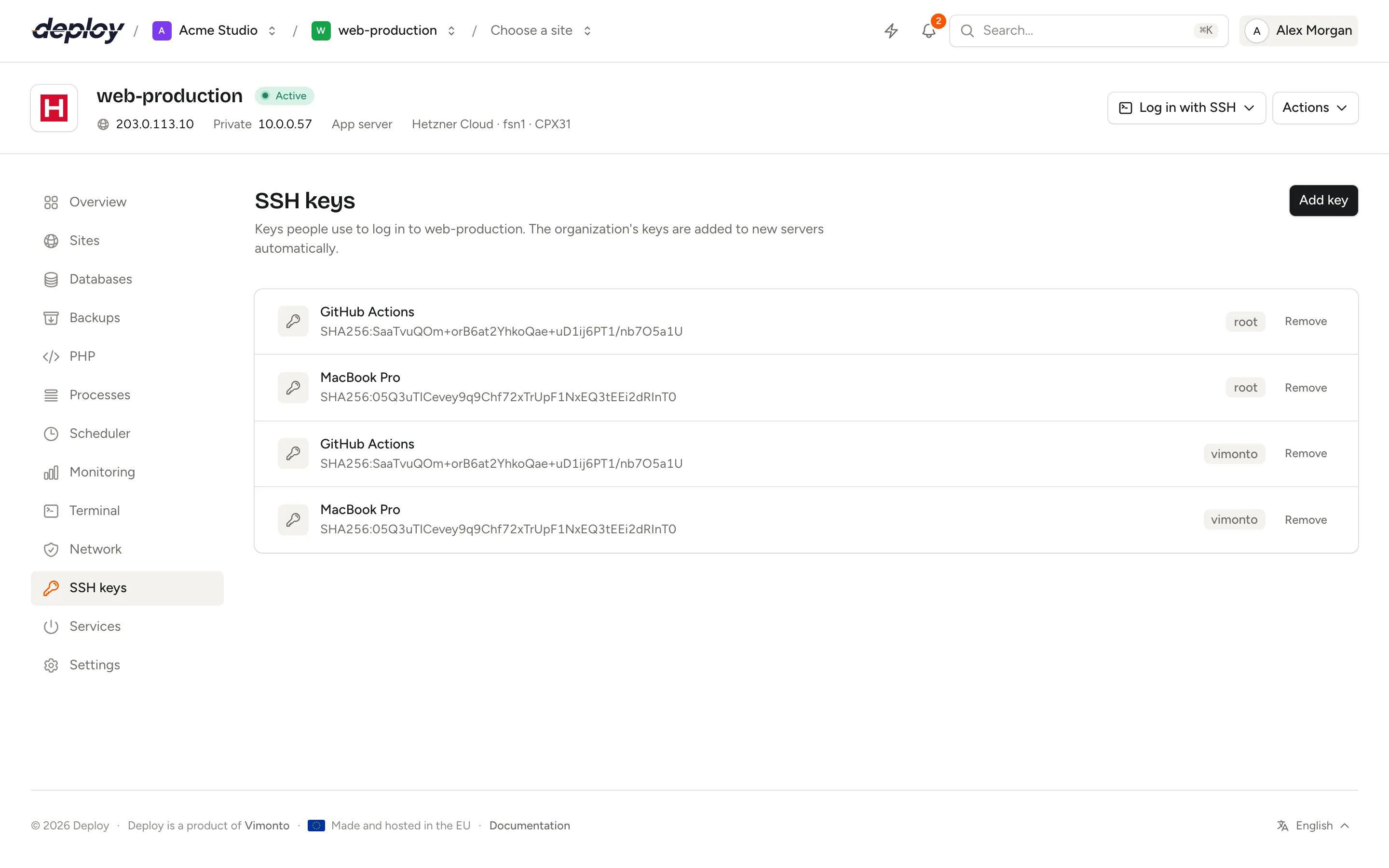
The server's list also shows the keys installed during provisioning, for the server user and root: the account keys chosen when the server was created and the organization's keys.
Remove a key from a server
On the server's SSH keys page, choose Remove next to the key and confirm. Whoever uses that key can then no longer log in to the server as that user.
Delete an account or organization key
Choose Delete next to the key and confirm.
- An account key is no longer offered for new servers. Servers that already have it keep it until you remove it on their SSH keys pages.
- An organization key is no longer added to new servers and is removed from every active server of the organization, for the server user and root. A server that is not active (for example because provisioning failed) keeps the key until you remove it on its SSH keys page once the server is active. A copy of the key that someone added to a server by hand stays on that server.
Log in to a server
With your key on the server, log in as the server user:
ssh vimonto@203.0.113.10
Use the server's public IP address from its overview. A custom VPS that listens on another SSH port needs -p, for example ssh -p 2222 vimonto@203.0.113.10. The server user has sudo rights; sudo asks for the sudo password that was shown once to the person who created the server. Root accepts the same keys (ssh root@…) but has no password. Prefer working in the browser? Use the terminal.
Frequently asked questions
Why can't I log in with a password?
Provisioning turns off password and keyboard-interactive logins in SSH and allows root only with a key. This protects the server against password guessing. Add your key to the server instead.
What is the key under "Public key of the server"?
That is the server's own key, which it uses to clone repositories. It is not for logging in. Add it to your Git host if a site deploys without its own deploy key. See Git accounts.
Does Vimonto Deploy have its own key on my servers?
Yes. Each server gets its own Ed25519 key pair when it is created, which Vimonto Deploy uses to connect over SSH for provisioning, deployments and everything else. It is unique per server.
Can I use the same key on all servers?
Yes. Add it as an organization key to get it on every server, including the ones you already have, or add your account key to the servers you need.