

The Security rules page of a site asks for a username and password before anyone sees a part of the site, such as /admin, or all of it. It uses HTTP basic authentication in Nginx: the browser shows a login prompt, and only people with one of the usernames and passwords of the rule get through. Your app doesn't need to know about it.
Use it to shield an admin area, a tool such as Horizon or phpMyAdmin under a path, or a staging site from the public and from search engines.
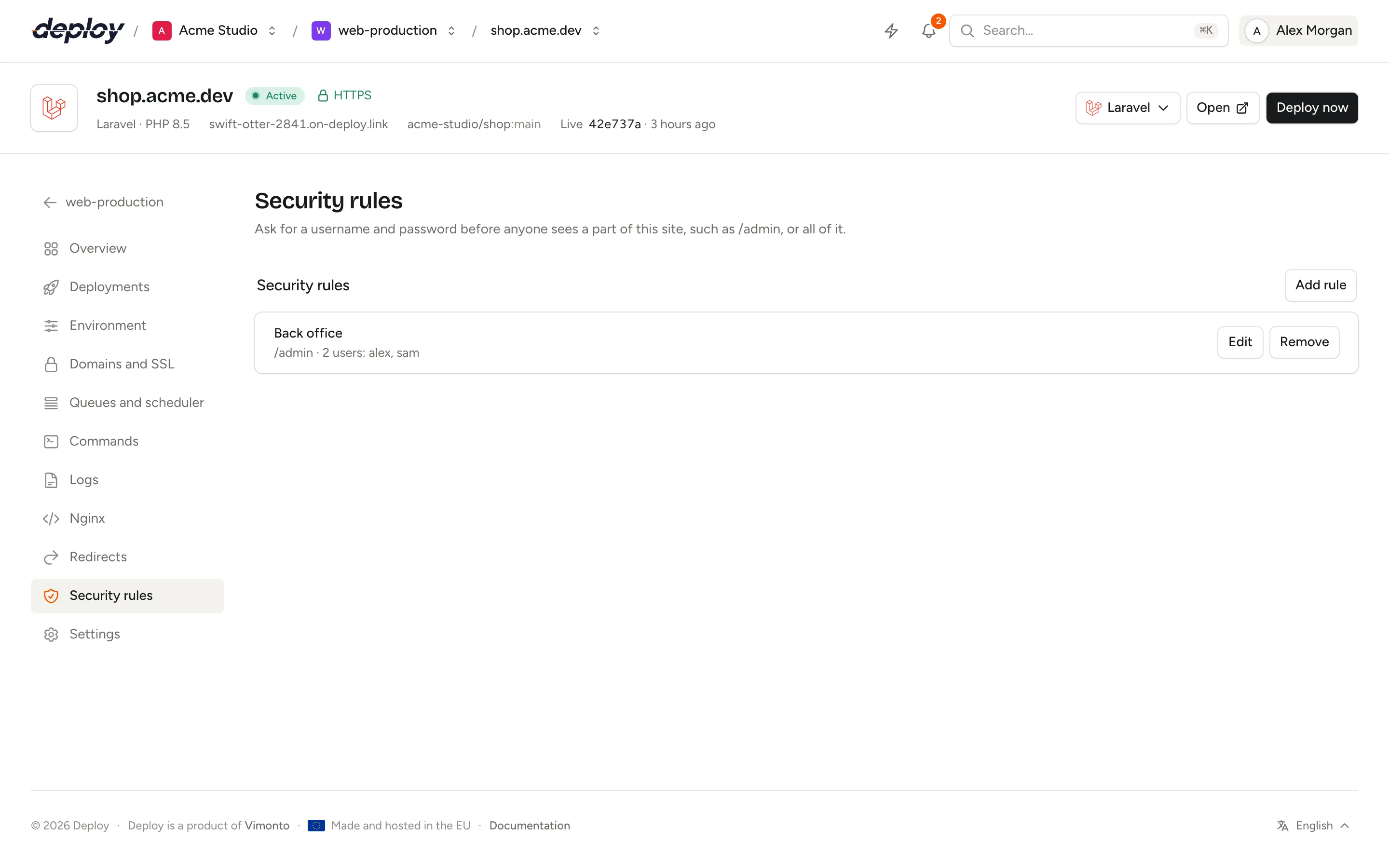
Add a security rule
- Open the site and click Security rules in its sidebar.
- Click Add rule.
- Fill in:
- Name: for yourself, such as
Admin area. - Path: the path to protect, such as
/admin. Leave it empty to protect the whole site. - Users: a Username and Password for each person or team that may get in. Click Add user for more, up to 10 per rule. Usernames use letters, numbers,
.,_,@and-; passwords are at least 8 characters.
- Name: for yourself, such as
- Click Add rule.
The rule shows a status while it is written to the server, and is active once that is done. A site can have up to 20 rules, one per path.
What does a path protect?
A rule protects the path and everything under it. With the path /admin:
| Request | Asks for a login? |
|---|---|
/admin and /admin/ |
Yes |
/admin/users, /admin/x/y |
Yes |
PHP files under it, such as /admin/index.php |
Yes |
/adminx, /administrator |
No |
A rule with an empty path protects every page of the site. Let's Encrypt can still reach the site to issue and renew certificates.
Change users and passwords
Click Edit on a rule to change its name, path or users. Passwords are never shown: leave a user's Password empty to keep the saved one, or type a new one to replace it. A user you add needs a password. Remove a user with Remove next to it; a rule always keeps at least one user.
Click Remove on the rule itself, and confirm, to delete it: the path, or the whole site, is open to everyone again.
How are passwords stored?
Vimonto Deploy keeps only a bcrypt hash of each password, never the password itself. On the server, each rule gets a password file in /etc/nginx/vimonto-auth/, and the rules go into security.conf in the site's Nginx include folder, /etc/nginx/vimonto-conf/site-{id}/. The configuration is checked with nginx -t before Nginx reloads; if Nginx refuses it, the previous rules stay active and the rule shows as failed.
As with redirects, the page shows Not all rules are active with Apply again when a change did not reach the server, and These rules do not apply to this site when the site's own Nginx configuration no longer includes the include folder.
Security rules or password protection?
The Password protection site feature also puts one username and password in front of the whole site. A security rule can do the same, with several users, and can also protect only a path.
A rule for the whole site and the Password protection feature cannot be used together: switch the feature off before you add a rule without a path, or remove that rule before you switch the feature on. Rules for a path can be combined with the feature.
Load-balanced sites have no Security rules page; use Password protection there, which protects every app server behind the balancer at once.
Who can change security rules?
Every member can see the rules and their usernames. Adding, changing and removing rules needs the permission to manage sites (owner, administrator, manager and developer), and the site and its server must be active. Changes are recorded in the audit log, without the passwords.
Frequently asked questions
Is basic authentication secure?
The password travels with every request, so use it only on a site with HTTPS. Over HTTPS it is a simple and solid way to keep people and search engines out of a part of a site.
Can I protect a path in my app instead?
Yes, with your app's own login. A security rule is useful for things that have no login of their own, or as an extra layer in front of one.
Does a cloned site keep its security rules?
Yes. When you clone a site, its redirects and security rules, with the same users and passwords, come along.