

Backup storage is where Vimonto Deploy keeps the database backups of your servers: an S3-compatible bucket that you own. You add a bucket once per organization in the Backup storage section of Settings → Integrations, and then choose it when you schedule a backup on a server.
The access keys stay with Vimonto Deploy and are stored encrypted. Your servers never get them: for each backup file, a server receives a short-lived link (a presigned URL) that allows exactly one upload or download of that one file.
Which storage can I use?
| Storage | Regions to choose from |
|---|---|
| Amazon S3 | Frankfurt, Zurich, Ireland, London, Paris, Stockholm, Milan, N. Virginia, Ohio, N. California, Oregon, Canada, Singapore, Sydney, Tokyo, Mumbai, São Paulo |
| DigitalOcean Spaces | Amsterdam, Frankfurt, London, New York, San Francisco, Toronto, Singapore, Sydney, Bangalore |
| Hetzner Object Storage | Falkenstein, Nuremberg, Helsinki |
| Scaleway Object Storage | Amsterdam, Paris, Warsaw |
| OVHcloud Object Storage | Gravelines, Strasbourg, Roubaix, Frankfurt, London, Warsaw, Beauharnois |
| Cloudflare R2 | No regions: you enter your Cloudflare Account ID |
| Other S3-compatible storage | Any endpoint you enter, for example MinIO or Backblaze B2 |
For the named providers you only choose a region (for R2, the account ID); Vimonto Deploy knows the endpoint. For other storage you enter the endpoint yourself.
Where do I add which storage?
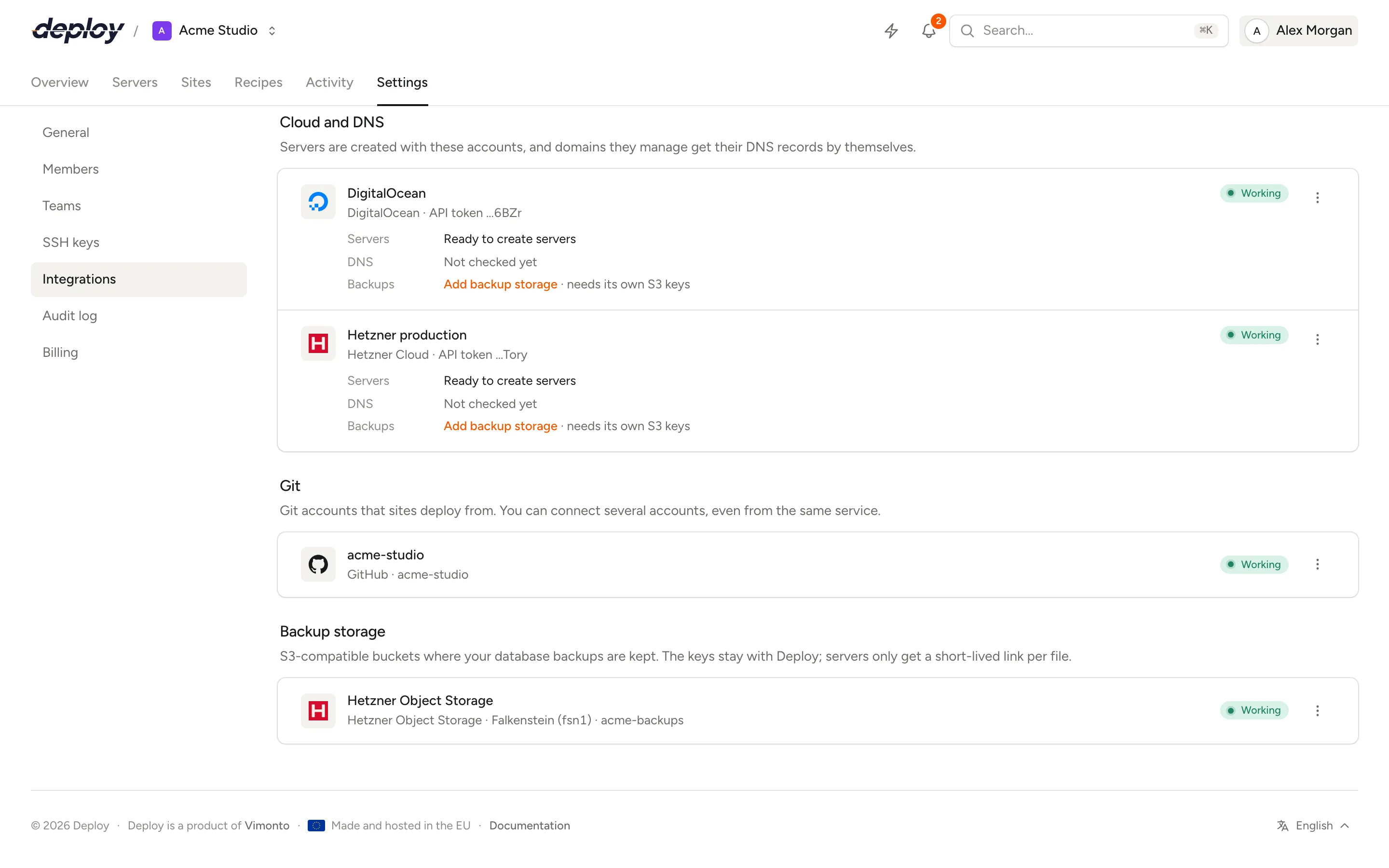
- Hetzner Object Storage, DigitalOcean Spaces and Cloudflare R2 belong to a cloud or DNS account. Connect the account under Cloud and DNS first (see cloud and DNS accounts), then choose Add backup storage on its card or in its menu. The bucket then shows with that account, next to Backups. S3 storage needs access keys of its own, separate from the account's API token.
- Amazon S3, Scaleway Object Storage, OVHcloud Object Storage and Other S3-compatible storage have their own cards under Add an integration: choose Connect there.
Who can add storage?
Every member sees the storage list. Adding, editing, testing and removing storage needs the Owner or Administrator role. These changes are recorded in the audit log, without the keys.
Add a bucket
- Create the bucket at your storage provider first. Vimonto Deploy does not create buckets.
- Create an access key for it (see below).
- In Vimonto Deploy, open Settings → Integrations and choose Connect on the storage's card, or Add backup storage on the account it belongs to (see above).
- Fill in:
- Region: where the bucket is (a list for the named providers). For Cloudflare R2: the Account ID instead, 32 characters, on the R2 overview page in Cloudflare.
- Bucket: the name of the existing bucket. Lowercase letters, numbers, dots and hyphens, 3 to 63 characters.
- Access key and Secret key.
- Name: how the storage appears when you choose it for a backup.
- Choose Check and save.
Vimonto Deploy checks the keys by writing a small test file to the bucket and deleting it again. That one check covers everything backups need: the endpoint, the region, the bucket and permission to write and delete. If something is wrong, you see what, for example:
- the bucket does not exist in this region;
- the access key or secret is not right;
- the key may not write to and delete from the bucket;
- the bucket is in another region;
- the storage could not be reached (check the endpoint and region).
Where to create access keys
- Amazon S3: create an IAM user with access to this bucket only (
s3:PutObject,s3:GetObject,s3:DeleteObject) and an access key for it. - DigitalOcean Spaces: in the DigitalOcean dashboard, create a Spaces access key (Spaces Object Storage → Access keys), limited to this bucket.
- Hetzner Object Storage: in the Hetzner Cloud Console, within your project, create S3 credentials (Security → S3 credentials).
- Scaleway Object Storage: in the Scaleway console, create an API key with Object Storage permissions (IAM → API keys).
- OVHcloud Object Storage: in the OVHcloud control panel, create an Object Storage user and its S3 credentials (Public Cloud → Object Storage → Users).
- Cloudflare R2: in the Cloudflare dashboard, open R2 → Manage API tokens and create a token with Object Read & Write for this bucket. Your account ID is on the R2 overview page.
- Other S3-compatible storage: use an access key limited to this bucket.
Add other S3-compatible storage
Choose Other S3-compatible storage for MinIO, Backblaze B2 or any other storage that speaks the S3 API. You then also fill in:
- Endpoint: the HTTPS address of the storage, without the bucket, for example
https://s3.example.com. It must be an address on the public internet. - Region: only if your storage asks for one; otherwise leave it empty.
- Bucket in the path: on (the default) to address the bucket as
example.com/bucketinstead ofbucket.example.com. Most S3-compatible storage wants this.
Test, edit or remove storage
Each bucket in the list shows its provider, region and bucket, how many backups use it, and Working or Not working. In the menu (⋯) next to it:
- Test connection runs the write-and-delete check again.
- Edit changes the name, region, bucket or keys, and for other S3-compatible storage also the endpoint and Bucket in the path. The provider itself cannot be changed. Leave the keys empty to keep the current ones. Changes are checked before they are saved.
- Remove deletes the storage from Vimonto Deploy. The bucket and what is in it stay as they are.
Disconnecting the account a bucket belongs to does not remove the bucket from Backup storage: it stays, and backups keep using it.
You can only remove storage that no backup uses. Remove or change those backups first.
Use storage for backups
On a server with a database, open Backups and schedule a backup. You choose one of your organization's storage buckets, the databases, how often, a folder in the bucket and how many backups to keep. See database backups.
Frequently asked questions
Do my servers get my storage keys?
No. The keys stay in Vimonto Deploy. For each upload or download, the server gets a link that works for one file and one action, and expires.
Can several servers back up to the same bucket?
Yes. A bucket you add is available to every server in the organization. Use a different folder per server or backup to keep them apart.
Does Vimonto Deploy create the bucket for me?
No. Create the bucket at your provider first, then add it. The Bucket field expects a bucket that already exists.
Which storage should I pick?
Pick storage outside the provider or region of your servers, so a backup survives if a whole location has problems. Choose a region close to your servers if you want faster backups and restores.
What happens to backups when I transfer a server?
Storage stays with your organization. When a server is transferred to another organization, its backup schedules are removed; the backup files already in your bucket stay there. The new organization schedules backups to its own storage.