

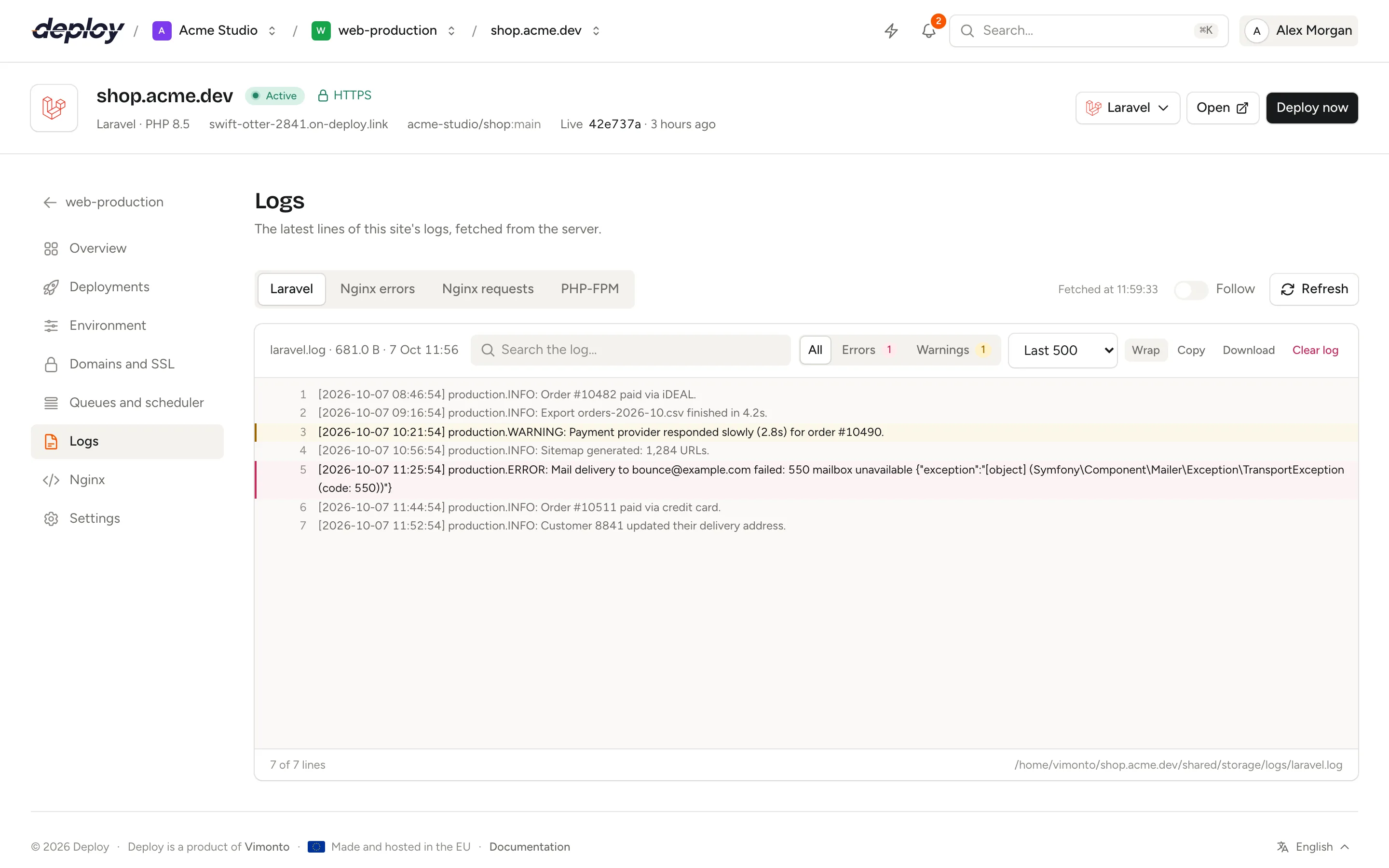
The Logs page of a site shows the latest lines of its log files, fetched from the server over SSH when you open the page. You can switch between the Laravel log, the Nginx error and access logs and the PHP-FPM log, search them, show only errors or warnings, follow new lines as they come in, and download or clear a log.
Use it to find out why a page returns a 500 error, which requests reach your site, or what your application logged, without logging in to the server. You find it in the site's sidebar under Logs.
Which logs can you read?
The tabs at the top of the page depend on the site's type:
| Tab | File on the server | Shown for |
|---|---|---|
| Laravel | storage/logs/*.log in the site's shared directory, for example /home/vimonto/example.com/shared/storage/logs/laravel.log |
Laravel sites |
| Nginx errors | /var/log/nginx/site-{id}-error.log |
All sites |
| Nginx requests | /var/log/nginx/site-{id}-access.log |
All sites |
| PHP-FPM | /var/log/php{version}-fpm.log, for example /var/log/php8.4-fpm.log |
PHP and Laravel sites |
Each site has its own Nginx logs. The Laravel log lives in the shared directory, so it is kept across deployments. The PHP-FPM log belongs to the PHP version, so it holds messages from every site on the server that uses that version.
Several log files
When a log has more than one file, such as Laravel's daily logs (laravel-2026-10-07.log) with LOG_CHANNEL=daily, a menu lists them with their size, newest first. The newest file is opened by default. With one file, its name, size and last change are shown instead.
Read a log
- Open the site and choose Logs in the sidebar.
- Choose a tab: Laravel, Nginx errors, Nginx requests or PHP-FPM.
- Choose how many lines to show: Last 100, Last 500 (the default), Last 1,000 or Last 5,000.
The lines appear with line numbers, scrolled to the end, so the newest line is at the bottom. Fetched at shows when the lines were read. Click Refresh to read them again.
Errors and warnings are highlighted
Vimonto Deploy recognises the level of each line and colours it:
- Errors (red): Laravel
ERROR,CRITICAL,ALERTandEMERGENCYentries, Nginx[error],[crit],[alert]and[emerg]lines, requests answered with a 5xx status, and PHP fatal errors. - Warnings (orange): Laravel
WARNINGandNOTICEentries, Nginx[warn]and[notice]lines, requests answered with a 4xx status, and PHP warnings.
Lines without a level of their own, such as the lines of a stack trace, take the level of the entry above them, so a whole exception is highlighted together.
Search and filter a log
- Type in Search the log… to show only lines that contain your text. The search ignores upper and lower case.
- Click Errors or Warnings to show only those lines. The number next to each shows how many there are. Click All to show everything again.
- Click Wrap to switch between wrapping long lines and scrolling sideways.
The footer shows how many of the lines are visible, and the full path of the file.
Search and filters work on the lines that were fetched. To search further back, choose a larger number of lines.
Follow a log live
Switch on Follow to read the log again every five seconds, like tail -f. The view scrolls to the newest line each time. Switch it off when you are done; it also stops when you leave the page.
Copy or download log lines
- Copy puts the visible lines on your clipboard.
- Download saves the visible lines as a
.txtfile.
Both use what you see: apply a search or the Errors filter first to copy or download only those lines.
Clear a log file
Click Clear log and confirm to empty the selected file. Everything in it is removed, and new lines keep coming in as usual: the file is emptied in place, so the process that writes to it does not need a restart.
Clearing a log needs the permission to manage sites (owner, administrator, manager and developer). Every member can read logs. See members and roles.
Frequently asked questions
Why is the Laravel log empty?
Either your application has not logged anything yet, or it logs somewhere else. Vimonto Deploy reads the .log files in storage/logs. If you set LOG_CHANNEL to stderr, syslog or an external service in your environment, nothing ends up there.
Where do I find the logs of queue workers and scheduled jobs?
Queue workers and other processes have their own output log. Choose View log in a worker's menu on the queues and scheduler page, which takes you to the server's processes page, where you can read the last 300 lines of each process.
Can I see older log files that were rotated?
The page shows the files the site's log matches: for the Laravel log, every .log file in storage/logs. Rotated or compressed Nginx logs (such as .log.1 or .gz) are not listed; read them in the terminal.
Are logs stored in Vimonto Deploy?
No. Logs stay on your server. The page reads them over SSH each time you open or refresh it.