

A server transfer moves a server, with its sites, databases and everything else on it, from one organization in Vimonto Deploy to another. You offer the server to someone by email; they accept it into one of their organizations, and from then on it is theirs. Nothing changes on the server itself: it keeps running, and its sites stay online.
Use it to hand a server over to a client, to move it to a colleague's organization, or to move it between two organizations of your own.
Who can transfer a server?
- Sending a transfer needs permission to delete servers in the current organization: the Owner, Administrator or Manager role. See members and roles.
- Accepting a transfer needs a Vimonto Deploy account with the email address the transfer was sent to, and permission to create servers in the organization you move it into: again Owner, Administrator or Manager.
The recipient does not need to be a member of your organization. If they have no account yet, they can create one from the link in the email.
Send a transfer
- Open the server and choose Settings in the sidebar.
- Under Danger zone, click Transfer server.
- Enter the Email address of the new owner and click Send transfer.
The recipient gets an email with a View the transfer button. Until they accept, nothing changes: the server stays in your organization and works as before. The Danger zone shows to whom the server is offered and until when.
A few rules:
- A transfer can only be sent when no task is running on the server, such as a deployment or provisioning.
- A server has one open transfer at a time. Sending a new one replaces the previous offer, and the old link stops working.
- You can send a transfer to your own email address only when you are a member of another organization, to move the server there.
- Once the transfer is accepted, your organization loses its access: the SSH keys of your organization and its members come off the server, and the server's sudo password and the sites' deploy URLs change. See How does the old organization lose access? below.
How long is a transfer valid?
Seven days. After that the link no longer works and you send a new transfer if needed. The link also stops working once the transfer is accepted or cancelled, or when the server is no longer in the organization it was offered from.
To withdraw an offer, click Cancel transfer in the Danger zone of the server's settings. Expired transfers are deleted automatically.
Accept a transfer
- Open the link in the email. If you are not signed in, Sign in or Create account with the email address the transfer was sent to; you then come back to the transfer.
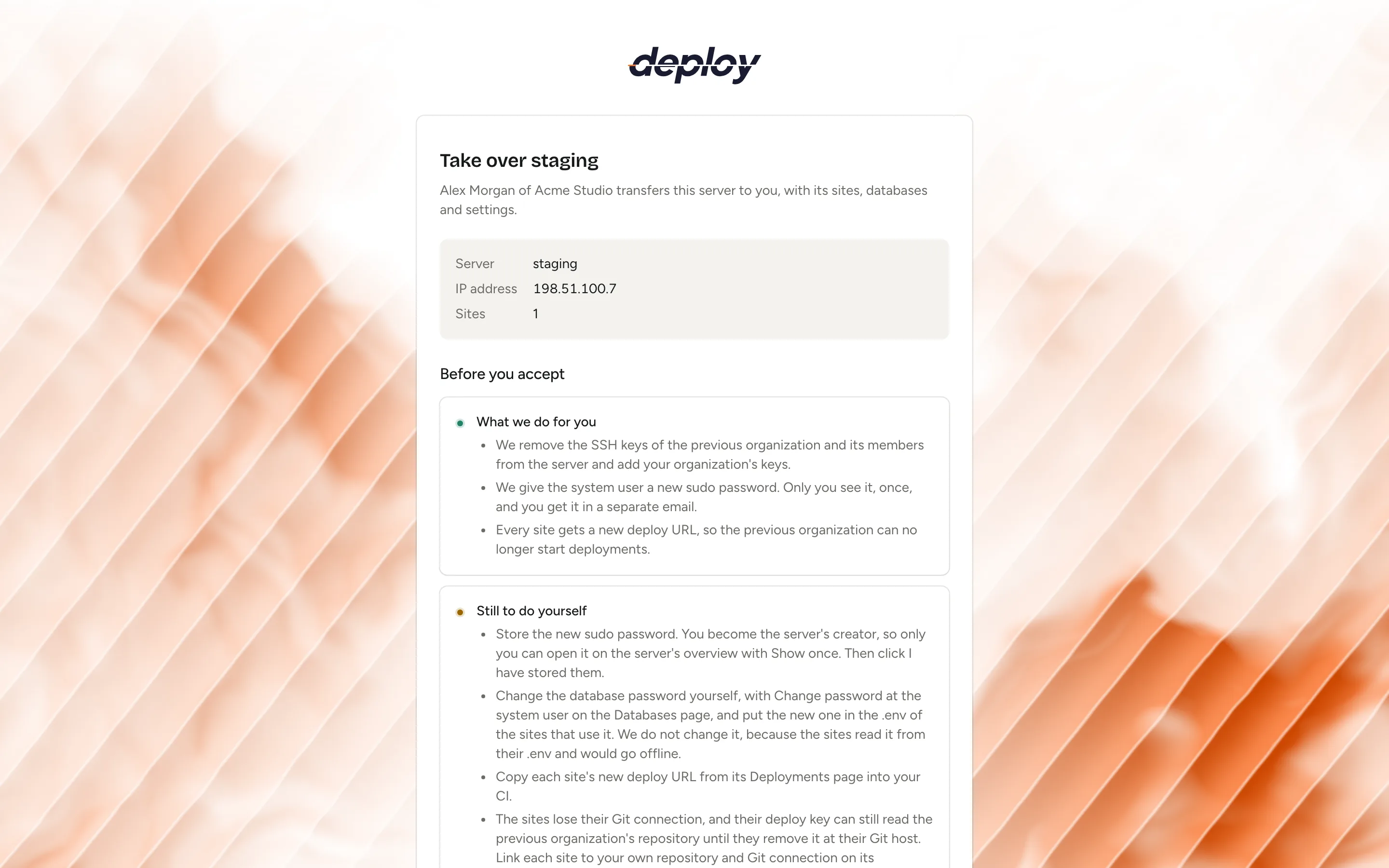
- The page Take over … shows the server, its IP address and the number of sites on it. Under Before you accept it lists, for this server, What we do for you and Still to do yourself (see below), followed by what stays behind.
- Under Into organization, choose the organization to move the server into. Only organizations where you may create servers are listed.
- Click Accept server.
The server and its sites count towards the plan of the organization you move it into: on the free plan, accepting is refused when they don't fit.
The server moves right away and its page opens in your organization. If something is still running on the server, wait a minute and try again. When you have no organization that may take the server, create one first (see organizations).
Right after accepting, you get an email, … is now yours: what to do next, with the same two lists and a View server button. The new sudo password is not in it: it comes in its own email once it is set.
What moves with the server?
Everything that lives on the server comes along: its sites with their domains, certificates, environment, deploy scripts and deployment history, the databases and database users, PHP versions, processes, scheduled jobs, firewall rules, monitoring, and its settings. SSH keys do not come along, except those of your own organization and its members (see below).
The server's own key pair and SSH host key move along as well, so Vimonto Deploy keeps connecting to it as before.
What stays with the old organization?
What belongs to the organization rather than to the server does not move:
| What | What happens |
|---|---|
| Provider account | The server is no longer linked to the cloud account it was created with. It keeps running there and is still billed to that account: move it at the provider yourself if needed. From the new organization, deleting the server only stops managing it; it cannot delete the machine at the provider. |
| Git connections | The sites lose their Git connection, and Quick deploy is turned off. |
| Backups | The backup schedules and their list of backups are removed. The backup files stay in the old organization's storage. |
| Teams | The server is taken out of the old organization's teams. |
| Load balancers | Links between this server and load balancers of the old organization are removed in both directions, and the Nginx configuration of the affected sites is written again. See load balancing. |
The transfer is recorded in the audit log of both organizations: sending, cancelling and accepting it.
How does the old organization lose access?
The moment the server moves, and in a task right after that, Vimonto Deploy takes away the access the old organization still has:
| What | What happens |
|---|---|
| Deploy URLs | Every site gets a new deploy URL at once. The old URL stops working, so the old organization can no longer start deployments from its CI or its Git webhook. |
| SSH keys | The task Secure server after the transfer removes every key Vimonto Deploy put on the server that is not a key of the new organization or an account key of one of its members: the old organization's keys, its members' keys and keys added on the server's SSH keys page. Then it adds the new organization's SSH keys. |
| Sudo password | The same task gives the system user a new sudo password. Only the person who accepted sees it, once, in the Passwords of server dialog on the overview, and gets a copy by email. See server settings. |
| Alerts | Monitors and heartbeats email the person who accepted instead of the old addresses. |
| Connect command | A custom VPS that was still waiting for its connect command gets a new one; the old command no longer works. |
The new owner's overview shows This server was transferred to you, with what was done and what is left to do. If the task failed, for example because the server could not be reached, click Try again. Click Got it to hide the notice.
Vimonto Deploy does not change what would take your sites offline or what it does not know about: the database password (sites read it from their environment), secrets in the sites' environment such as APP_KEY, and access someone set up on the server outside Vimonto Deploy. The heartbeat ping URLs also stay the same, because the scheduled jobs on the server call them, and the sites' deploy keys can still read the old organization's repositories until that organization removes them at its Git host.
After accepting: what should the new owner do?
The Still to do yourself list on the accept page, in the email and in the notice on the overview shows the points below that apply to your server.
- Connect Git again. Connect the sites to a Git connection of your own and turn Quick deploy back on where you want it. See deployments. The sites' deploy key can still read the old organization's repository until they remove it at their Git host.
- Store the new sudo password from the Passwords of server dialog on the overview, then click I have stored them. Accepting makes you the server's creator on the overview, so only you see it there (Show once).
- Update your CI. Every site has a new deploy URL: copy it from the site's Deployments page into your CI.
- Schedule backups to storage of your own on the backups page.
- Change the database password if the server has a database: on the Databases page, click Change password at the system user, then put the new password in the
.envof the sites that use it. Vimonto Deploy does not change it for you, because the sites read it from their.envand would go offline. Change other secrets the old owner knows too, such asAPP_KEYand API keys. - Recreate heartbeats if their URLs must be secret. The ping URLs of heartbeats stay the same, because the scheduled jobs on the server call them, so the old organization knows them. Delete the heartbeats on the Monitoring page, add them again and put the new URLs in your jobs.
- Check for access outside Vimonto Deploy. Keys someone added to
authorized_keysby hand, and extra Linux users, are unknown to Vimonto Deploy and stay. Remove them if needed. - Add it to your teams if members of your organization only see their teams' servers. Until then, only members who see all servers see it.
- Set up load balancing again if the server was behind a load balancer.
Frequently asked questions
Does the server go offline during a transfer?
No. A transfer only changes which organization manages the server in Vimonto Deploy. Nothing runs on the server, and its sites keep serving visitors.
Can I move a server between my own organizations?
Yes. Send the transfer to your own email address, open the link and choose the other organization under Into organization. You need permission to delete servers in the first organization and to create servers in the second.
Can the old organization still reach the server?
Not through Vimonto Deploy: its deploy URLs stop working at once, and its SSH keys and the old sudo password are removed from the server right after. Only what was set up outside Vimonto Deploy, and the database password, stay as they were; change those yourself. As long as the machine is in their provider account, the old organization can still manage it there. The heartbeat ping URLs stay the same too, until you recreate the heartbeats.
Does the billing at the cloud provider move too?
No. The server stays in the provider account it was created in, which keeps billing for it. To move it to another provider account, use the provider's own transfer feature; afterwards it is managed in Vimonto Deploy like a custom VPS.
What if the recipient never accepts?
Then nothing happens. The transfer expires after seven days and the server stays where it is. You can also cancel it earlier with Cancel transfer.