

A recipe is a saved bash script that you run on one or more of your servers. Use recipes for work you repeat, such as installing a tool, cleaning up disk space, rotating logs or checking a setting on every server. You write the script once, and the organization can run it on any active server whenever it is needed.
Each run starts one background task per server, so you can follow the output of every server separately. Recipes belong to the organization: every member sees them, and members with the developer role or higher can create, change and run them.
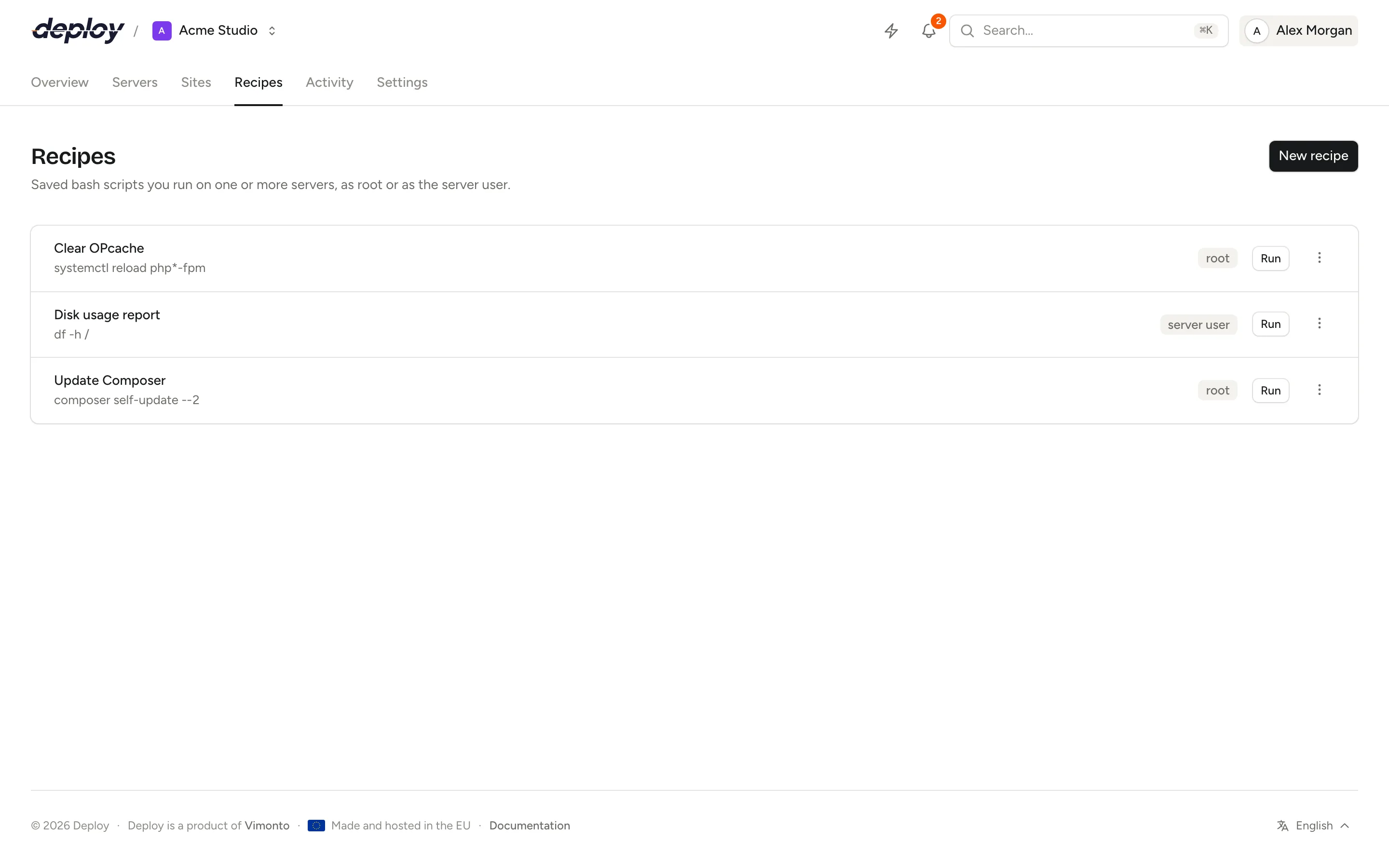
Create a recipe
- Open Recipes in the top navigation of the organization.
- Click New recipe.
- Enter a Name, for example "Install htop".
- Under Run as, choose root or Server user (the user that owns the sites on the server).
- Write the Script in the editor. It runs with bash, so you can write it exactly as you would in a terminal.
- Click Save recipe.
The recipe now appears in the list, with the first line of its script, the user it runs as and when it last ran.
Example: install a tool on every server
apt-get update
apt-get install -y htop ncdu
Run this as root. Commands that need root, such as apt-get, fail when the recipe runs as the server user.
Use variables in a recipe
A recipe can contain variables in double curly braces. Just before the script runs, Vimonto Deploy replaces them with the values of the server it runs on. The editor lists them under Variables, filled in per server.
| Variable | Value |
|---|---|
{{server_id}} |
The server's ID in Vimonto Deploy. |
{{server_name}} |
The server's name. |
{{server_type}} |
The server type, such as app or database. |
{{ip_address}} |
The public IP address. |
{{private_ip_address}} |
The private IP address, if any; otherwise empty. |
{{user}} |
The server's own user. |
{{db_password}} |
The database password, as long as Vimonto Deploy still keeps it for the server. |
Variables with names that don't exist in this list are left as you wrote them.
Example:
echo "Cleaning up on {{server_name}} ({{ip_address}})"
du -sh /home/{{user}}/*
Run a recipe
- Click Run next to the recipe.
- Under Servers, check every server it should run on. The list shows the servers you have access to; only active servers can be selected.
- Keep Email me a report on if you want one email when every server is done, with the last lines of output of each. Turn it off if you don't need it.
- Click Run recipe.
The recipe starts on every selected server at the same time, each as its own task. You can leave the page; the output is under Activity.
When every server is done, you get a Recipe finished notification in the bell (and by email, if you switched that on). Only the person who started the run gets it. See notifications.
Follow a run and read the output
The Recent runs list at the bottom of the recipes page shows the last ten runs, with who started them and when. Each server in a run has its own chip with its status. Click a server to open its task and read the full output. A member who is limited to the servers of their teams only sees runs on those servers, and only their servers in each run.
A run on a server fails when the script ends with an exit code other than 0. The task then says which exit code the recipe stopped with. Start your script with set -e if you want it to stop at the first command that fails.
A recipe can run for up to about an hour per server. Longer scripts are stopped.
Run a recipe from a script or CI
The API lists the organization's recipes (GET /api/v1/orgs/{organization}/recipes) and runs one on a list of servers (POST /api/v1/orgs/{organization}/recipes/{recipe}/run), with a token that has the Write scope. Each server gets its own task, which you can follow through the API as well.
Edit or delete a recipe
Open the menu next to the recipe and choose:
- Edit to change the name, the user or the script. Earlier runs keep the script they ran with.
- Delete to remove the recipe for everyone in the organization. Earlier runs stay in the activity.
Who can use recipes?
Every member can see the recipes and their runs. Creating, editing, running and deleting recipes needs the owner, administrator, manager or developer role. See members and roles. When your organization uses teams, you can only run a recipe on the servers your teams give you access to.
Frequently asked questions
Can I run a recipe on all my servers at once?
Yes. Check every server in the Servers list when you start the run. Each server gets its own task, and they run at the same time.
What is the difference between root and the server user?
root can do anything on the server, such as installing packages and changing system settings. The Server user is the user that owns your sites and runs your deploys; use it for work in your sites' directories, so files keep the right owner.
Can I run the same recipe twice on one server at the same time?
Yes. Vimonto Deploy doesn't stop you from running a recipe on a server where another recipe is still running, so be careful with scripts that shouldn't overlap.
How long are recipe runs kept?
Runs and their output are kept for 90 days, like other activity.
Can I run one-off commands without saving a recipe?
Use the browser terminal for one-off commands on a single server.