

Vimonto Deploy tells you when something happens on your servers and sites: a deploy went live or failed, a monitor crossed its threshold, a backup failed or a new server is ready. Notifications reach you in two ways: by Email and In-app, in the bell at the top of every page.
You choose per kind of notification which of the two you want, and you can mute servers you don't follow. These settings are personal: they belong to your account and apply to every organization you are a member of.
Read your notifications in the bell
The bell sits in the top bar of every page. A number on it shows how many notifications you haven't read yet (9+ when there are more than nine).
Click the bell to see your latest twelve notifications, newest first. Each one has a title, often a short explanation (such as the error of a failed deploy), and how long ago it happened. Unread ones are in bold with an orange dot. Notifications are kept for 90 days, read or not, and then deleted.
- Click a notification to mark it as read and open the page it is about, such as the deploy, the server's monitoring or the site's domains.
- Click Mark all read to mark every notification as read.
- Click the settings icon next to it (Notification settings) to open your settings.
New notifications appear in the bell as they arrive; you don't have to reload the page. They show in your own language, even when a colleague's action caused them.
What can you be notified about?
| Group | Notification | When | On by default |
|---|---|---|---|
| Servers | Server ready | A new server is set up and ready to use. | In-app |
| Servers | Setting up a server failed | Something went wrong while setting up a server. | Email and in-app |
| Servers | Deleting a server failed | A server could not be deleted at its provider. | Email and in-app |
| Servers | Monitor alert | CPU, memory, disk or load crossed a monitor's threshold, and again when it recovers. | Email and in-app |
| Servers | Heartbeat missed | A scheduled job did not check in on time, and again when it is back. | Email and in-app |
| Servers | Backup failed | A database backup could not be made. | Email and in-app |
| Servers | Recipe finished | A recipe you ran has finished on all its servers. | In-app |
| Servers | SSH key added or removed | Someone put an SSH key on a server or took one off. | In-app |
| Sites | Deployment succeeded | A deploy went live. | In-app |
| Sites | Deployment failed | A deploy failed; the live version stayed as it was. | Email and in-app |
| Sites | Certificate failed | An HTTPS certificate could not be issued or renewed. | Email and in-app |
| Sites | Site feature failed | Switching on Horizon, Reverb or another site feature failed. | Email and in-app |
| Sites | Site down | A site failed two uptime checks in a row. | Email and in-app |
| Sites | Site back up | A site that was down answers again. | In-app |
| Organization | New member | Someone accepted an invitation to the organization. | In-app |
| Organization | Payment failed | A payment for Premium failed. | Email and in-app |
The rule behind the defaults: failures come by email and in the app, good news and routine only in the app.
Who receives a notification?
A notification about a server or one of its sites goes to every member of the organization who can see that server, whatever their role, including the person whose action caused it. When your organization uses teams, members only hear about the servers their teams give them access to.
Two notifications go to fewer people:
- Recipe finished goes only to the person who started the recipe run.
- New member goes to every member except the person who just joined.
- Payment failed goes only to members who manage billing: owners and administrators.
Each person then gets it through the channels they chose, so one colleague may get an email while another only sees it in the bell.
Choose how you are notified
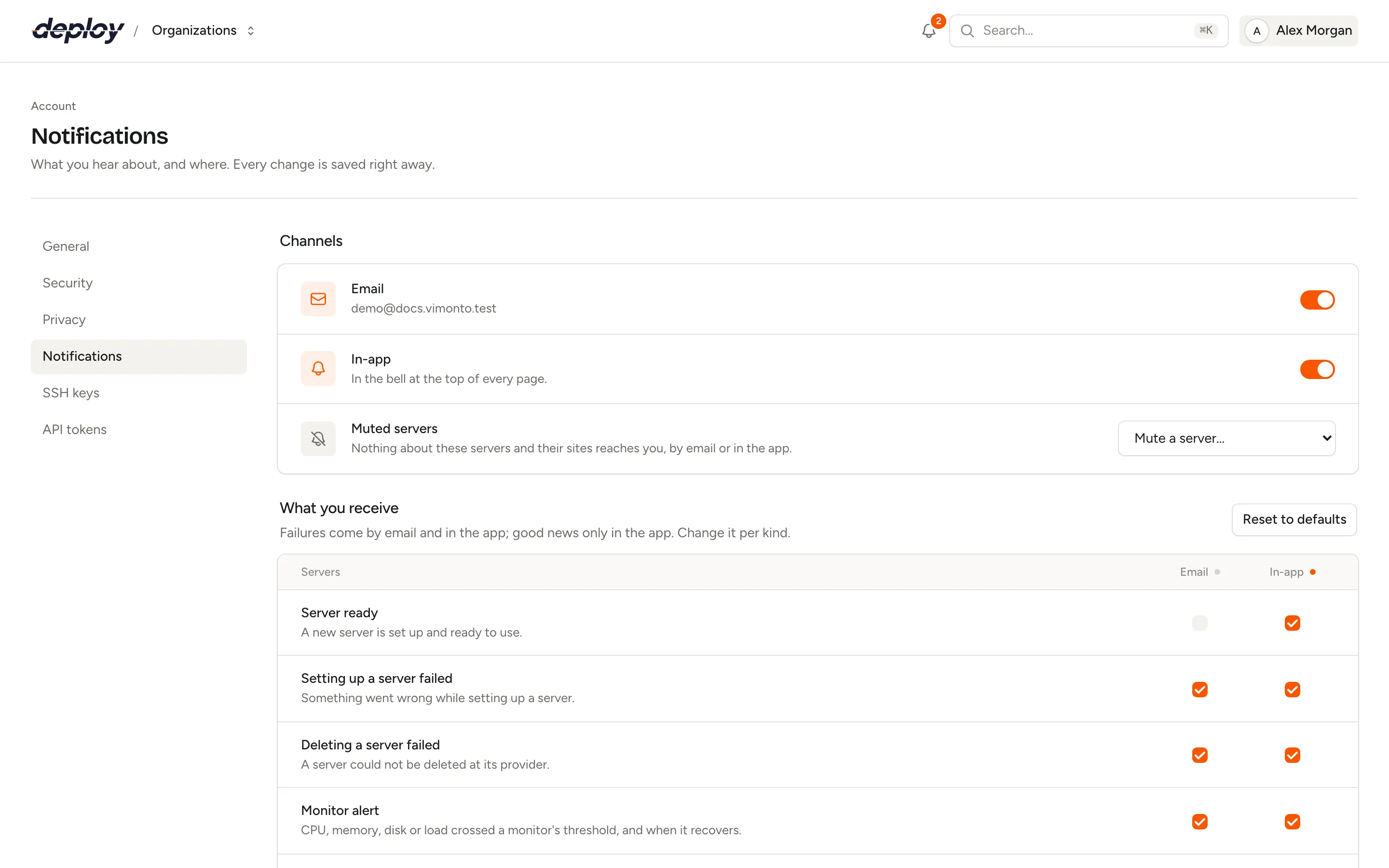
- Open the account menu at the top right and choose Account settings → Notifications, or click the settings icon in the bell.
- Under Channels, switch Email and In-app on or off. Emails go to your account's email address. With a channel off, nothing reaches you that way, and its column below is greyed out.
- Under What you receive, check or uncheck Email and In-app for each kind of notification.
Every change is saved right away; there is no save button.
- Click Email or In-app in the header of a group (Servers, Sites, Organization) to switch that channel on for the whole group, or off when it is already on for all of them.
- Click Reset to defaults to go back to the defaults in the table above. This also unmutes all servers and switches both channels on again.
Mute a server
Under Muted servers, pick a server in Mute a server…. The list holds the servers of all your organizations that you can see, grouped by organization. From then on, nothing about that server and its sites reaches you, by email or in the app.
Muted servers are listed below the menu. Click the cross next to a name to unmute it.
Muting only affects notifications about a server. Recipe finished and New member are not about one server, so they still come.
What does a notification email look like?
The subject is the notification's title, such as "shop.example.com is live" or "Deploying to shop.example.com failed". The email contains the explanation, if there is one, and a View in Vimonto Deploy button that opens the page it is about. It is written in the language you chose under Account settings → General.
Send a site's deploy results elsewhere
The settings on this page are personal. To send one site's deploy results somewhere for the whole team, use the Notifications tab of the site's Settings: Deployment failure emails to any address, and a Deploy hook that calls your own endpoint after every deploy. These come on top of the notifications in the bell and are not affected by your settings here. See deploy notifications.
Which emails are not controlled here?
A few features send their own emails to an address you enter there. Your notification settings don't change them:
- Monitors and heartbeats email the address under Notify when they alert and when they recover. When that address is yours and you get Monitor alert or Heartbeat missed by Email, you get only the notification email, never both. See monitoring.
- Backups email the address under Email when a backup fails, if you entered one. See backups.
- Recipes send a report when you check Email me a report. See recipes.
Besides that, when a task you started finishes, you see a short message in the corner of whatever page you have open. That message is not a notification and does not show up in the bell.
Frequently asked questions
Why didn't I get an email about a successful deploy?
Deployment succeeded is only in the app by default. Check Email next to it under What you receive if you want an email for every deploy.
Are my notification settings per organization?
No. They belong to your account and apply to every organization you are in. To stop hearing about one organization's servers, mute those servers.
Do viewers get notifications too?
Yes. Every member who can see a server gets its notifications, also with the viewer role. Each person can switch off what they don't need.
Can I stop all emails from Vimonto Deploy?
Switch off Email under Channels to stop all notification emails. Emails you need to sign in or confirm something, such as verification codes, still come, and so do the monitor, heartbeat, backup and recipe emails described above.