

Members are the people who belong to an organization. You add someone by sending an invitation to their email address, and you give them a role: owner, administrator, manager, developer or viewer. Every member can see everything in the organization, such as servers, sites, deployments and activity. The role only decides what a member may change. To also limit which servers someone sees, use teams.
You manage members under Settings → Members.
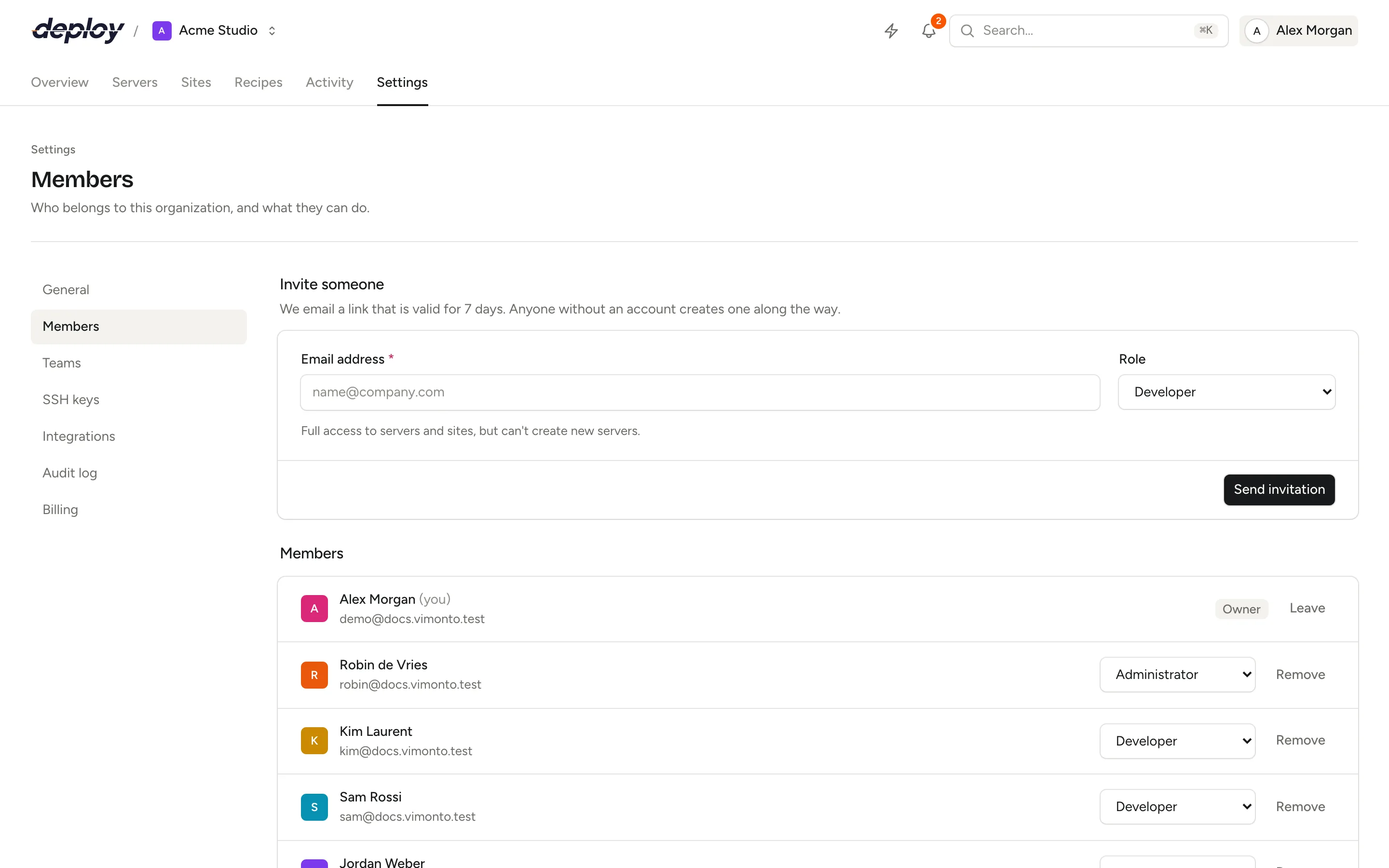
Invite someone
- Open Settings → Members.
- Under Invite someone, enter their Email address.
- Choose a Role. A short description of the role appears below the form.
- Click Send invitation.
We email a link that is valid for 7 days. The person who opens it sees which organization invited them and with which role:
- If they are signed in with the invited email address, they click Accept invitation and the organization opens.
- If they are not signed in, they click Sign in, or Create account if they have no account yet, and come back to the invitation afterwards.
The invitation is personal: it can only be accepted by the account with the invited email address. A forwarded link is useless to anyone else.
Inviting someone needs the owner or administrator role. You can't invite someone who is already a member.
Resend or revoke an invitation
Open invitations are listed under Pending invitations, with their role, who sent them and when they expire.
- Resend sends a new email with a new link that is valid for another 7 days. The old link stops working.
- Revoke cancels the invitation. The link stops working.
Inviting the same email address again replaces the earlier invitation, with the new role and a new link.
What can each role do?
Every role can view everything in the organization. The table shows what each role may change.
| Permission | Owner | Administrator | Manager | Developer | Viewer |
|---|---|---|---|---|---|
| View servers, sites, deployments, activity and the audit log | ✓ | ✓ | ✓ | ✓ | ✓ |
| See IP addresses in the audit log | ✓ | ✓ | |||
| Rename the organization | ✓ | ✓ | |||
| Delete the organization | ✓ | ||||
| Invite and remove members, change roles | ✓ | ✓ | |||
| Connect integrations (cloud, DNS, Git and storage accounts) | ✓ | ✓ | |||
| Create teams and choose which servers members see | ✓ | ✓ | ✓ | ||
| Manage the organization's SSH keys | ✓ | ✓ | ✓ | ||
| Create servers | ✓ | ✓ | ✓ | ||
| Delete servers and transfer them to another organization | ✓ | ✓ | ✓ | ||
| Manage servers (databases, PHP, processes, scheduler, network, services, settings) | ✓ | ✓ | ✓ | ✓ | |
| Open the browser terminal | ✓ | ✓ | ✓ | ✓ | |
| Create and manage sites (deploy, environment, domains, Nginx, features) | ✓ | ✓ | ✓ | ✓ | |
| Create, edit and run recipes | ✓ | ✓ | ✓ | ✓ | |
| Manage backups and restore databases | ✓ | ✓ | ✓ | ✓ | |
| Cancel tasks started by someone else | ✓ | ✓ | ✓ | ✓ |
In short:
- Owner: everything, including deleting the organization and appointing owners.
- Administrator: everything except managing owners and deleting the organization.
- Manager: creates, manages, deletes and transfers servers, manages sites, teams and the organization's SSH keys, but doesn't manage members, connections or organization settings.
- Developer: full access to servers and sites, but can't create or delete servers.
- Viewer: sees all servers and sites, but can't change anything.
Anyone can cancel a queued task they started themselves, whatever their role. See activity.
An API token acts as the person who made it: it can do what their role allows, and no more than the token's scopes allow.
Change a member's role
- Open Settings → Members.
- Pick a new role in the menu next to the member. The change takes effect immediately.
You can only give roles you are allowed to assign. Owners and administrators can change roles, but only an owner can make someone an owner, or change or remove the role of another owner. You can't change your own role.
Every invitation, role change and removal is recorded in the audit log.
Remove a member
- Open Settings → Members.
- Click Remove next to the member and confirm with Remove member.
The person immediately loses access to everything in the organization and is taken out of all its teams. Their account stays; they keep access to other organizations they belong to. If you invite them again later, they start without teams and with access to every server. Tasks they started remain in the activity history, and what they did remains in the audit log.
Rules for owners
- Every organization always keeps at least one owner. You can't remove the last owner or change their role.
- Only owners can appoint, change or remove owners.
- The only owner can't leave the organization. Make someone else an owner first, or delete the organization.
- Only owners can delete the organization.
Frequently asked questions
Can I give someone read-only access?
Yes. Invite them with the Viewer role. They can see every server, site, deployment and task, but can't change anything.
Can a developer create servers?
No. Developers can manage existing servers and sites, but creating and deleting servers needs the manager role or higher.
Can I limit someone to a few servers?
Yes. Put them in a team with those servers and set their server access to Only their teams' servers. Owners and administrators always see every server.
Can a manager invite people?
No. Inviting and removing members and changing roles needs the owner or administrator role.
Does the invited person need an account first?
No. Anyone without an account creates one along the way, with the invited email address, and then accepts the invitation.
What happens when an invitation expires?
The link stops working after 7 days and the invitation shows as Expired under Pending invitations. Click Resend to send a new one.
Do extra members cost extra?
No. The subscription is per organization, with unlimited members.