

A site in Vimonto Deploy is one website or app on one of your servers: its own domain, Nginx configuration, code, .env and deploys. You create it from a framework preset (Laravel, WordPress, Next.js and others), which picks the runtime, the web directory, the build command and a deploy script that fits.
When you create a site, Vimonto Deploy sets it up on the server, links its repository and deploys it straight away. A few minutes later the site is live on a generated on-deploy.link address, even before you have touched DNS.
Find all your sites
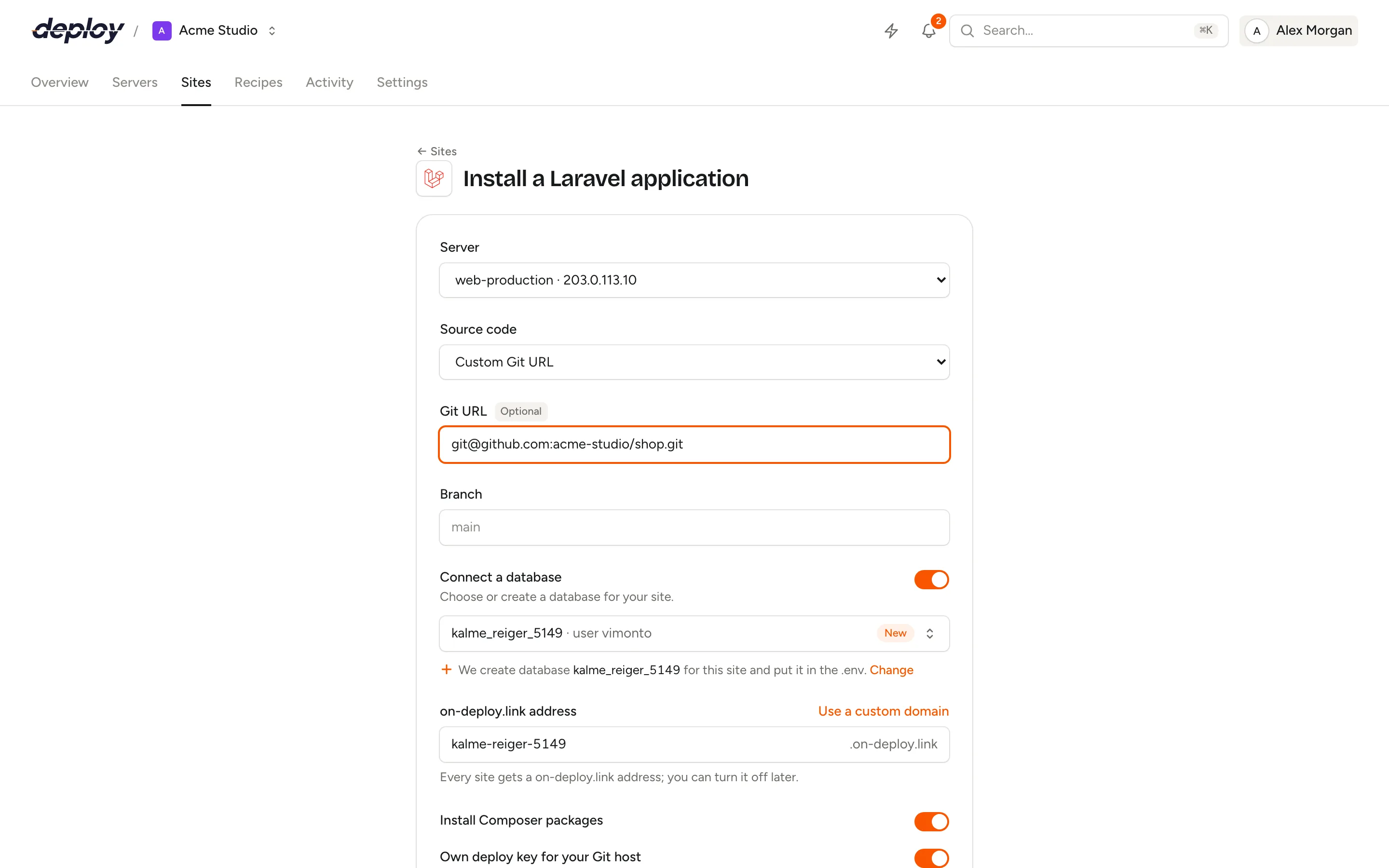
The Sites tab in the top bar lists every site of the organization, across all its servers. Each row shows the domain with the framework's icon, and below it the server, the framework, the PHP version and the branch. Deployed says how long ago the site was last deployed (or not deployed yet), and Status shows whether it is ready or still busy. Search by domain, sort by a column, and click a row to open the site.
If your organization uses teams, you only see the sites on the servers you have access to. A server's own Sites page lists just the sites on that server.
Start a new site
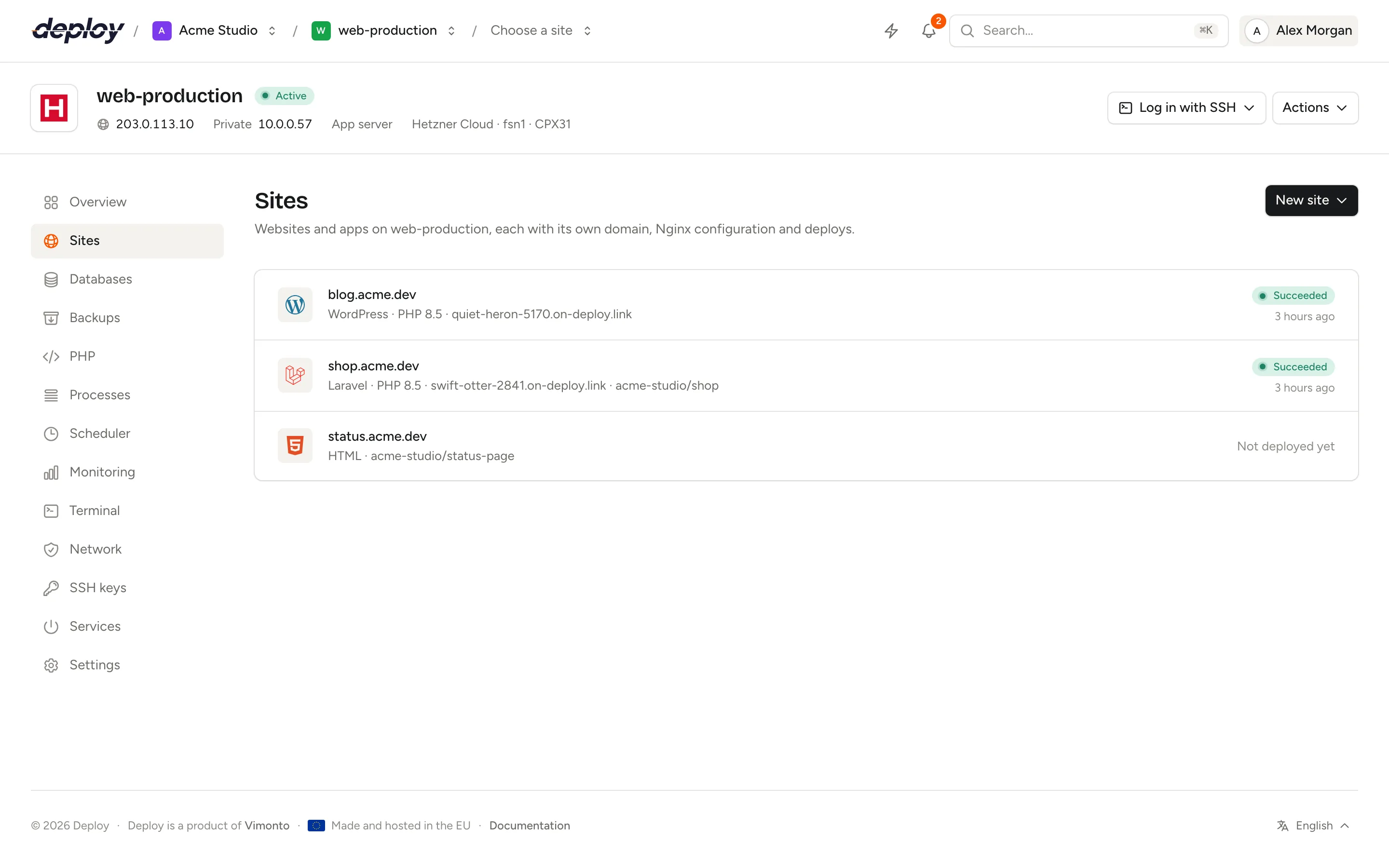
- Open a server and go to its Sites page.
- Click New site and choose what the site is built with, for example Laravel or WordPress.
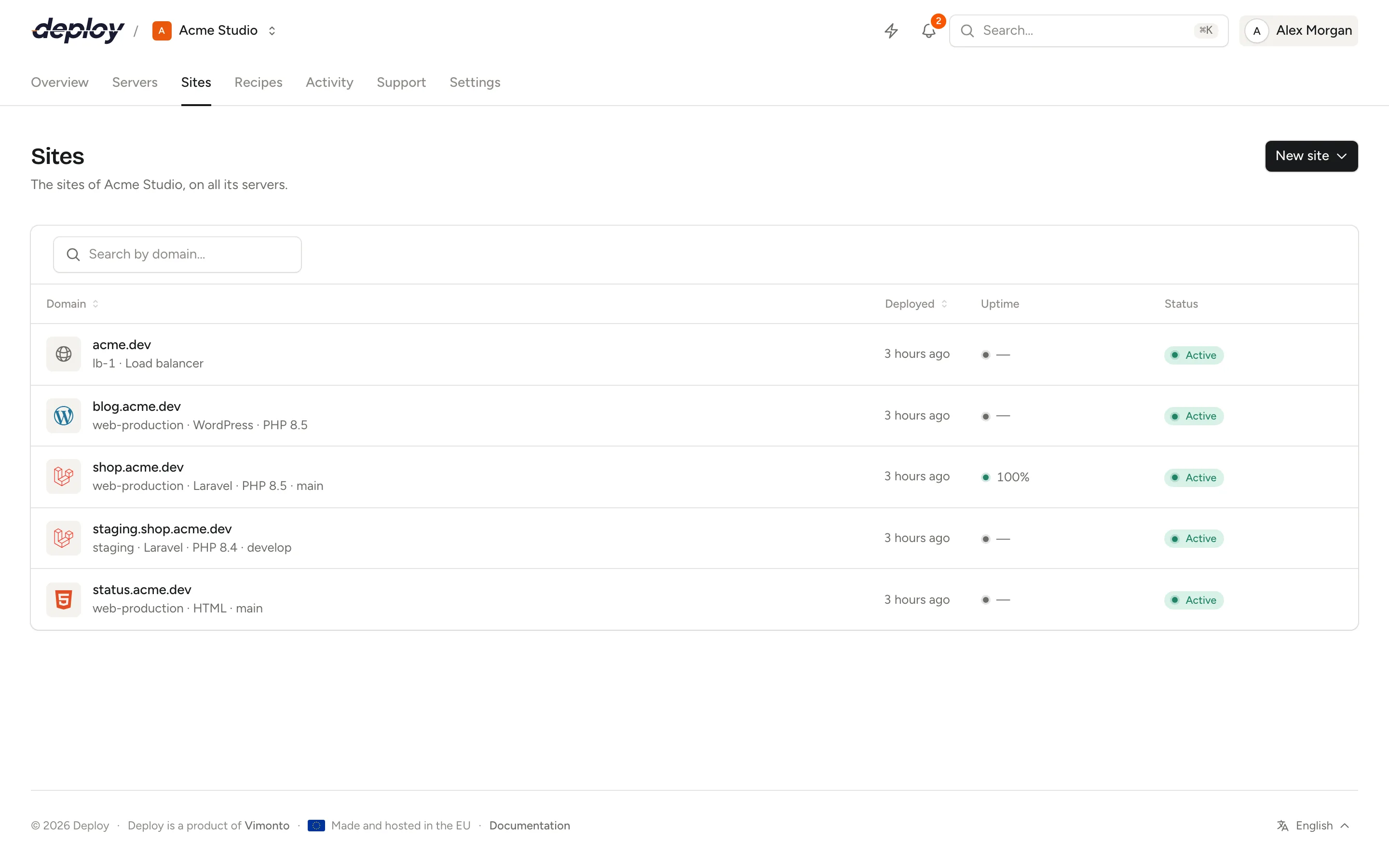
- Fill in the form (each field is described below) and click Create site.
New site on the organization's Sites list has the same menu of frameworks. The form then lets you choose the server, and its ← Sites link leads back to the organization's list instead of the server's.
Sites go on servers that serve websites: an app server or a web server. A load balancer only holds load-balanced sites (see load balancing). If there is no suitable server yet, the form says No server for sites yet and offers New server. See server types for what each type installs.
You need permission to manage sites in the organization; see members and roles. The free plan includes 3 sites across all servers of the organization; when they are used, the form shows Your plan is full with See plans. See billing.
Which frameworks can you choose?
The New site menu groups the presets by language. Each preset sets the runtime (how Nginx serves the site) and sensible defaults, which you can change under Advanced settings.
| Preset | Runtime | Web directory | Composer | Default build command | Repository |
|---|---|---|---|---|---|
| Laravel | Laravel (PHP) | /public |
Yes | npm run build |
Yes |
| Symfony | PHP | /public |
Yes | none | Yes |
| Statamic | Laravel (PHP) | /public |
Yes | npm run build |
Yes |
| WordPress | PHP | / |
No | none | No, installed for you |
| phpMyAdmin | PHP | / |
No | none | No, installed for you |
| PHP | PHP | /public |
Yes | none | Yes |
| Next.js | Node.js | not used | No | npm run build |
Yes |
| Nuxt | Node.js | not used | No | npm run build |
Yes |
| HTML | Static | / |
No | none | Yes |
| Other | PHP | / |
No | none | Yes |
| Load balancer | Proxy to your app servers | not used | No | none | No |
What the runtimes mean:
- Laravel: PHP-FPM behind Nginx, with Laravel's
storage/shared between releases, queue workers and the scheduler. - PHP: any PHP app with an
index.php, such as Symfony or WordPress. - Static: HTML, or a frontend that is built into files (Vite, Astro, a static Next.js export).
- Node.js: an app that listens on a port; Nginx passes requests to it.
The Load balancer preset, under Load balancing in the menu, is only for load balancer servers and is the only kind of site they hold. It has no code and no deploys: it passes requests on to your app servers. Its form has no repository, database or Advanced settings, since there is nothing to build or isolate. See load balancing.
WordPress and phpMyAdmin
WordPress and phpMyAdmin need no repository. Vimonto Deploy downloads the latest release onto the server and writes its configuration:
- WordPress gets a
wp-config.phpwith the database name, user and password, and fresh security keys and salts. WordPress always needs a database, so Connect a database cannot be switched off. - phpMyAdmin gets a
config.inc.phpthat logs in with cookie authentication to the database server on the same machine.
Open the site afterwards to finish the WordPress installation in the browser.
Fill in the form
Server
Choose the server the site goes on. Only active servers that can host this kind of site are listed, shown with their IP address: app and web servers for every preset, load balancers for the Load balancer preset only.
Source code, repository and branch
Under Source code, choose one of your Git connections (GitHub, GitLab or Bitbucket), or Custom Git URL.
- With a connection, pick the Repository (optionally filtered by Organization) and the Branch.
- With Custom Git URL, type the Git URL, such as
git@github.com:you/project.gitorhttps://github.com/you/project.git, and the Branch.
The repository is optional. Without one, the site is set up with a placeholder page and you can connect a repository later on the Deployments page.
Connect a database
On a server with a database, Connect a database is on by default with a new database named after the site (for example shop_example_com). You can:
- Click Change or Create database to choose the name, a User of its own and a Password. Leave the user empty to use the server's own database user. Leave the password empty and one is generated.
- Pick an existing database from the list. The site then gets a database user of its own for it, so it never shares a password with another site.
For Laravel and Statamic sites, the database name, user and password are written into the site's .env. See databases for managing them later.
Domain or generated address
Every site can get a free address on on-deploy.link, such as kalme-rivier-4821.on-deploy.link. You can change the first part of the name in the on-deploy.link address field. It works right away, without any DNS of your own, which makes it handy for testing and sharing. A site that runs on this address also gets HTTPS by itself (see below).
To use your own domain, click Use a custom domain and type it, for example shop.example.com. Keep Also …on-deploy.link checked if the site should answer on the generated address too.
Then the domain needs DNS records that point to the server. With DNS integrations, the hint under the domain says "We look the domain up at your DNS providers and set its records automatically." While you type, a DNS box shows whether one of your integrations (Hetzner Cloud, DigitalOcean, Vultr, Akamai, AWS, Google Cloud or Cloudflare) manages it; their domain lists are fetched live:
- If one does, Point it automatically with … is chosen. The box lists the records (an A record for the domain and a CNAME for
www.) as New, Already right or Changes, with a warning for anything that changes or is removed. If existing records change, tick Change these records. After setup, Vimonto Deploy updates the records, waits until the domain resolves and requests HTTPS by itself. Choose I manage the DNS myself to leave the DNS alone. - If none does but you have DNS integrations, switch on Add the domain to a DNS provider and choose the Provider and the Zone (by default the domain without its subdomain, such as
example.com). Vimonto Deploy creates the zone there, sets the records and lists the nameservers to set at your registrar in the task output; HTTPS follows once the DNS resolves. - Otherwise, point the domain to the server's IP address with an A record at your DNS provider yourself.
See domains and SSL for what each warning means.
You can add more domains, switch the generated address off and turn on HTTPS later; see domains and SSL.
Install Composer packages
For Laravel, Symfony, Statamic and PHP sites with a repository, Install Composer packages adds composer install to the deploy script. Turn it off if your project has no composer.json or installs its packages another way.
Own deploy key
With Own deploy key for GitHub (or GitLab, Bitbucket; Own deploy key for your Git host with a custom Git URL) on, the default, the site gets an SSH key of its own for its repository. With a connected Git host, Vimonto Deploy registers it as a read-only deploy key on the repository. With a custom Git URL, you copy the key from the Deployments page and add it to your Git host yourself.
A repository from a connected Git host also gets Deploy on every push switched on: Vimonto Deploy adds a webhook, and every push to the branch deploys. You can switch it off on the Deployments page.
Advanced settings
Click Advanced settings to change the defaults of the preset. Click Save settings to keep them.
| Setting | What it does |
|---|---|
| Root directory | Where the app lives in the repository. / is the whole repository; use /backend or similar for a monorepo. |
| Web directory | What Nginx serves, inside the root directory, such as /public or /dist. Not shown for Node.js sites. |
| PHP version | One of the PHP versions installed on the server. See PHP. |
| Frontend package manager | npm (default), yarn, pnpm or bun. Yarn and pnpm run through Corepack. |
| Build command | Runs after the packages are installed, such as npm run build. Empty: build nothing. |
| Website isolation | Gives the site its own Linux user, with a Username you choose. |
| Zero-downtime deploys | Builds each deploy in a new release and only switches once it succeeded. On by default. |
| Composer authentication | Host, username and password or token for private Composer packages, such as repo.packagist.com. |
| npm authentication | Registry and token for a private npm registry, such as https://npm.pkg.github.com. |
Deploy a monorepo
Set the Root directory to the folder of the app, for example /backend. The whole repository is cloned, but the deploy script runs in that folder, the .env is linked there, and the web directory is looked up inside it. A deploy fails with a clear message if the folder is not in the repository.
Website isolation
An isolated site runs as its own Linux user, with a home directory other sites cannot read. A PHP site also gets its own PHP-FPM pool running as that user. Nginx can still serve the files because the server's system user joins the site's group. Use it when several clients or projects share one server.
The user is chosen when the site is created. The name must be lowercase letters, numbers, _ and -, start with a letter, and not be a system name such as root or www-data.
Zero-downtime deploys
With zero-downtime deploys, each deploy is built in a new release directory and goes live in one atomic switch, so visitors never see a half-built site and you can roll back. With it off, one release is updated in place: faster, but visitors may see the build happen and there is no rollback. You can change this later under site settings. See deployments for details.
Private Composer and npm packages
The credentials under Composer authentication and npm authentication are stored encrypted and only used during the build: Composer reads them from COMPOSER_AUTH, and npm from a temporary config file that is removed afterwards. You can add, change or remove them later on the site's Settings, on the Composer and npm tabs: see Composer and npm credentials.
What happens after you click Create site?
You land on the site's page, which shows only the setup until the site is live: the phases, the step that is running and the log of each task. You can leave the page at any time; the work goes on in the background.
- Set up: Vimonto Deploy creates the DNS record for the generated address, creates the database and its user, makes the site's directories, writes the
.env, the PHP-FPM pool (when isolated) and the Nginx configuration. Until the first deploy, the site shows a page saying it is ready. WordPress and phpMyAdmin are installed in this phase. - Link: with a repository, the deploy key is put on the server and, with a connected Git host, registered on the repository together with the push webhook.
- Fetch, Build, Live: the first deploy clones the branch, runs the deploy script and makes the release live.
- HTTPS: for a site whose address is the generated
on-deploy.linkaddress, and for a site on its own domain that a DNS integration points. For its own domain, Vimonto Deploy first updates the DNS records as the plan showed. Then it waits until the name points to the server (at most 10 minutes), requests a free Let's Encrypt certificate and switches the site to HTTPS. It runs alongside the first deploy and is the last phase shown. If it fails, the site keeps working over HTTP; request a certificate later under domains and SSL.
A site created with a domain of its own whose DNS you manage yourself skips the HTTPS phase, because its DNS may not point to the server yet. Request its certificate once it does.
While the setup runs (setting up, linking the repository, the first deploy and the first HTTPS certificate), this overview with its setup steps is the site's only page, together with the log of the first deploy: there is no sidebar, and the site's other pages lead back to it.
Once everything is done, the page becomes the site's normal overview with its sidebar. The first time you (or anyone else in the organization) open it after that, it starts with Your site is live, how long the setup took and an Open button; Close hides it, and later visits show the overview only.
On disk, every site lives in /home/{user}/{domain}, with releases/, shared/ and a current symlink. The directory keeps its name when you change the site's domain later.
If a phase fails, the page says Setup failed, Connecting the repository failed or First deploy failed, with the error and the log of the step that went wrong (under Details and log). Fix the cause (a branch name, a missing deploy key) and use the button on the page: Try again, Connect again or Deploy again. When a phase failed, the sidebar and all the site's pages are back, so you can fix the cause on the Deployments and Environment pages.
What to do next
- For a site on a domain of its own whose DNS you manage yourself, turn on HTTPS with a free Let's Encrypt certificate under domains and SSL.
- Check the
.envunder environment. - For Laravel, add queue workers and the scheduler under queues and scheduler, or switch on Horizon in the site features menu.
- With a custom Git URL, call the deploy URL from your Git host or CI to deploy on a push.
Frequently asked questions
Do I need a domain to create a site?
No. Every site can get a generated on-deploy.link address that works right away. Add your own domain when you are ready.
Can I host several sites on one server?
Yes. A server can hold as many sites as it has room for. Each site has its own Nginx configuration and directory; turn on website isolation to also give each its own Linux user.
Which repository does WordPress use?
None. WordPress and phpMyAdmin are downloaded and installed on the server when the site is created. If you keep a WordPress project in Git, choose the PHP preset instead and connect your repository.
How do I deploy a Next.js or Nuxt app?
Choose Next.js or Nuxt. The site gets a free local port (from 3000 upwards) that Nginx forwards to, and the deploy script installs packages and runs npm run build. Vimonto Deploy also adds the process that runs your app on that port, and the first deploy starts it. You find it under Processes.
Can I spread a site over several servers?
Yes, with a load balancer server in front of two or more app servers that each run the same site. See load balancing.
Can I change the framework later?
No, the preset is chosen when the site is created. The PHP version, web directory, Node.js port and zero-downtime deploys can be changed under site settings, and the deploy script on the Deployments page.
Can I copy an existing site?
Yes. On the site's Settings, click Clone site to make a new site with the same repository, build settings, deploy script and rules, on the same or another server. See clone a site.