

A deployment puts a new version of your code live on your server. Vimonto Deploy clones your branch into a fresh release directory, runs your deploy script there, and only then switches the site over in one atomic step. Until that moment visitors keep getting the previous version, so a failed build never takes your site down.
You can deploy with a button, on every push to your branch, or from CI with a deploy URL. The last few releases stay on the server, so going back to an earlier version takes seconds.
How does a zero-downtime deployment work?
Every site is laid out on disk for zero-downtime deploys:
/home/{user}/{directory}/
├── releases/
│   ├── 20261007141502/     one directory per deploy
│   └── 20261007153044/
├── shared/
│   ├── .env                kept between releases
│   └── storage/            Laravel only
└── current -> releases/20261007153044
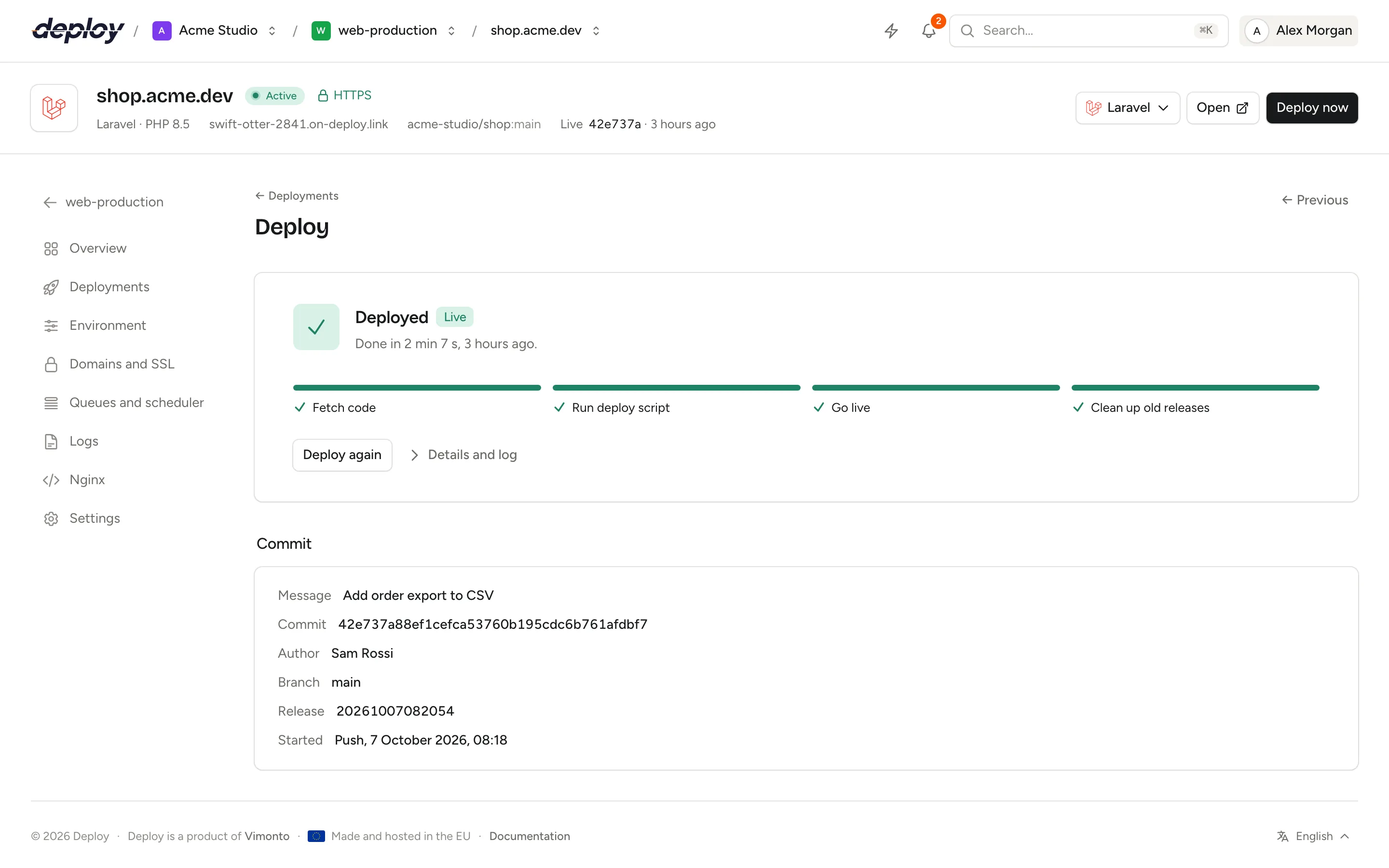
Nginx serves the site from current. A deploy runs these steps, which you can follow live:
| Step | What happens |
|---|---|
| Fetch code | The branch is cloned into a new release named after the date and time (a shallow clone of the latest commit). The commit hash, author and message are recorded. |
| Run deploy script | The shared .env is linked into the release (and for Laravel, storage/ too). Then your deploy script runs in the release, as the site's user. |
| Go live | current is pointed at the new release in one atomic rename. PHP-FPM is reloaded so OPcache picks up the new files. |
| Clean up old releases | Old releases are removed; the newest five are kept. |
After going live, Vimonto Deploy also restarts what runs your code: Laravel queue workers get artisan queue:restart, Node.js processes are restarted, and every switched-on site feature runs its own command (for example horizon:terminate for Horizon).
On a site's first deploy, if your repository has a .env.example, the .env is rebuilt on top of it before the deploy script runs: the example's keys, order and comments, with the values Vimonto Deploy generated filled in. The deploy log says so, and the .env history keeps it as Built on .env.example. This happens only once. See environment.
Each fetch also reads the packages in your composer.json and package.json, so the site features menu can mark the tools your app uses.
What happens when a deploy fails?
If the fetch or the deploy script fails, the new release is thrown away and current is not touched. The deploy page says Deploy failed with the error and The live version has not changed. Open Details and log to see the output of every step, fix the problem and click Deploy again.
Deploy now
Click Deploy now in the site header, at the top of every site page. You are taken to the deploy's own page, which shows the phases, the step that is running and the progress. You do not have to keep the window open: the deploy runs on the server, you get a message in the app when it is done, and a finished or failed deploy also sends a notification. To send a site's deploy results to your own endpoint or extra email addresses as well, set up its deploy notifications.
Only one deploy runs per site at a time. If you start another while one is running, you see A deployment is already running for and the site's domain.
Connect or change the repository
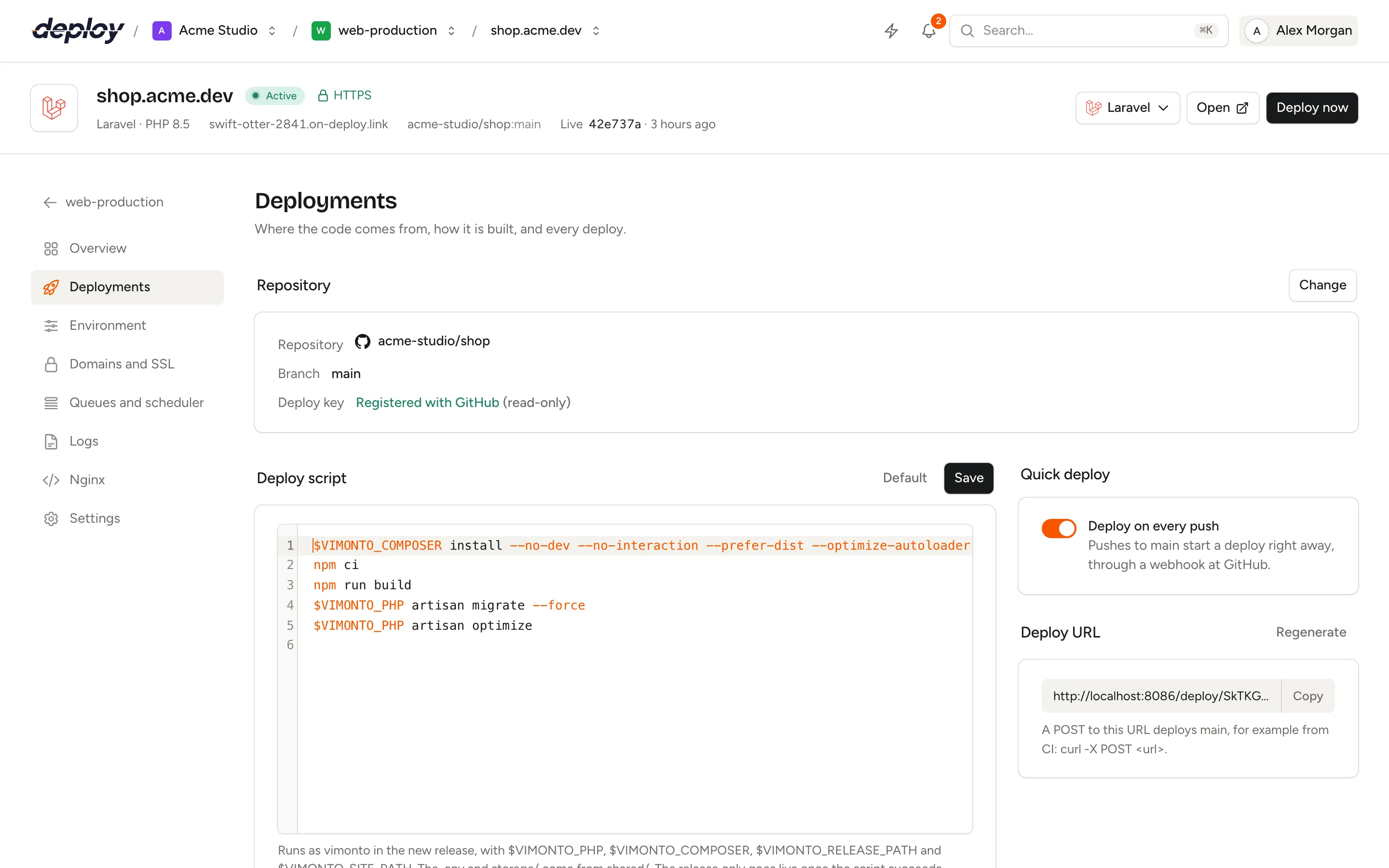
The Repository panel shows the repository, the branch and the state of the Deploy key. Click Connect a repository or Change to pick a repository from a connected Git host or use a Custom Git URL.
- Connected Git host: the site's deploy key is registered on the repository as a read-only deploy key, and removed from the old repository when you switch. A newly linked repository gets Deploy on every push switched on straight away.
- Custom Git URL: use an SSH URL (
git@…) for a private repository and add the key shown under This site's deploy key as a deploy key at your Git host. Use an HTTPS URL for a public repository. Deploy on every push is off, because only a connected Git host can get a webhook from Vimonto Deploy.
Edit the deploy script
The Deploy script panel holds the Bash script that builds a release, in a code editor with shell highlighting. It starts with a script that fits your framework, which you can edit freely and save with Save (or ⌘ S, Ctrl S). The next deployment uses it. Default puts the generated script back in the editor; it is only saved when you click Save.
The default script for a Laravel site looks like this:
$VIMONTO_COMPOSER install --no-dev --no-interaction --prefer-dist --optimize-autoloader

if [ -f package.json ]; then
    if [ -f package-lock.json ]; then npm ci; else npm install; fi
    npm run build
fi

$VIMONTO_PHP artisan storage:link --force
$VIMONTO_PHP artisan migrate --force
$VIMONTO_PHP artisan optimize
Symfony sites clear the cache and run Doctrine migrations when there is a migrations folder. Statamic sites also warm the Stache. Static and Node.js sites install packages and run the build command.
The script runs as the site's user, in the app's directory inside the new release (the root directory, for a monorepo), with set -e: the first command that fails stops the deploy.
Which variables can the deploy script use?
| Variable | Value |
|---|---|
$VIMONTO_PHP |
The PHP binary of the site's PHP version, such as php8.4. |
$VIMONTO_COMPOSER |
Composer, run with the site's PHP version. |
$VIMONTO_RELEASE_PATH |
The app's directory in the new release. |
$VIMONTO_SITE_PATH |
The site's directory, such as /home/vimonto/shop.example.com. |
$VIMONTO_BRANCH |
The branch being deployed. |
$VIMONTO_COMMIT |
The full hash of the commit being deployed. |
Use $VIMONTO_PHP and $VIMONTO_COMPOSER rather than php and composer, so the script follows the site's PHP version when you change it.
Push to deploy
With a repository from a connected Git host, the Quick deploy panel has Deploy on every push. It is on by itself when you link the repository, at creation or later: Vimonto Deploy adds a webhook to the repository at GitHub, GitLab or Bitbucket. Every push to the site's branch then starts a deploy; pushes to other branches are ignored. Switch it off and the webhook is removed again.
For a repository with a custom Git URL, the panel says to call the deploy URL from your Git host or CI instead.
Deploy from CI with the deploy URL
The Deploy URL panel shows a secret URL for the site, to people who can manage sites. A POST request to it deploys the site's branch:
curl -X POST https://…/deploy/your-secret-token
Use it as the last step of a GitHub Actions, GitLab CI or other pipeline, so a deploy only starts once your tests pass. The responses are plain JSON:
| Status | Message | Meaning |
|---|---|---|
202 |
Deploy started. |
The deploy is queued; the response includes its id. |
409 |
A deploy is already running. |
Try again when the running deploy is done. |
422 |
The reason | The site is not ready or has no repository. |
404 |
The token is wrong. |
The URL accepts 60 requests a minute. Anyone with the URL can start a deploy, so keep it secret. Click Regenerate to make a new one; the old URL stops working at once, and the webhook at your Git host is updated for you.
Follow a deploy and read its output
The Deploys list shows every deploy, newest first, 15 per page: its status, commit, how it was started (Manual, Push, Deploy URL, Rollback or API, for deploys started through the REST API or the CLI), who started it, the commit author, the branch and how long it took. The live release has a Live badge. The site's overview shows the most recent deploys too.
Click View to open a deploy. Its page shows the phases Fetch, Build and Live, the progress while it runs, and under Details and log the output of each step. The Commit panel lists the message, commit, author, branch, release and when it was started. Use Previous and Next to move between deploys.
Roll back to an earlier release
Because the newest five releases stay on the server, you can make an earlier one live again without building anything:
- Find the deploy in the Deploys list and click Roll back, or open it and click Roll back to this release.
- Confirm.
currentpoints at that release again right away, PHP-FPM is reloaded and workers are restarted.
A rollback shows up in the list as Rolled back to …. Rollbacks need zero-downtime deploys, and only work for releases still on the server.
In-place deploys without zero downtime
When Zero-downtime deploys is off (chosen when creating the site or under site settings), every deploy updates one release, releases/live, in place. The code is fetched and reset to the branch, while ignored files such as vendor/ and node_modules/ stay, so builds are faster.
The trade-offs:
- Visitors may see the site while it is being built.
- A failed build is not thrown away: the live code is the code that failed to build.
- There are no old releases, so no rollback and no clean-up step.
Frequently asked questions
Do I have to keep the deploy page open?
No. Deploys run on the server as background tasks. You can close the page, and the person who started the deploy gets a message when it ends. Follow all tasks on the activity page. Every deploy and rollback is also recorded in the audit log.
Does a load-balanced site have deploys?
No. A site on a load balancer has no code, so it has no Deployments page. Deploy the site on each app server behind it. See load balancing.
How many releases are kept?
Five: the newest releases, always including the live one. Older ones are removed after each successful deploy.
Why did my push not start a deploy?
Check that Deploy on every push is on and that you pushed to the site's branch. Pushes to other branches are ignored. A deploy that is already running also refuses a second one.
Can I run migrations only on some deploys?
The deploy script is plain Bash, so you can use conditions. For example, check $VIMONTO_BRANCH or a file in the release before running $VIMONTO_PHP artisan migrate --force.