

The Network page of a server manages its firewall and shows its private network. Every server runs ufw (Uncomplicated Firewall), the standard firewall of Ubuntu. Incoming traffic is denied, except what a rule on this page allows. Outgoing traffic is allowed, so the server can reach Git hosts, package mirrors and APIs.
Use this page to open a port for a service, to let your other servers reach a database or cache, or to block an address.
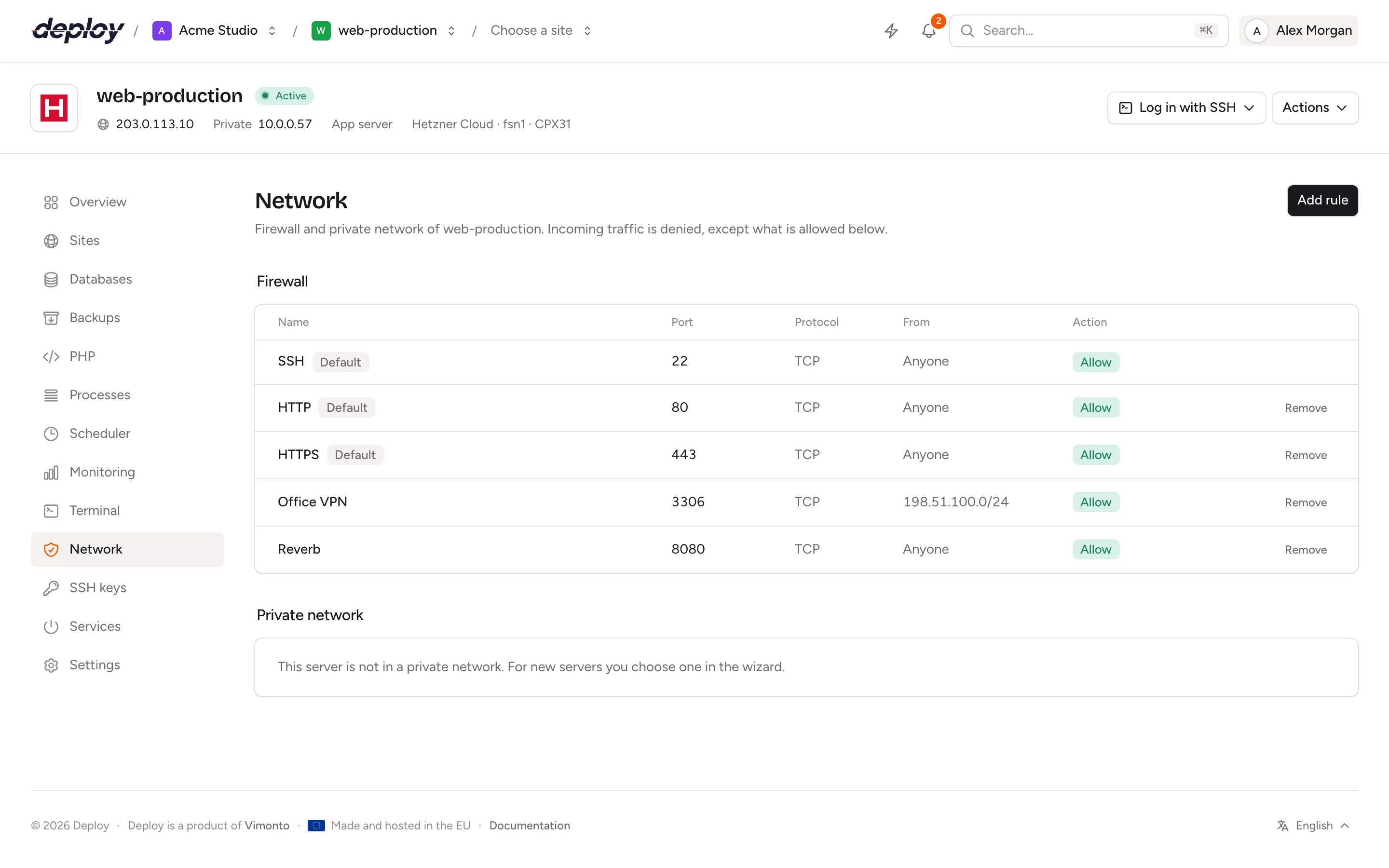
Which rules does a new server have?
Provisioning sets up the firewall with a few rules, marked Default:
| Rule | Port | When |
|---|---|---|
| SSH | the server's SSH port (usually 22) | Every server. |
| HTTP | 80 | Servers with Nginx: app servers, web servers and load balancers. |
| HTTPS | 443 | Servers with Nginx. |
| MySQL, MariaDB or PostgreSQL | 3306 or 5432, only from the private network range | Database servers in a private network. |
| Redis | 6379, only from the private network range | Cache servers in a private network. |
| Memcached | 11211, only from the private network range | Cache servers in a private network. |
| Meilisearch | 7700, only from the private network range | Meilisearch servers in a private network. |
The SSH rule cannot be removed: without SSH, Vimonto Deploy can no longer reach the server. When you change the SSH port in the server settings, the SSH rule moves to the new port. The HTTP and HTTPS rules can be removed, but your sites are then unreachable.
The rules for the private network allow the network's address range, such as 10.0.0.0/16, and nothing else; see servers in a private network. When Vimonto Deploy does not know a private network for the server, for example on a custom VPS, these rules are not added: add a rule for your other servers' addresses yourself. You can remove these rules, but your other servers can then no longer reach the service.
Servers also run fail2ban, which temporarily blocks addresses that keep failing to log in over SSH.
Add a firewall rule
- Open the server and choose Network in the sidebar.
- Click Add rule.
- Fill in the form:
| Field | What it means |
|---|---|
| Name | A name to recognise the rule, such as "MySQL from web servers". |
| Port | One port (3306) or a range (8000:8100). Leave it empty for all ports; the rule then covers every protocol, shown as All. |
| Protocol | TCP, UDP or Both. |
| From | An IP address (203.0.113.10) or a range in CIDR notation (10.0.0.0/16). IPv4 and IPv6 both work. Leave it empty for anyone. |
| Action | Allow or Deny. |
- Click Add rule.
The rule shows as Adding until ufw has it, and then appears in the list with its port, protocol, source and action. If adding it fails, click Retry.
Common rules
| Purpose | Port | Protocol | From | Action |
|---|---|---|---|---|
| MySQL or MariaDB from your web servers | 3306 |
TCP | private network range, such as 10.0.0.0/16 |
Allow |
| PostgreSQL from your web servers | 5432 |
TCP | private network range | Allow |
| Redis from your app servers | 6379 |
TCP | private network range | Allow |
| Everything from your office | empty | Both | your office IP address | Allow |
| Block an abusive address | empty | Both | the address | Deny |
Database, cache and Meilisearch servers in a private network already have the rules for their own ports. Add them yourself for a server without a private network, or to allow other addresses.
How are firewall rules applied?
Each rule becomes a ufw rule, for example:
ufw allow proto tcp from 10.0.0.0/16 to any port 3306
A port range with protocol Both becomes two ufw rules, one for TCP and one for UDP, because ufw only accepts a range together with one protocol. Removing the rule removes both.
ufw checks rules from top to bottom and uses the first one that matches. Allow rules are added at the bottom of the list and Deny rules at the top, so a deny always wins over an allow. To block one address on a port that is open to everyone, such as 443, add a Deny rule for that address and port: everyone else still gets through on the HTTPS rule.
Traffic that matches no rule is denied.
Remove a firewall rule
Click Remove next to a rule and confirm with Remove rule. The traffic this rule allowed or blocked then falls back to the default: incoming traffic is denied.
Rules cannot be edited. To change one, add the new rule first and then remove the old one, so the port is never closed in between.
Private network
When a server is created at a cloud provider in a private network, the Private network section shows the network's name and the server's Private IP address. Other servers in the same network reach this server through its private address, without going over the public internet. You choose the network in the wizard when you create a server; a server that is not in a private network shows that here.
The firewall applies to the private network too. Database, cache and Meilisearch servers already allow their service ports from the network's range. For any other service, add a rule on the receiving server, from the network's range or from each server's private IP address. Connect your sites to the database server's private IP address, as described on the databases page.
Frequently asked questions
How do I open a port on my server?
Open Network, click Add rule, enter the port, choose the protocol, leave From empty to allow anyone or enter an address to allow only that address, and choose Allow.
Does the firewall also block outgoing traffic?
No. ufw is set up to deny incoming traffic and allow all outgoing traffic. The rules on this page apply to incoming traffic only.
I changed the firewall by hand with ufw. Will Vimonto Deploy overwrite it?
Adding or removing a rule on this page only adds or removes that one rule. Rules you add by hand stay, but they do not appear on this page.
Who can change the firewall?
Members with permission to manage servers; see members and roles. Every member can see the rules.