

The Services page of a server shows the system services Vimonto Deploy installed on it, such as Nginx, PHP-FPM, your database and Redis, with their live status. From the same page you can restart, reload, stop or start each service, and restart the whole server.
Use it when a service hangs, after you changed a configuration file by hand, or to check quickly that everything is running. You find it in the server's sidebar under Services, or through Restart services in the Actions menu of the server header.
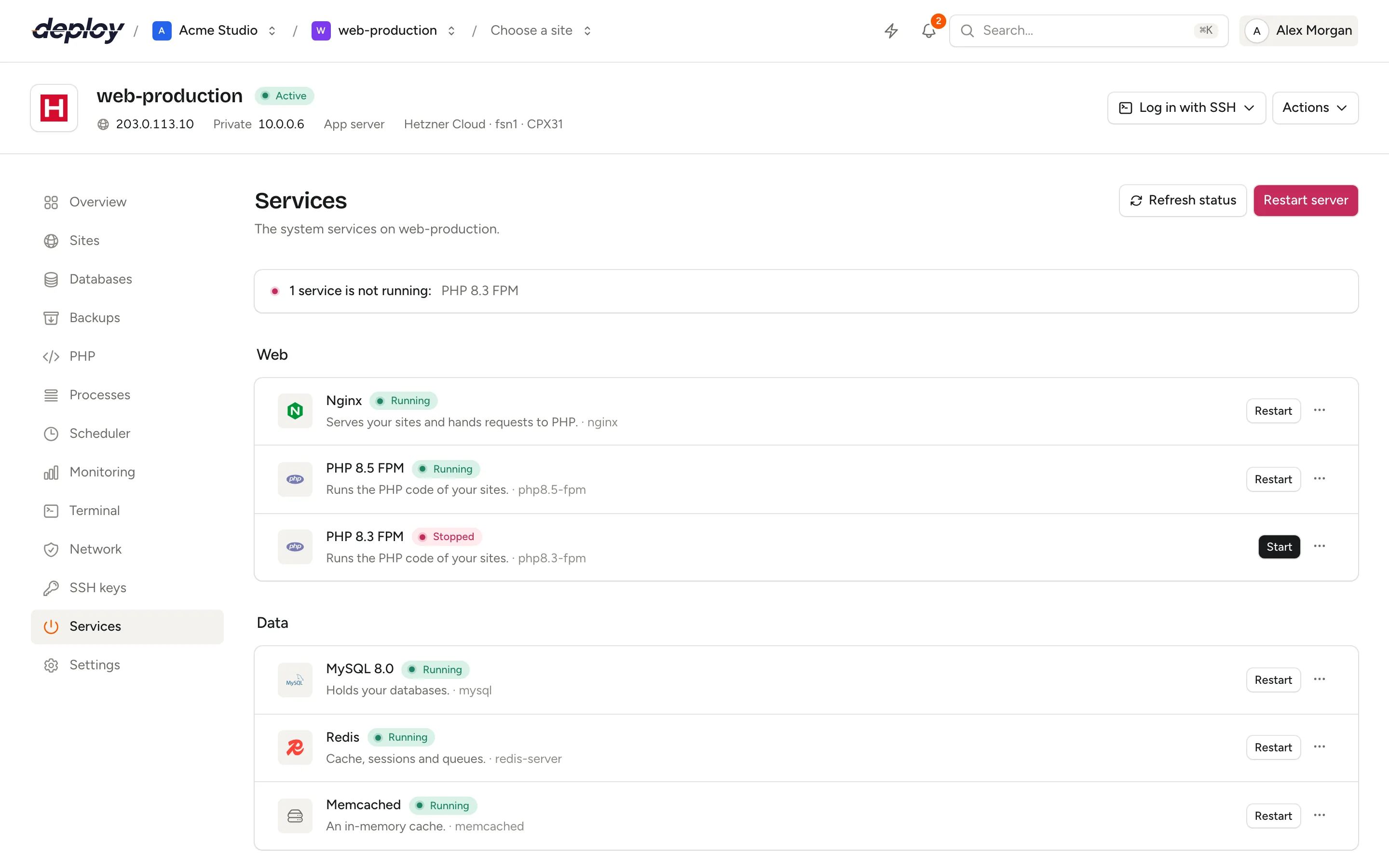
Which services are listed?
The list depends on the server type: Vimonto Deploy lists the services it installs for that type, plus one PHP-FPM row for each PHP version installed on the server.
The page groups them under Web (Nginx and PHP-FPM), Data (the database, Redis, Memcached and Meilisearch) and System (Supervisor, Cron, Fail2ban and SSH). Each row shows the service's name, its status, a short explanation of what it does and its systemd unit. A line above the groups tells you at a glance whether everything runs, for example All 9 services are running., or which services are not running.
| Service | systemd unit | Shown on | Actions |
|---|---|---|---|
| Nginx | nginx |
App, web and load balancer servers | Restart, Reload, Stop, Start |
| PHP x.y FPM | php8.4-fpm (one per version) |
Servers with PHP, for each installed PHP version | Restart, Reload, Stop, Start |
| MySQL, MariaDB or PostgreSQL | mysql, mariadb or postgresql |
Servers with a database | Restart, Stop, Start |
| Redis | redis-server |
App and cache servers | Restart, Stop, Start |
| Memcached | memcached |
App and cache servers | Restart, Stop, Start |
| Meilisearch | meilisearch |
Meilisearch servers | Restart, Stop, Start |
| Supervisor | supervisor |
App, web and worker servers | Restart, Stop, Start |
| Cron | cron |
Every server | Restart |
| Fail2ban | fail2ban |
Every server | Restart |
| SSH | ssh |
Every server | Reload |
The newest PHP version is listed first. The database row is labelled with the engine and version the server was created with, for example MySQL 8.4.
How is the status checked?
When you open the page, Vimonto Deploy connects to the server over SSH and runs systemctl is-active for every service in the list. Until the answer arrives, each row shows Fetching…. Then each service gets one of these statuses:
| Status | Meaning |
|---|---|
| Running | The service is active. |
| Stopped | The service is not running (systemd reports inactive). |
| Failed | The service crashed or could not start. |
| Starting | The service is starting (activating). |
| Stopping | The service is shutting down (deactivating). |
| Reloading | The service is reading its configuration again (reloading). |
| Refreshing | systemd is refreshing the service's mounts or other resources (refreshing). |
| Unknown | systemd reported a state Vimonto Deploy does not know, or none at all. |
Starting, Stopping, Reloading and Refreshing are passing states, shown in the accent colour with a pulsing dot rather than as an error: click Refresh status after a moment to see where the service ended up. Unknown is shown in grey; only Failed and Stopped are red.
The status is read once when the page opens and again after each action. Click Refresh status to read it again at any moment. If the server cannot be reached, an error message appears above the list instead.
Restart, reload, stop or start a service
- Open the server and choose Services in the sidebar.
- Find the service and click the button in its row: Restart for a running service (Reload for SSH), Start for one that is stopped or has failed.
- For the other actions, open the menu (⋯) next to that button and choose Reload, Stop, Start or Restart. The menu only offers what fits the service's state: a running service has no Start, and a stopped one no Stop or Reload. Until the status is known, every action is there.
The action runs as a background task, for example Restart Nginx on web-1, and a notification confirms that the service is restarting. While it runs, the button and menu of that service are disabled. You can follow the task, and read its output, in the server's activity and on the activity page.
After the command, the task waits one second and prints the service's new state, so the task output tells you whether the service came back.
Restart or reload: which one?
- Reload asks the service to read its configuration again without stopping. Open connections stay open. Use it after a configuration change for Nginx, PHP-FPM or SSH.
- Restart stops the service and starts it again. Use it when a service hangs or a reload is not enough.
If a service cannot reload, Vimonto Deploy restarts it instead.
Restart the whole server
Click Restart server at the top of the page and confirm. The server reboots: it is unreachable for a minute or two, and sites and processes start again by themselves afterwards. The reboot is recorded as a task named Restart followed by the server's name.
A restart is useful after kernel or system updates, or when a server no longer responds properly. It does not change anything on the server.
Who can manage services?
Every member of the organization can see the Services page and the status of each service. Restarting, reloading, stopping or starting a service and restarting the server need the permission to manage servers, which the owner, administrator, manager and developer roles have. Viewers only see the status. See members and roles.
The buttons only appear while the server is active. During provisioning, or when the server is disconnected, you cannot change services.
Frequently asked questions
Do I need to restart PHP-FPM after a deploy?
No. When a deploy makes a new release live, Vimonto Deploy reloads the site's PHP-FPM version for you, so the new code is served straight away and OPcache is refreshed. See deployments. Use Reload here only when you changed PHP settings by hand.
A service shows Failed. What now?
Click Restart for that service and read the task output. If it fails again, look at the logs: open the terminal and run journalctl -u nginx -n 50 (with the unit name from the list), or check the site logs for Nginx and PHP-FPM errors.
Why is a service I installed myself not listed?
The page only lists the services Vimonto Deploy installs and manages. Manage other services with systemctl in the terminal, or run your own programs as processes.
Why are there no buttons next to the services?
The buttons only appear when your role may manage servers and the server is active. Viewers see only the status, and so does everyone while a server is being provisioned or is disconnected.