

The Domains and SSL page of a site manages the names your site answers to and the certificates it uses for HTTPS. A site has one primary domain, can have any number of aliases, and can also be reached on a free generated address on on-deploy.link.
When a connected integration manages the domain's DNS, Vimonto Deploy can create the DNS records for you and request HTTPS by itself. For HTTPS, request a free Let's Encrypt certificate in a few clicks; it renews automatically. You can also install a certificate you bought, or create a certificate signing request for your certificate authority.
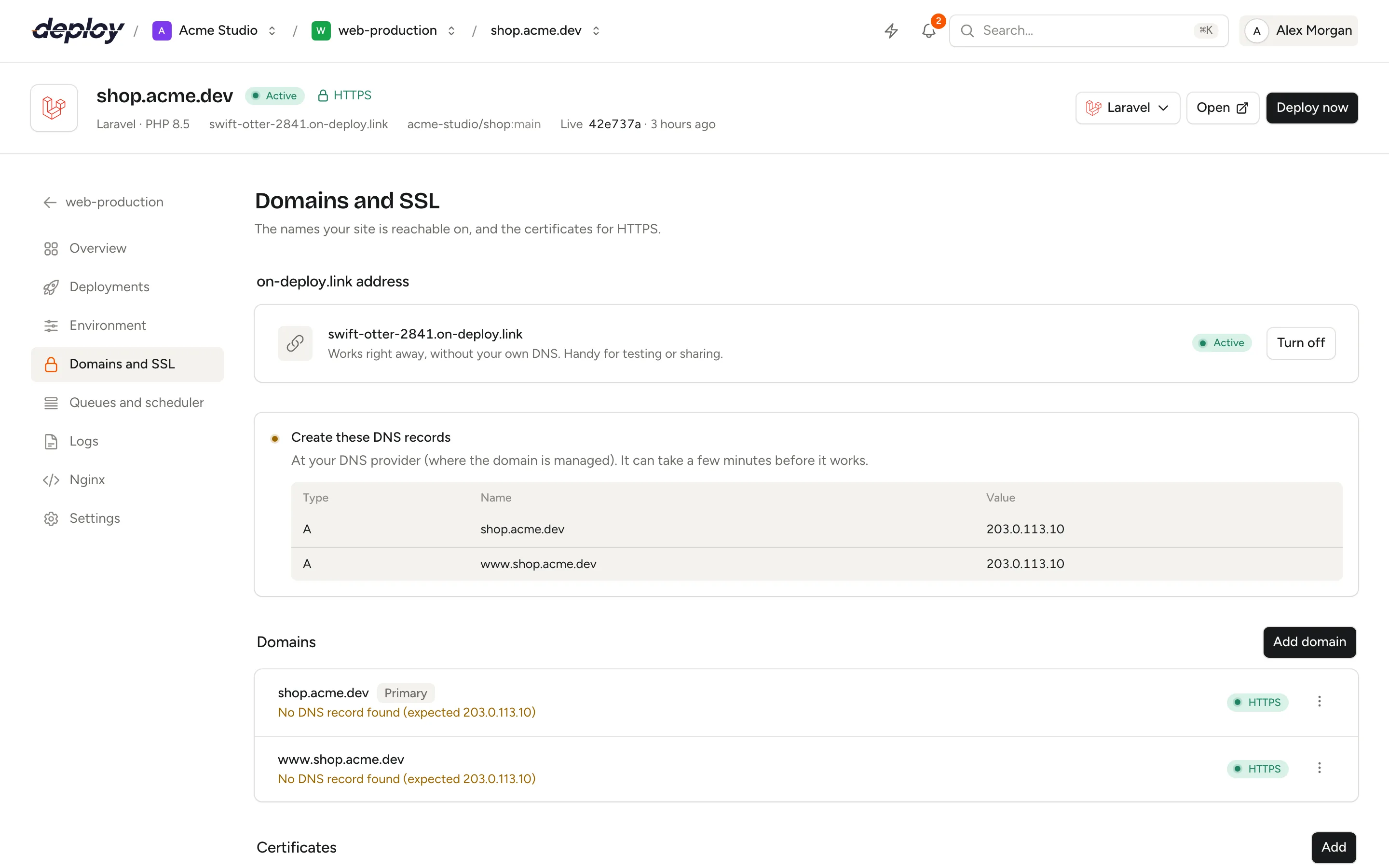
The generated on-deploy.link address
Every site can have an address such as kalme-rivier-4821.on-deploy.link. Vimonto Deploy creates its DNS record for you, so it works right away without any DNS of your own: handy for testing a site before it goes live, or for sharing a preview.
The address is chosen when you create the site. A site created on this address gets HTTPS by itself: as the last step of its setup, Vimonto Deploy waits until the new DNS record points to the server and then requests a Let's Encrypt certificate for it. A site created with a domain of its own skips this step. If you let a DNS integration point that domain, it gets HTTPS the same way once its records resolve (see below); otherwise request its certificate yourself once the DNS points to the server, as described below.
On the Domains and SSL page, under on-deploy.link address, you can:
- Turn off the address. The site is then only reachable on its own domains, and the DNS record is deleted.
- Turn on an address again for a site that has none. A new address gets a different name.
A site whose only name is the generated address cannot turn it off: add a domain of your own first, so the site always keeps at least one name.
Add a domain
- Click Add domain.
- Type the Domain, for example
shop.example.com. - Choose the Wildcards and Redirects options (see below).
- Optionally switch on Use as primary domain.
- Under DNS, choose how the domain gets its DNS records, if you have DNS integrations (see below).
- Click Add domain.
The first domain of your own becomes the primary domain, replacing the generated address (which keeps working alongside it). Later domains become aliases, unless you switch on Use as primary domain; the previous primary domain then stays as an alias.
After you add a domain, Vimonto Deploy rewrites the site's Nginx configuration, checks it with nginx -t and reloads Nginx. If you manage the DNS yourself, the Set up dialog then opens with the DNS records to create. If a DNS integration points the domain, a task does that instead.
Wildcards
- Off: only the domain itself, such as
shop.example.com. - On: all subdomains too, such as
blog.shop.example.com. Nginx then also answers to*.shop.example.com.
Redirects between www and the bare domain
| Option | What happens |
|---|---|
| Redirect from www. (recommended) | www.example.com sends visitors to example.com. |
| Redirect to www. | example.com sends visitors to www.example.com, which serves the site. |
| No redirect | Only the domain itself; www. is not included. |
Redirects are permanent (301) and keep the path and query string. You can change these options later with Edit in the domain's menu.
Change the primary domain or remove a domain
Each domain's menu has:
- Show setup steps: the DNS records and HTTPS status of that domain.
- Edit: change the wildcard and redirect options.
- Make primary: make an alias the primary domain.
- Delete: stop answering on the domain. When you remove the primary domain, the first alias takes over, or else the generated address. DNS records that Vimonto Deploy made for the domain at a connected account are removed with it, and the confirmation lists them; other records you remove at your DNS provider yourself.
The primary domain is the one shown in the site header and used for the site's links. The site's directory on the server does not change when the primary domain does.
Point your domain to the server with DNS
A domain only reaches your site once its DNS points to your server. Create the records at your DNS provider (where the domain is managed):
| Type | Name | Value | When |
|---|---|---|---|
| A | shop.example.com |
the server's IP address | always |
| CNAME | www.shop.example.com |
shop.example.com |
with a www. redirect |
| A | *.shop.example.com |
the server's IP address | with wildcards on |
The Set up dialog lists exactly these records for a domain, with Points here or Not yet for each, and you can click a name or value to copy it. Domains whose DNS does not point to the server yet are listed in a warning above the domains, and each domain row says Points to this server or where it points instead. DNS changes can take a few minutes to arrive.
Domains behind a load balancer
With load balancing, the domain points to the load balancer, not to the app servers. Add the domain to the site on the load balancer and to the site on each app server, but create the DNS records for the load balancer's IP address, and turn on HTTPS on the load balancer. On the app servers, the domain then shows as pointing elsewhere; that is expected.
Point your domain automatically with a DNS integration
When one of your connected cloud or DNS accounts (Hetzner Cloud, DigitalOcean, Vultr, Akamai, AWS Route 53, Google Cloud DNS or Cloudflare) manages the domain's zone, Vimonto Deploy can create the records for you. Connect the account under Settings → Integrations; the account card shows which domains it manages.
When you have DNS integrations, the hint under Domain says "We look the domain up at your DNS providers and set its records automatically." As you type, Vimonto Deploy fetches the domain lists of your accounts live, so a domain you just added at a provider is found too, and a DNS box shows whether an integration manages it. If one does, choose:
- Point it automatically with … (the account and the zone, for example
Hetzner Cloud (example.com)): Vimonto Deploy makes the records. This is chosen by default. - I manage the DNS myself: nothing changes at the DNS provider; create the records yourself as described above.
If no integration manages the domain, the box says so and you create the records yourself, or add the domain to one of your DNS providers (see below).
Add the domain to a DNS provider
When none of your accounts has the domain yet, but you have DNS integrations, the box offers Add the domain to a DNS provider. Switch it on and choose:
- Provider: the connected account to add it to (Hetzner Cloud, DigitalOcean, Vultr, Akamai, AWS, Google Cloud or Cloudflare).
- Zone: the domain to create there. It defaults to the domain without its subdomain, such as
example.comforshop.example.com; it must be the domain itself or a domain it ends with.
The box then shows the records it will make, all New. When you click Add domain, the task first adds the zone at the provider (Add … to …), then creates the records, and lists in its output the nameservers to set for the zone at your registrar. Until you change the nameservers at your registrar, the provider does not answer for the domain; HTTPS follows once the DNS resolves.
Check the plan before anything changes
With Point it automatically, the box lists every record the domain needs, with what will happen to it:
| Label | Meaning |
|---|---|
| New | The record does not exist yet and is created. |
| Already right | The record already points to this server; nothing changes. |
| Changes | A record exists and is changed, or something is removed to make room. |
The records are the same as when you do it by hand: an A record for the domain to the server's IPv4 address, www. as a CNAME to the domain when a www redirect is on, and an A record for *. with wildcards on. Under a record that changes, the box warns you about what it means:
- what the name points to now, which stops (for example a site at another host);
- an AAAA record that is removed, because IPv6 visitors would otherwise go to the old address;
- a conflicting record that is removed to make room, such as a CNAME on the same name;
- at Cloudflare, that the proxy is switched off for this name, so HTTPS and visitor addresses work.
When existing records change, tick Change these records before you click Add domain. Without it, nothing is saved. Vimonto Deploy checks the records again when you click, so the plan it applies is the one you saw.
What happens next
A task, Pointing … to …, runs on the activity page:
- Update DNS at …: the records are created or changed exactly as the plan showed. Records at Cloudflare are created DNS only (not proxied).
- Request HTTPS: a Let's Encrypt certificate is requested for the new domain (and the names already on the active certificate). That task first waits until the name resolves to the server, for at most 10 minutes, then requests the certificate and switches the site to HTTPS.
Wildcard names are not put on the certificate, because Let's Encrypt only issues them with a DNS challenge. If the name does not resolve within 10 minutes, the certificate task fails with a message; the records are in place, so request a certificate later under Certificates.
Which records does Vimonto Deploy remove?
Vimonto Deploy remembers every DNS record it makes at a connected account, with the site, the domain and what it is for: the domain, www., a wildcard, or the WebSocket address of Reverb. It only ever removes those:
- Delete a domain: exactly the records made for that domain go. The confirmation lists them.
- Delete the site: all its records go, in a Remove DNS records step. See site settings.
- Switch Reverb off: its WebSocket record goes.
A record that already points elsewhere and that Vimonto Deploy did not make is never overwritten by a feature such as Reverb: the task tells you to change it yourself. Only adding a domain changes existing records, after you tick Change these records.
Turn on HTTPS with a free Let's Encrypt certificate
- Make sure your domains point to the server.
- Under Certificates, click Add, choose Let's Encrypt and click Continue.
- Check the domains to include. Each shows whether it points to this server.
- Click Request.
Vimonto Deploy installs certbot if needed and requests the certificate with the webroot challenge: Let's Encrypt fetches a file over http:// from /.well-known/acme-challenge/, which every site serves from /var/www/letsencrypt. Nothing has to stop, and password protection does not block the challenge.
Once the certificate is issued, the site switches to HTTPS:
- Nginx listens on port 443 with HTTP/2, TLS 1.2 and 1.3, and sends a
Strict-Transport-Securityheader. - Plain
http://requests are redirected tohttps://. - The site header shows HTTPS, and each domain on the certificate shows HTTPS in the list.
Let's Encrypt certificates show renews automatically. certbot's timer on the server renews them before they expire and reloads Nginx.
After adding a domain
A certificate covers the names it was issued for. When you add a domain to a site that already has HTTPS, Vimonto Deploy reminds you with Request a new certificate: request a new Let's Encrypt certificate that includes the new name, and it replaces the old one as the active certificate.
Use your own certificate
Click Add under Certificates and choose one of these:
- Existing certificate: paste the Certificate in PEM format, followed by the intermediate certificates, and its Private key. Vimonto Deploy checks that the key belongs to the certificate before Nginx uses it, and reads the domains and expiry date from the certificate.
- Certificate signing request (CSR): choose the domains and fill in the country, state or province, city, organization and department. Vimonto Deploy creates a private key (kept encrypted) and a request to submit to your certificate authority. Once it is signed, choose Install signed certificate in the certificate's menu and paste it.
- Clone certificate: use a certificate uploaded for another site in your organization, for example a wildcard certificate shared by several sites. Let's Encrypt certificates cannot be cloned.
Uploaded certificates show valid until and their expiry date. They do not renew: install a new one before that date.
One active certificate per site
A site can hold several certificates, but Nginx serves exactly one: the active one, marked Active. A new certificate becomes active as soon as it is installed. In a certificate's menu you can:
- Use an installed certificate that is not active.
- Turn off HTTPS: the site goes back to
http://. The certificate stays, so you can turn HTTPS on again later. - Delete the certificate. Deleting the active one also turns HTTPS off.
If the site has a custom Nginx configuration, the certificate is installed but not added to the configuration: the task log tells you the file paths to add yourself.
Frequently asked questions
Is SSL free?
Yes. Let's Encrypt certificates are free and renew automatically. Vimonto Deploy does not charge for them.
How long does it take before my domain works?
The Nginx change takes seconds. DNS changes at your provider usually arrive within minutes, sometimes longer. The Set up dialog shows when each record points to your server. With a DNS integration, Vimonto Deploy waits up to 10 minutes for the records and then turns on HTTPS by itself.
Can Vimonto Deploy create my DNS records?
Yes, when the domain is managed by a connected Hetzner Cloud, DigitalOcean, Vultr, Akamai, AWS, Google Cloud or Cloudflare account. Connect it under integrations, then add the domain and choose Point it automatically with …. Domains at other DNS providers you point yourself.
Can I use the on-deploy.link address with HTTPS?
Yes. A site created on its generated address gets a Let's Encrypt certificate automatically during setup. Otherwise the generated address is one of the site's names, so it is listed when you request a Let's Encrypt certificate, and its DNS record already points to your server.
What if the automatic certificate fails?
The site keeps working over http://, and you get a notification that the certificate failed. Request one again under Certificates with Add and Let's Encrypt.
Why does a domain show "HTTP only"?
The domain is not on the active certificate yet. Request a new certificate that includes it.
Can I serve several domains from one site?
Yes. Add each one as an alias; Nginx serves the site on all of them, with each domain's own wildcard and www. options. Put them all on one certificate.