

Vimonto Deploy is organized around a few building blocks: an organization holds servers, each server holds sites, and sites are updated through deployments. Everything that takes time, such as provisioning a server or deploying a site, runs as a background task that the whole team can follow. This page explains each concept in a few paragraphs, with links to the detailed pages.
Organization
An organization is the workspace in which everything happens. It owns the servers, sites, provider connections, SSH keys, teams and recipes, and it is the unit you pay for: each organization has its own plan, Free or Premium. Its address is part of every URL, for example /acme/servers.
Every account starts with an organization of its own, and you can create or join as many as you like. Switch between them with the organization menu at the top left. See organizations.
Members and roles
People join an organization as members, by invitation. Every member can see everything in the organization, unless their access is limited to the servers of their teams (see below). What a member may change depends on their role:
- Owner: everything, including deleting the organization and appointing owners.
- Administrator: everything except managing owners and deleting the organization.
- Manager: manages servers, sites, teams and SSH keys, but not members, connections, billing or organization settings.
- Developer: full access to servers and sites, but can't create or delete servers.
- Viewer: sees everything, changes nothing.
The exact permissions per role are in members and roles.
Teams
A team groups members with the servers they work on, for example one team per client or project. Owners, administrators and managers can then limit a member to Only their teams' servers: that member sees only those servers, with their sites, tasks and audit log entries, and gets notifications only about them. Owners and administrators always see every server. See teams.
Connections
Connections are accounts at other services that the organization uses. You connect them on one page, integrations, and one login is used for everything it can do:
- Cloud and DNS: Hetzner Cloud, DigitalOcean, Vultr, Akamai (Linode), Amazon Web Services and Google Cloud, to create servers and manage DNS; Cloudflare for DNS only.
- Git: GitHub, GitLab and Bitbucket, to deploy code.
- Backup storage: S3-compatible object storage, for database backups.
- SSH keys: public keys that are added to every new server of the organization.
Server
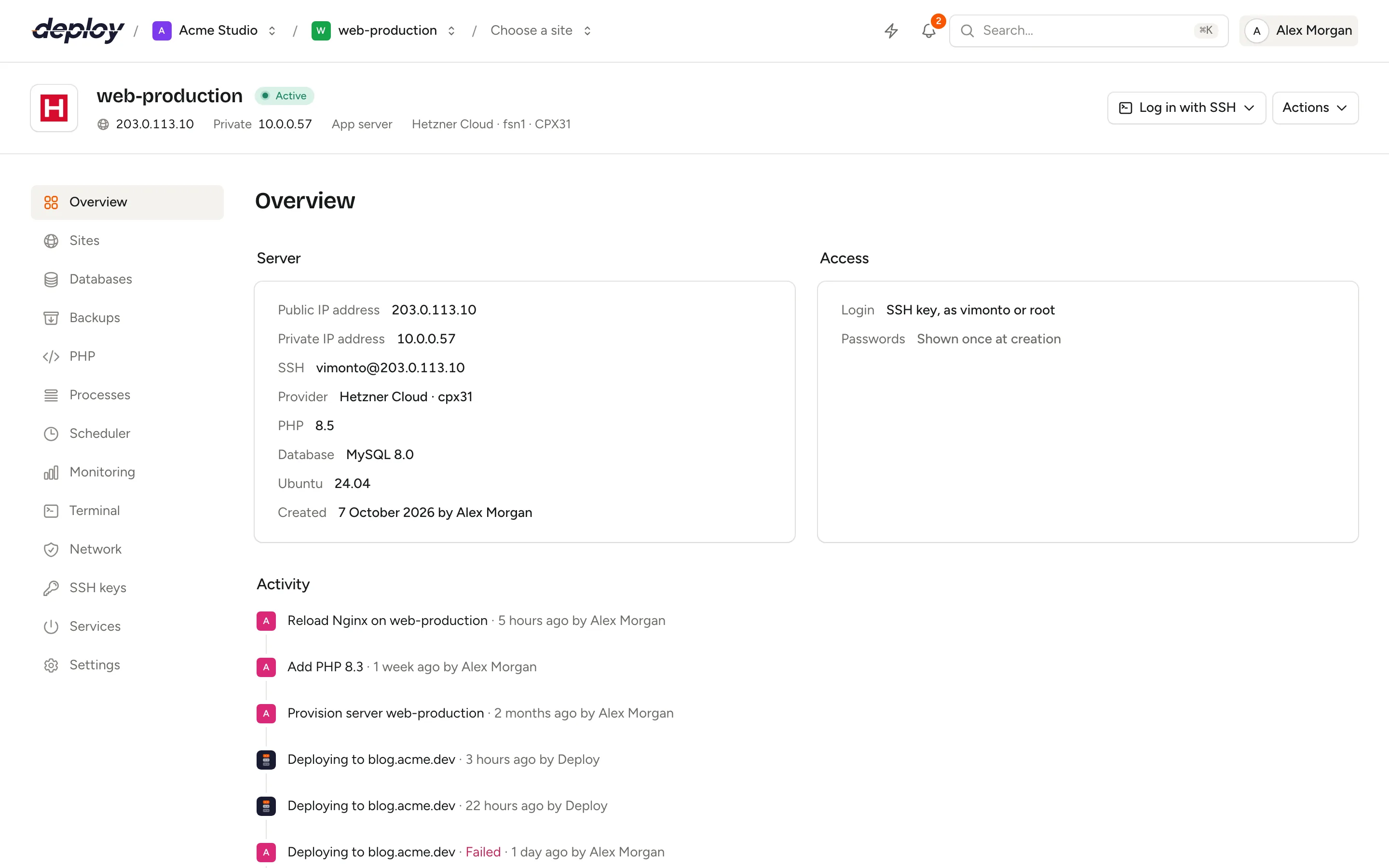
A server is a Linux machine that Vimonto Deploy manages over SSH. It is either created for you at a connected cloud provider, or it is a custom VPS: any server with a clean Ubuntu 24.04 that you connect with one command. Every server gets its own SSH key pair, its own sudo and database passwords and a system user that owns the sites.
A server goes through these statuses:
| Status | Meaning |
|---|---|
| Creating | The server is being created at the provider. |
| Waiting for connection | A custom server waits for you to run the connect command on it. |
| Provisioning | Software is being installed and configured. |
| Active | The server is ready to use. |
| Failed | Creating or provisioning stopped with an error. |
| Disconnected | The server was active, but Vimonto Deploy can no longer connect to it over SSH. |
| Deleting | The server is being removed. |
See create a server and provisioning.
Server type
The server type decides what is installed and which pages the server shows:
| Type | What it runs |
|---|---|
| App server | Nginx, PHP, a database, Redis, Memcached and Node.js on one machine. Right for most applications. |
| Web server | Nginx, PHP and Node.js, without a database or cache. |
| Worker server | PHP and Supervisor for queue workers; not reachable over HTTP. |
| Database server | Only MySQL, MariaDB or PostgreSQL. |
| Cache server | Only Redis and Memcached. |
| Meilisearch server | A Meilisearch search engine, reachable over the private network. |
| Load balancer | Only Nginx, to spread traffic across web servers. |
See server types.
Server resources and their status
Things that live on a server, such as databases, database users, firewall rules, PHP versions, processes, scheduled jobs and SSH keys, are resources. When you add or change one, Vimonto Deploy applies it on the server in the background, and the resource shows its state:
| Status | Meaning |
|---|---|
| Adding | It is being installed on the server. |
| Updating | A change is being applied. |
| Active | It is on the server and working. |
| Failed | Applying it failed. A Retry button runs it again; every step is safe to repeat. |
| Removing | It is being removed from the server. |
| Waiting | It waits for something from outside, such as a certificate that still has to be signed. |
Site
A site is a website or application on a server, with its own domain, Nginx configuration, environment file and deployments. You create a site from a framework preset (Laravel, Symfony, Statamic, WordPress, phpMyAdmin, PHP, Next.js, Nuxt, HTML or Other), which sets sensible defaults for its web directory, build steps and deploy script.
The Sites tab in the top navigation lists every site of the organization, on all its servers, with when it was last deployed.
Sites live in the home directory of the server's user, in a directory that is fixed when the site is created, so you can change the domain later without moving files. A site can be isolated: it then runs under its own Linux user and, for PHP, its own PHP-FPM pool, so one site cannot read another's files. See create a site.
Deployment
A deployment puts a new version of your code live. By default deployments have zero downtime: Vimonto Deploy fetches the code into a new release directory, runs your deploy script there and only then switches the site over to the new release in one step. If any step fails, the release is discarded and the live site does not change. Earlier releases are kept, so you can roll back.
A deployment starts with Deploy now, on every push when Quick deploy is on, or through the site's deploy URL. See deployments.
Background tasks and activity
Everything that takes longer than a moment runs as a background task: creating and provisioning a server, deploying, installing a certificate, running a recipe, applying a firewall rule. A task shows its status (Queued, Running, Succeeded, Failed or Cancelled), its steps, its progress and its output.
All tasks of the organization are listed on the Activity page, and the activity button in the top bar shows what is running right now. The person who started a task gets a message when it ends. The same kind of task can't run twice at once on the same server or site. See activity.
Audit log and notifications
The audit log records what people change in the organization: who created, changed or removed a server, site, database, member or team, who deployed, opened a terminal or viewed an environment file, and when. Entries are kept for a year. See audit log.
Notifications tell you about things that happen without you, such as a failed deploy or backup, a monitor alert or a server that is ready. They appear under the bell in the top bar and, if you want, by email. Each person chooses which ones they get. See notifications.
Live updates
Pages in Vimonto Deploy update themselves. When a task makes progress, a teammate changes something or a server reports new metrics, the pages that show it refresh without reloading. You don't need to press refresh to see whether a deploy has finished.
Frequently asked questions
What is the difference between an organization and a server?
An organization is your workspace and billing unit; it holds members, teams, connections and any number of servers. A server is one machine inside that organization.
Can I move a server to another organization?
Yes. Anyone who may delete the server can offer it to someone else by email, who accepts it into one of their own organizations. See transfer a server.
Can one server host several sites?
Yes. An app server or web server can host as many sites as it has room for, each with its own domain, PHP version and deployments.
Can a site run on more than one server?
A site belongs to one server. To run an application on several servers, create a site for the same domain on each app or web server and put a load balancer server in front of them, which passes the traffic on. See load balancing.